GitLab Connector for Jira
Overview
GitLab Connector for Jira integrates commits pushed to GitLab directly into Jira issues using GitLab project webhooks. It parses every git push for Jira issue keys, then automatically updates the referenced issues with comments, activities, worklogs, or workflow transitions.
| Item | Details |
|---|---|
| Latest version | 4.0 |
| Hosting | Jira Data Center 11.0.0 – 11.3.3 (Server/DC only, not Cloud) |
| GitLab support | gitlab.com and self-hosted, via GitLab API v4 |
| Vendor | Votazz |
| Marketplace | View on Atlassian Marketplace |
What it does
- Parses commit messages for Jira issue keys (e.g.
PROJ-123) and links the commits to those issues. - Adds commit information to each linked issue as either a Jira comment or an Activity Stream entry.
- Logs work when a commit message contains a time hint (worklogs).
- Transitions issues automatically — any workflow action can be triggered from a commit message, not just "close".
- References multiple issues in a single commit message.
- Restricts visibility of generated comments and worklogs to specific Jira project roles if needed.
- AI commit summaries (optional) via OpenAI or a self-hosted Enterprise AI endpoint.
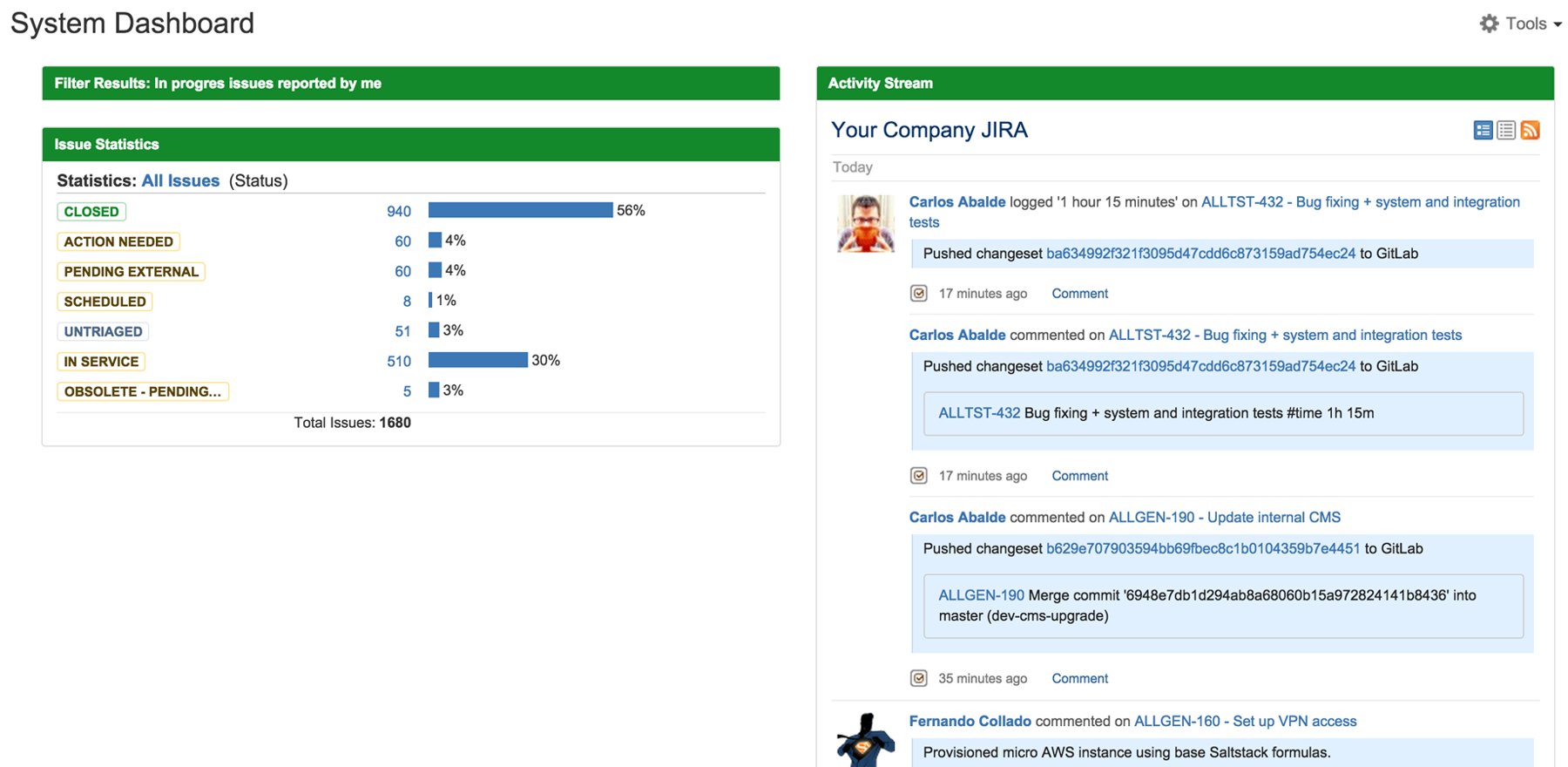
Once installed, every push to a connected GitLab project shows up inside Jira — right in the Activity Stream of the linked issues:
Installation
- In Jira, go to Administration (⚙) → Apps → Find new apps.
- Search for GitLab Connector for Jira and click Install.
- Accept the license (a 30-day Data Center trial is available).
- Once the app is installed, open Administration → Apps → GitLab Connector settings, or go directly to
/plugins/servlet/gitlab/listener/settings.
Requirements: Jira 11.0.0 – 11.3.3 Data Center, Java 21, and a GitLab instance (gitlab.com or self-hosted) you can administer.
Configuration
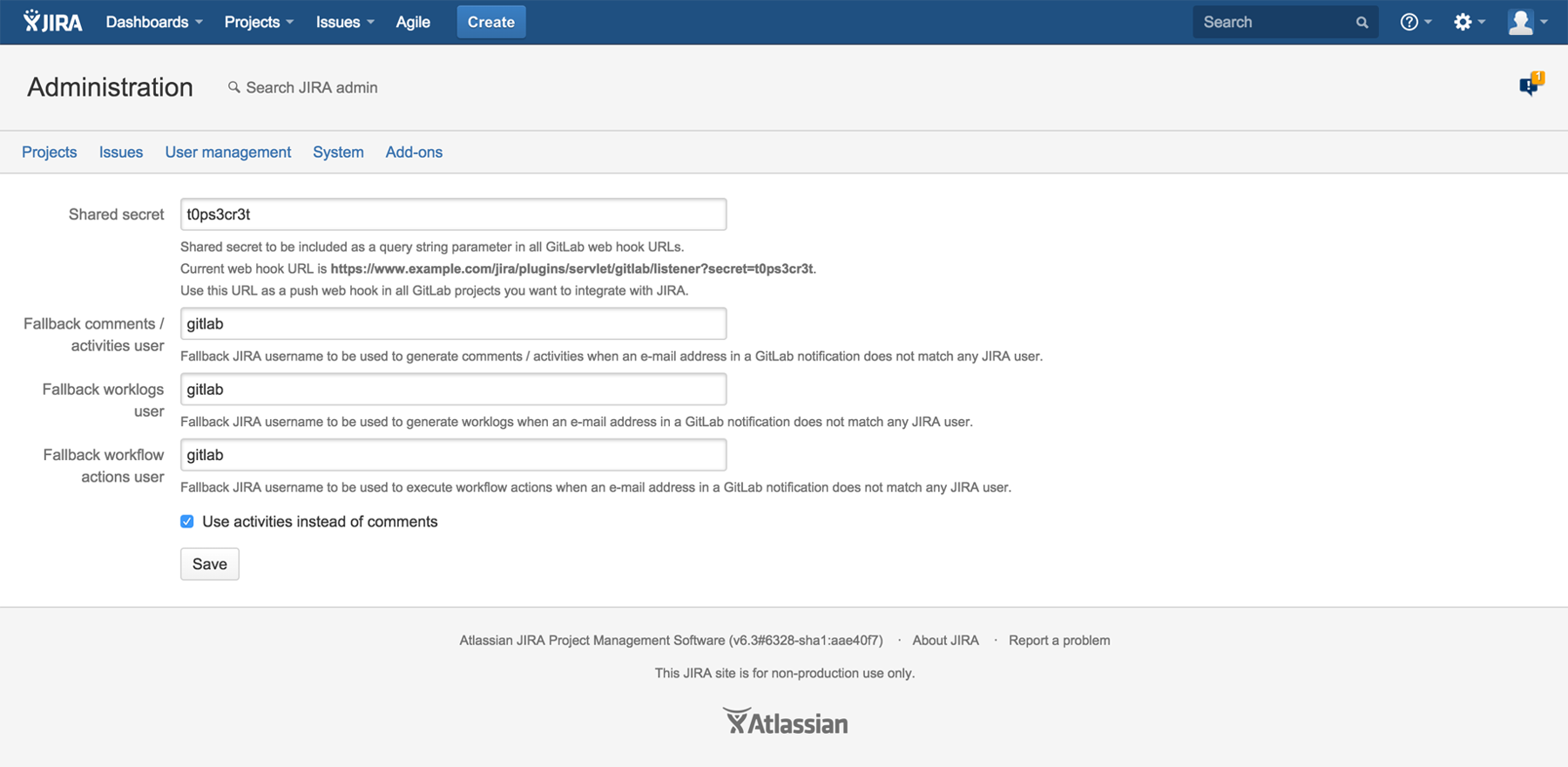
All settings are global and live at Administration → Apps → GitLab Connector settings. System Administrator permission is required.
1. Shared secret
Set a strong shared secret — this is used to authenticate incoming GitLab webhooks. You can later reference it either via a URL query parameter or the X-Gitlab-Token header when configuring GitLab.
An empty secret disables webhook authentication. Always set a non-empty secret in production.
2. Users mapping
GitLab commits carry author email addresses. If your Jira usernames don't match those emails, provide a mapping in the following format, one pair per line:
alice@example.com=alice.smith
bob@example.com=b.jones
Any commit author whose email is not listed will fall back to the users you configure below.
3. Fallback users
Pick the Jira users the app should act as when the real commit author cannot be resolved, cannot comment on an issue, or cannot run a workflow transition:
- Comments fallback user — used when creating comments or activities.
- Worklogs fallback user — used when creating worklogs.
- Workflow actions fallback user — used when transitioning issues.
These users should have the relevant permissions on the projects you expect commits to touch.
4. Comments vs activities
Choose whether commits become Jira comments (visible in the Comments tab) or entries in the Activity Stream. Comments are more discoverable; activities are less intrusive for busy issues.
5. Project role visibility (optional)
You can restrict comments or worklogs so they are visible only to members of a specific project role. Useful when commits contain sensitive technical details.
6. Short hash length
Set the length of the commit hash that will be included in generated messages (default 7 characters).
7. Global issue search (optional)
When enabled, the app looks for Jira issue keys anywhere in a commit message, including informal references. When disabled, it only matches keys that match the configured Jira project key pattern.
Set up the GitLab webhook
For every GitLab project whose commits should reach Jira, add a project webhook:
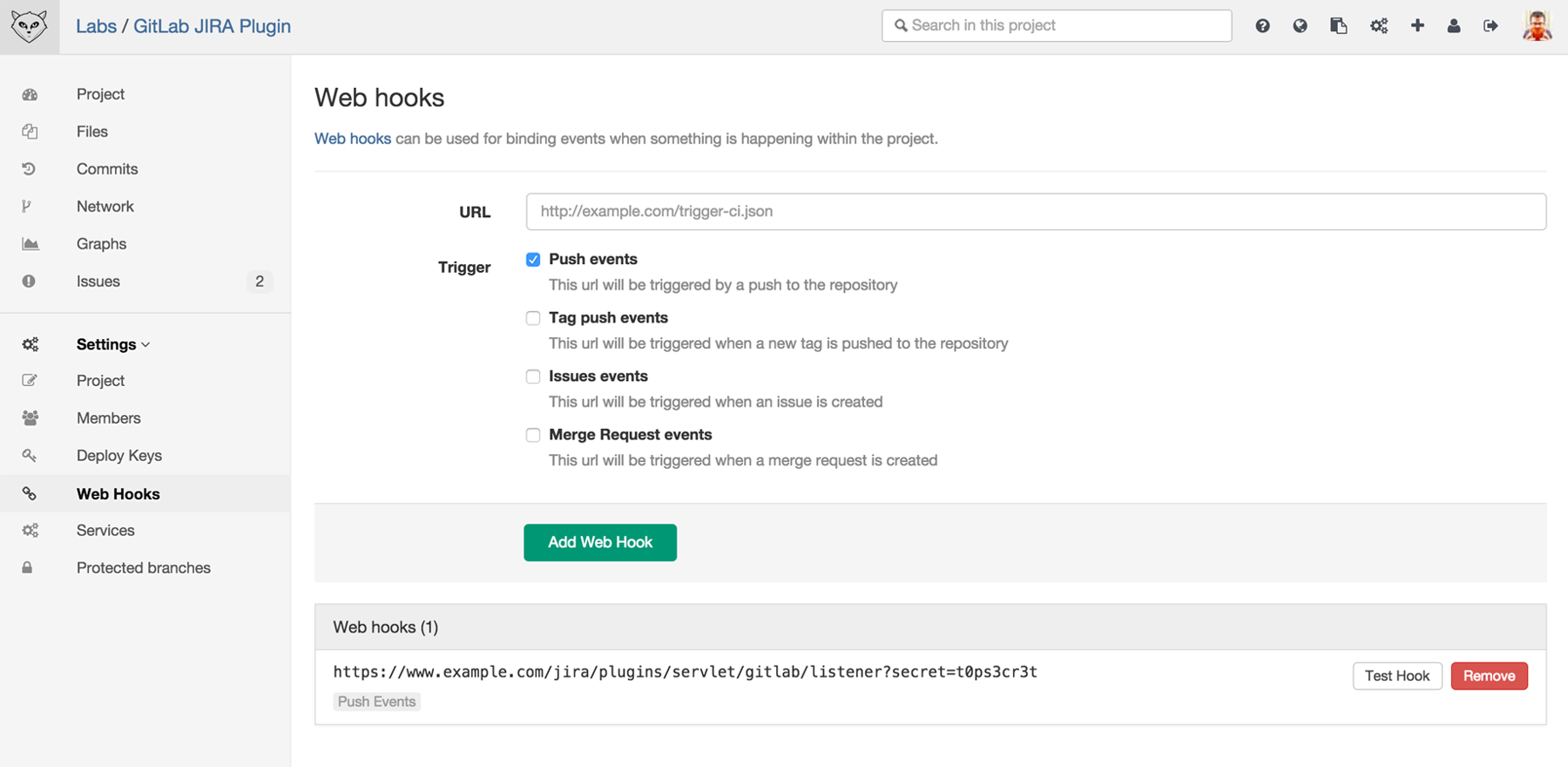
- In GitLab, open the project and go to Settings → Webhooks.
- Set the URL to:
https://<your-jira-host>/plugins/servlet/gitlab/listener?secret=<your-shared-secret>
Or leave thesecretquery parameter off and instead paste the secret into GitLab's Secret Token field — the plugin accepts either. - Under Trigger, enable Push events only. The plugin currently processes push events; other GitLab events are ignored.
- Leave SSL verification enabled (recommended for production).
- Click Add webhook, then click Test → Push events. GitLab will show the response code from Jira.
You can copy the exact webhook URL from the GitLab Connector settings page in Jira.
Writing commits that update Jira
The plugin reacts to commit messages when the push webhook fires. Mention one or more Jira issue keys to have the commit recorded on those issues.
Reference an issue
PROJ-123 Fix login redirect after SSO
The commit will be posted to PROJ-123 as a comment or activity, depending on your settings.
Reference multiple issues
PROJ-123 PROJ-124 refactor auth middleware
Both issues get the commit.
Transition an issue
You can run any workflow transition for the referenced issue by naming it in the commit message. Example if your workflow has a "Close Issue" transition:
PROJ-123 #close Done — deployed to staging
Anything after #<transition name> becomes the comment body. Transition names are matched case-insensitively and must be available in the issue's current workflow state.
Log work
Add a time hint to create a worklog on the referenced issue:
PROJ-123 #time 2h 15m Fix login edge case
Combine them
PROJ-123 #time 1h #close Ready for QA
AI commit summaries (optional)
The app can generate a short, human-readable summary of the commit diff and attach it to the Jira comment or activity. Two backends are supported.
OpenAI
- Enable OpenAI commit summaries in the settings page.
- Provide an OpenAI API token and select a model (GPT-4 Turbo or GPT-3.5 Turbo).
- Provide a GitLab API token with the
read_apiscope — the plugin uses it to fetch the diff of each commit from GitLab. - (Optional) Configure an outbound HTTP proxy if your Jira server cannot reach OpenAI directly.
Enterprise AI (self-hosted)
If your organisation hosts its own AI endpoint, use the Enterprise AI section:
- Enable Enterprise AI summaries.
- Provide the HTTP endpoint URL, method (GET or POST), optional headers, and a body template. Use
{diff}as the placeholder — the plugin substitutes the commit diff at that position.
When AI summaries are enabled, every commit triggers two HTTP calls (GitLab API + AI endpoint). For very large pushes this can add noticeable latency.
REST API
The plugin exposes a small REST endpoint for reading and updating its configuration. Only Jira system administrators may call it.
| Method | Path | Purpose |
|---|---|---|
| GET | /rest/gitlab-listener-settings/1.0/ | Fetch the current settings as JSON |
| PUT | /rest/gitlab-listener-settings/1.0/ | Update settings with a JSON payload (validated server-side) |
Use the GET response as a template for PUT — it contains every known field with its current value, including users mapping, fallback users, OpenAI/Enterprise AI configuration, and proxy settings.
Troubleshooting
The webhook test from GitLab fails
- Confirm the webhook URL includes the correct Jira base URL and shared secret.
- Check that the Jira server is reachable from GitLab (network, TLS, reverse proxy).
- Open Jira's atlassian-jira.log and look for
GitlabListenerentries for the incoming request.
Commits arrive but no issue is updated
- Make sure the commit message contains a valid Jira issue key that still exists.
- If Global issue search is disabled, the key must match your Jira project key pattern exactly.
- Check that the resolved author (or the configured fallback user) has the Comment / Log Work / Transition permissions on the project.
AI summaries are missing or empty
- OpenAI requires both the OpenAI API token and the GitLab API token — one without the other causes silent failures.
- If you use a proxy, make sure it is enabled and reachable from Jira.
- For Enterprise AI, verify that the endpoint URL, method, and body template are valid and that the
{diff}placeholder is present.
Same commit appears twice
The plugin deduplicates commits by hash, so this usually means the commit was pushed under two different hashes (e.g. after a force-push or rebase). Each unique commit hash is processed once.
Enable debug logging
To capture more detail in atlassian-jira.log, add the following logger at System → Logging and profiling:
com.allenta.jira.plugins.gitlab — DEBUG
FAQs
Does this app work with Jira Cloud?
No. The app supports Jira Data Center 11.0.0 – 11.3.3 only.
What GitLab events are supported?
Only Push events. Merge requests, pipelines, tags, and GitLab issues are not currently processed.
Do I need a separate GitLab API token?
Only if you plan to use AI commit summaries. For the basic comment / activity / worklog / transition flows, the GitLab project webhook is enough.
Can I restrict who sees the generated comments?
Yes — in the settings page you can pick a project role; comments and worklogs will then be visible only to members of that role.
Can I reference multiple issues in a single commit?
Yes, list all the issue keys at the beginning of the commit message.
Where are the settings stored?
In Jira's plugin settings store. They are covered by your regular Jira backups — no external database is required.
Help & Support
Please create a support request here.