Google Chat integration for Bitbucket Data Center
Get started
Google Chat integration for Bitbucket lets your team receive notification cards for Bitbucket events directly in Google Chat. Configurations can be created at three levels — Global, Project, or Repository — depending on your role and the scope you want to cover.
Configuration levels
Pick the level that matches your role and the scope you want the rule to cover. Configurations can co-exist across levels, and the more specific rule wins.
| Level | Who can configure | Navigation path | Required fields |
|---|---|---|---|
| Global | Bitbucket administrator | Settings → Add-ons → Google Chat |
None (applies everywhere) |
| Project | Project administrator | Project Settings → Workflow → Google Chat |
Project key |
| Repository | Repository administrator | Repository Settings → Workflow → Google Chat |
Project key + Repository slug |
You can have multiple rules on each level, and the more specific rule wins. For example, if a Repository rule and a Global rule both match, the Repository rule will be used and the Global rule acts as a fallback. Order of specificity: Repository → Project → Global.
Setup first configuration
The setup steps are the same for all three levels — only the navigation path and the available fields differ. Open the page that matches your role from the table above.
Step 1. Navigate to Google Chat configuration
After installing the Google Chat Bitbucket integration app, open the corresponding settings page for your level (see the navigation paths in the table above). On the Bitbucket administrator (Global) level you will land on a page like this:
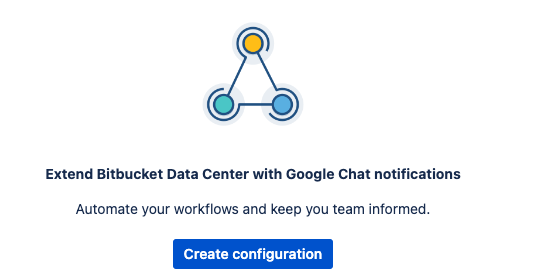
Click the Create configuration button to start.
Step 2. Create a Google Chat incoming webhook
You will need a Google Chat incoming webhook URL so Bitbucket can post messages to your Google Chat space. See the dedicated guide for the full procedure: How to create a Google Chat incoming webhook.
Step 3. Add configuration details
The form fields you see depend on your level:
- Bitbucket administrator (Global) — the Configuration level field lets you choose whether the new rule is Global, Project-scoped, or Repository-scoped. Project rules require a Project key; Repository rules require a Project key and a Repository slug.
- Project administrator — the Configuration level field offers Project or Repository scope. The Project key is filled in automatically; you only need to provide the Repository slug if you pick the Repository level.
- Repository administrator — there is no Configuration level field. The rule applies only to the current repository.
The example below shows the form available to a Bitbucket administrator (it has the most options):
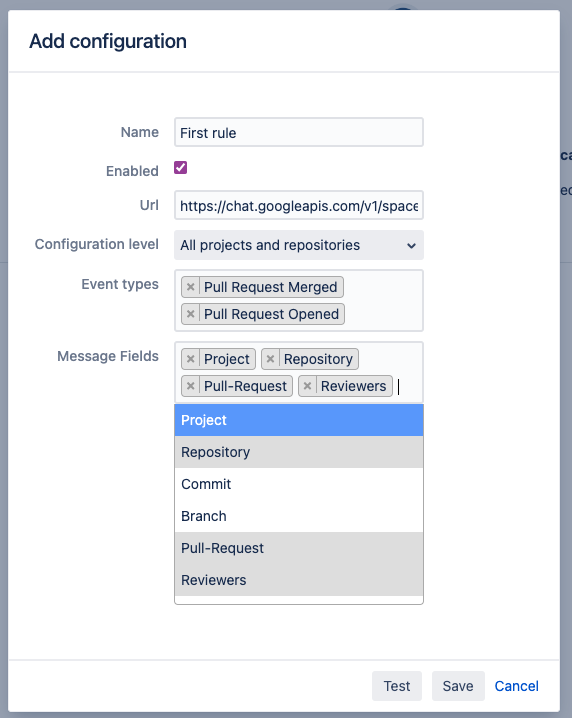
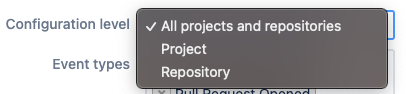
Two fields are common to all levels:
- Event types — select the Bitbucket events you want notification cards for in Google Chat.
- Message fields — choose which Bitbucket information should appear in the Google Chat message.
Step 4. Test the connectivity
Press the Test button to verify that Bitbucket can reach Google Chat. If a test message arrives in your Google Chat space, the rule is wired up correctly.
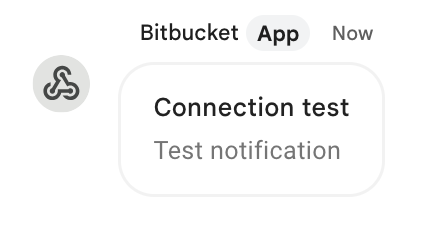
If you do not receive a test message, your Bitbucket may not be able to reach Google servers.
You may need to whitelist the chat.googleapis.com domain on your network.
After you save the rule, it appears in the configuration table on its own level and on every level above it (Global → Project → Repository). This makes it easy for higher-level admins to see all rules in their scope.
Troubleshooting
If you are a Project or Repository administrator and an issue persists, you may need to involve a Bitbucket administrator who has wider access to settings and logs.
Update
Make sure you are running the latest version of the app. Issues are usually fixed quickly, and there is a good chance your problem has already been addressed in a newer release.
Debug mode
Enable debug mode for a short period to see errors and warnings in the Bitbucket logs. This produces detailed information that helps locate the root cause.
Download the support zip
Send us the support zip, which contains relevant log files. Download instructions are in the official Atlassian documentation.
Getting support
If troubleshooting steps do not resolve your issue, see the Help & Support section below to contact us.
How to create a Google Chat incoming webhook
How to create a Google Chat incoming webhook to receive notifications from Bitbucket
Navigate to the Google Chat space menu
The official guide from Google → https://developers.google.com/chat/how-tos/webhooks
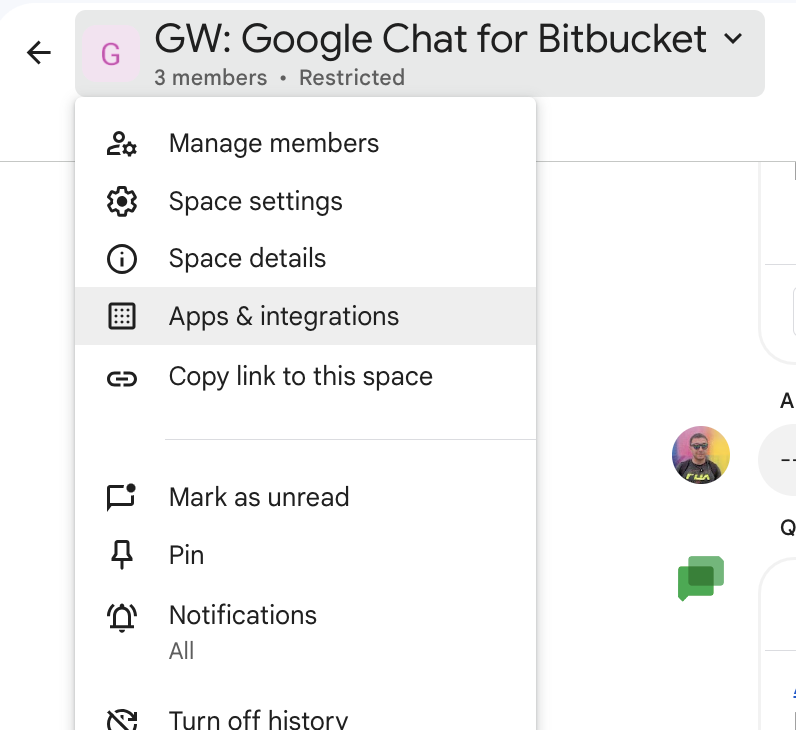
Navigate to the Webhooks section
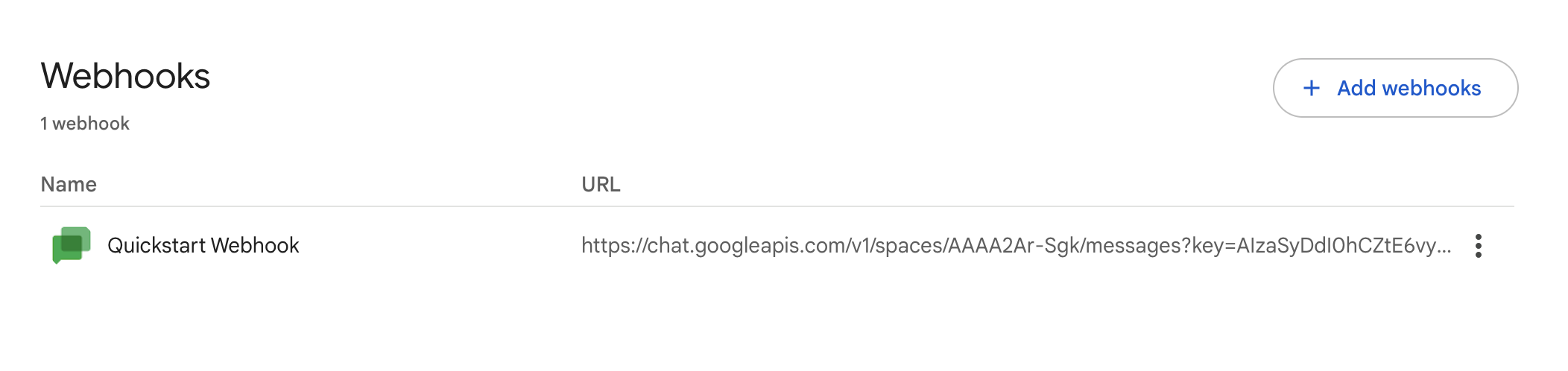
Enter the Incoming webhook details
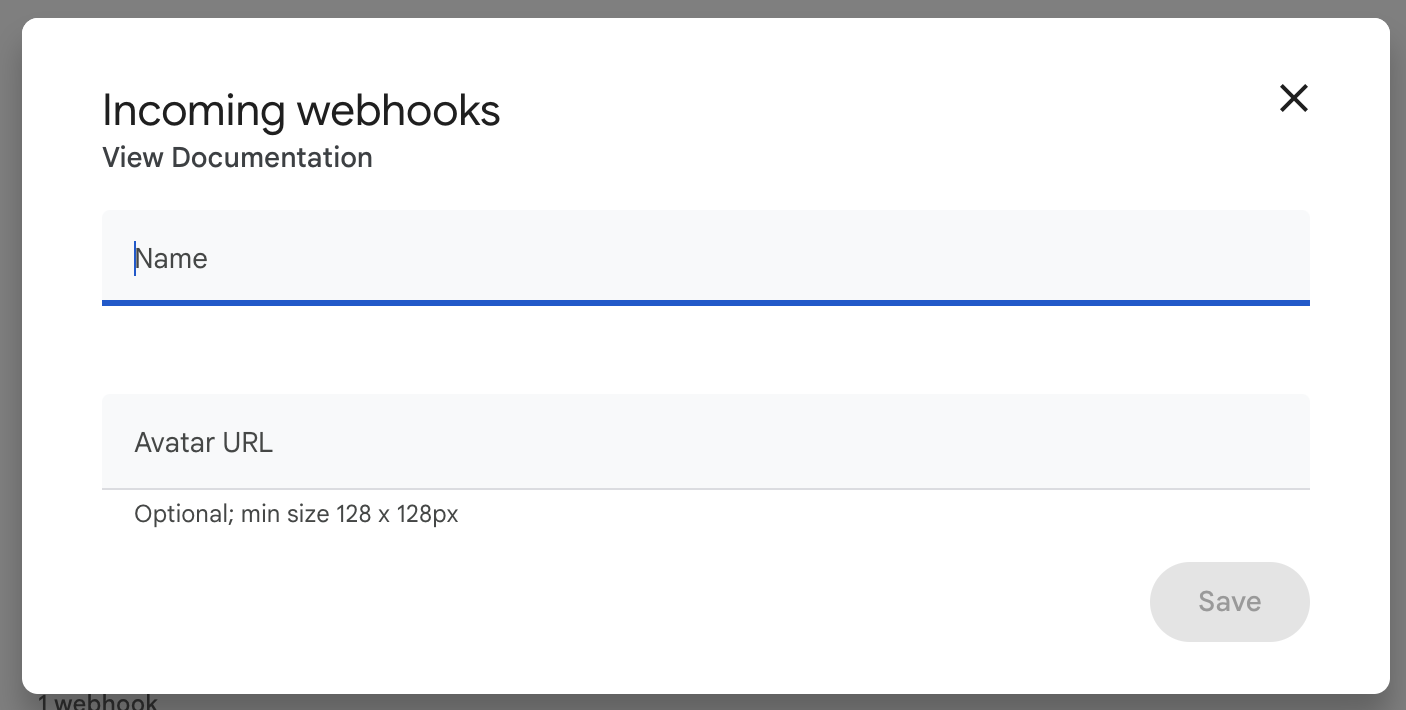
For the Name, we suggest entering the Bitbucket project or repository name, or just Bitbucket.
For the Avatar URL, we recommend just searching the logo.
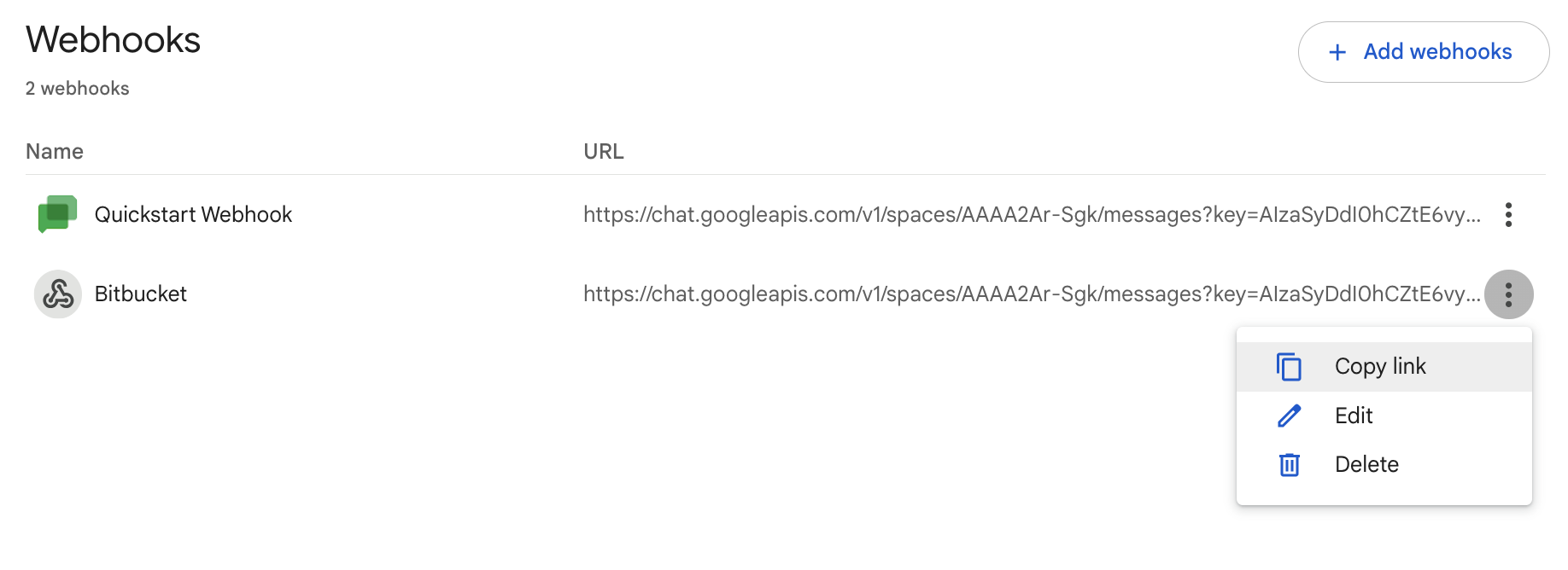
Afterwards, copy the Incoming Webhook URL, but using the Copy link menu.
How to configure Bitbucket Activity Reports
How to enable and configure Bitbucket to show Activity Reports in Google Chat
Activity Reports are available since version 2.01.09
To configure Activity Reports in Bitbucket go to the Repository Settings of the Repository in question, then under the Workflow section select Google Chat. From here, select the Activity Reports tab as shown below.

Click on  to bring up the following configuration window:
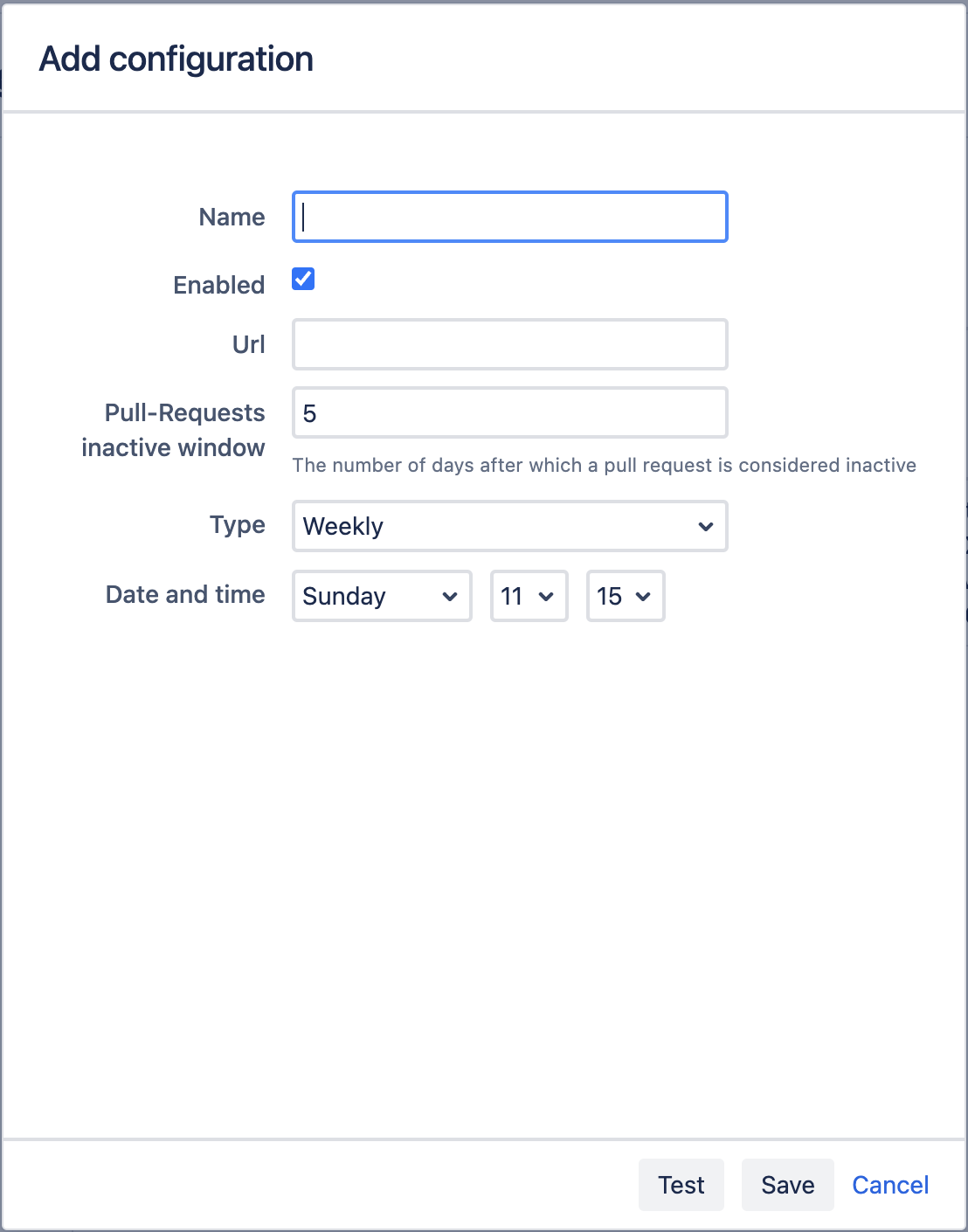
Name - provide a Name for the configuration.
Enabled - Leave the box ticked to enable to configuration.
URL - Enter the Webhook URL of your Google Chat space.
Pull-Requests inactive window - Specify the number of days a pull-request should be inactive before showing in the relative section of the activity report
Type - Specify how often the report should be sent Daily (Every day Mon-Sun), Weekly (Once a week on the specified day) Working days (Every day Mon-Fri).
Date and Time - Specify the day (if weekly) and the time the report should be sent.
Now you can Test the configuration, which will send an Activity Report to Google Chat, and then click Save.
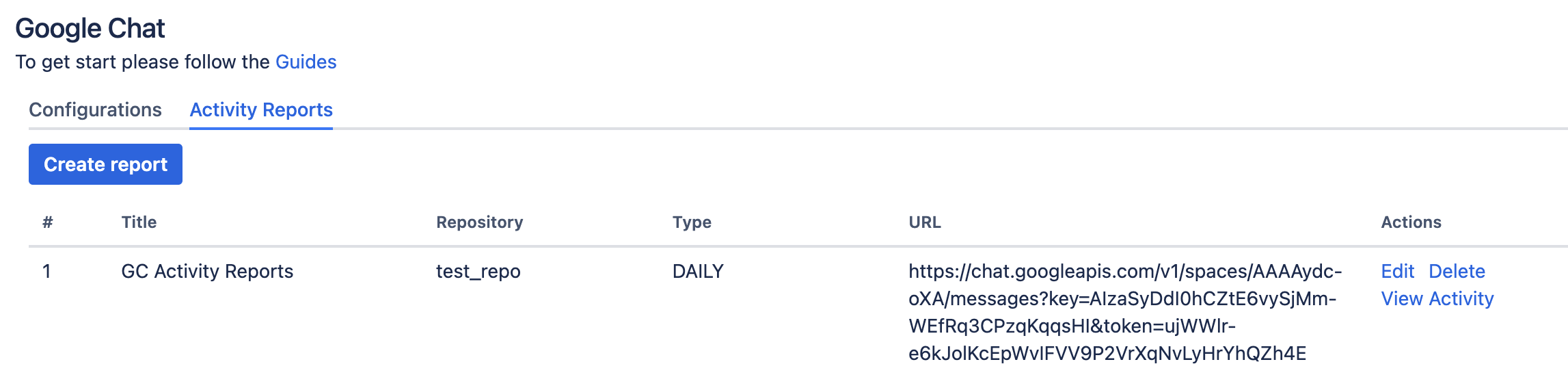
After the report has been saved, you should begin receiving reports in the Google Chat space linked to the webhook.
The Edit button under Actions will allow you to edit and update your existing configuration.
The Delete button will remove the configuration.
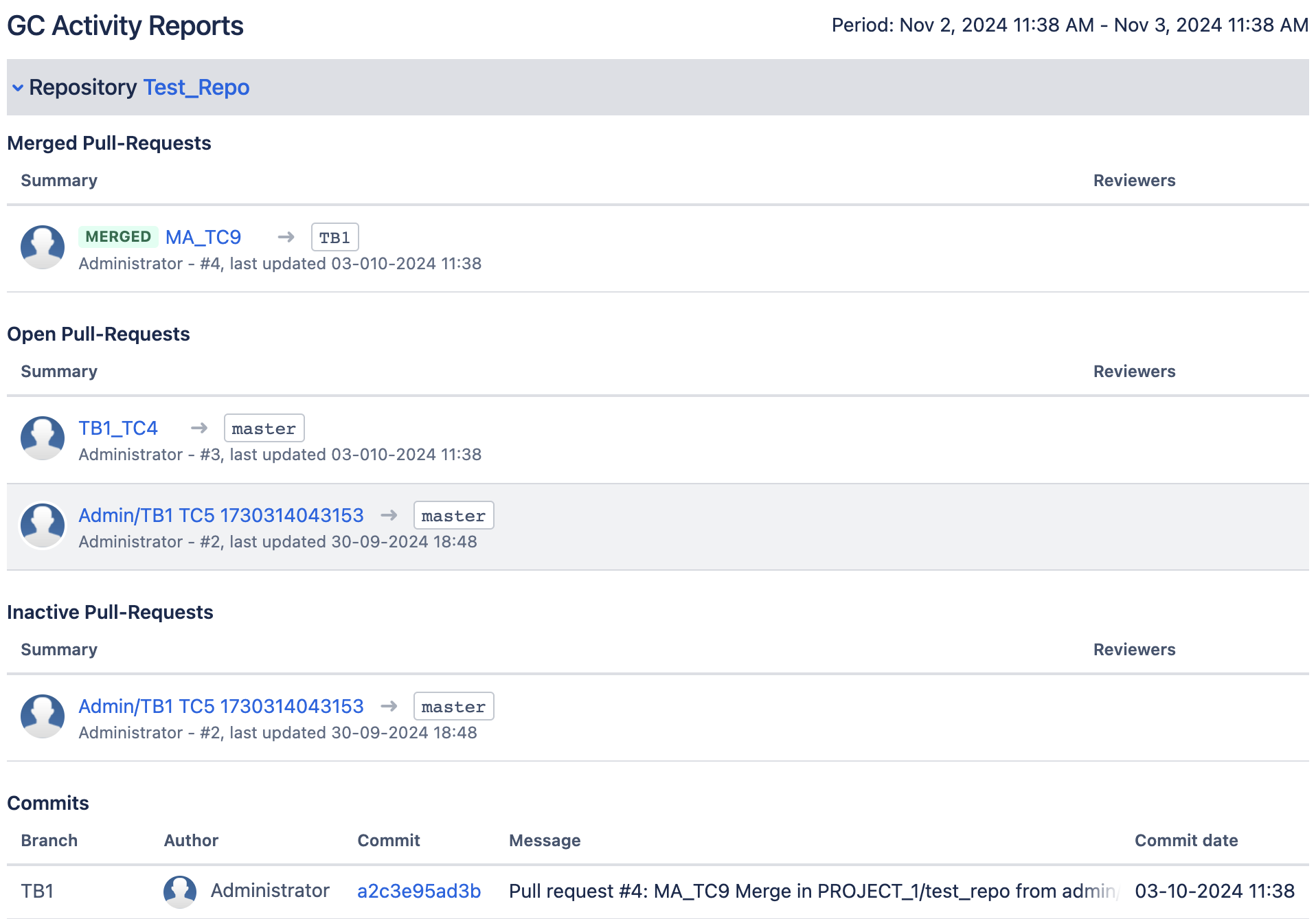
View Activity allows you to view the report at anytime from Bitbucket.
Below you can find a sample Activity Report from Bitbucket
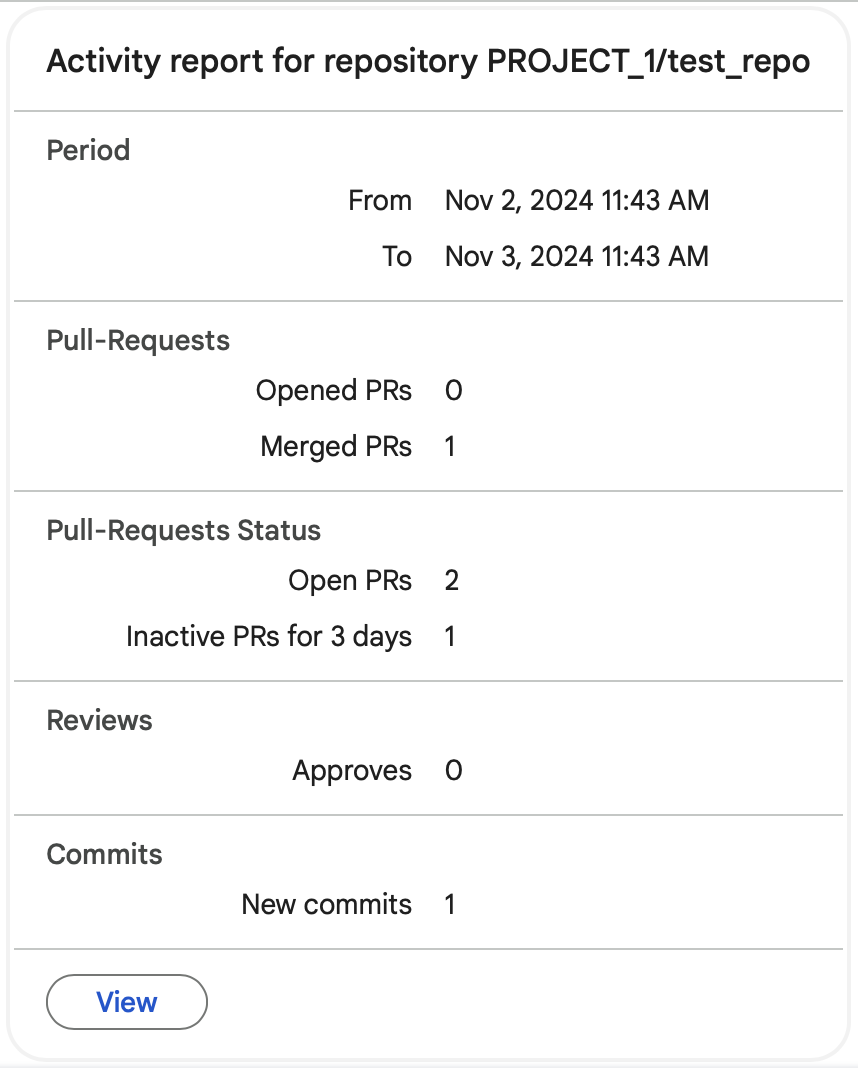
Below you can find a sample of the Activity Report from Google Chat
Security & Privacy
Information related to the security and privacy of Google Chat Bitbucket integration.
End User License Agreement
Votazz | End User License Agreement
Privacy Policy
Security practices
Security Self Assessment Questionaire
More details can be found here Security Self-Assessment Program
Help & Support
Contact information
Please create a support request here.