Group Mentions for Confluence
Overview
Group Mentions lets a Confluence author mention every member of a group at once. Instead of typing each name, you pick the group and the app inserts a mention for each of its members.
Confluence lets you mention any user, but a user who cannot view the page never receives the notification — so a mention can silently reach nobody. Group Mentions checks view permission on the current content as it inserts, so you can see who will actually be notified and who will not.
Administrators keep control of how widely this can be used: a cap on the number of mentions per insertion, and a whitelist or blacklist of groups.
| Application | Confluence Data Center |
|---|---|
| Latest version | 2.7 |
| Vendor | Votazz |
| Marketplace | View the listing |
The app addresses the long-standing Confluence request CONFSERVER-23015, “Extend 'Mentions' to work with groups as well”.
Installation
- In Confluence, go to Administration (⚙) → Manage apps → Find new apps.
- Search for Group Mentions and click Install.
- Accept the licence. A Data Center trial is available from the Marketplace listing.
No further setup is needed. Once installed, the app adds a Group mention entry to the editor's insert menu, and a Group Mentions page to Confluence administration.
Insert a group mention
Open a page in the Confluence editor and choose Group mention from the + (“Insert more content”) menu. It sits directly above User mention.
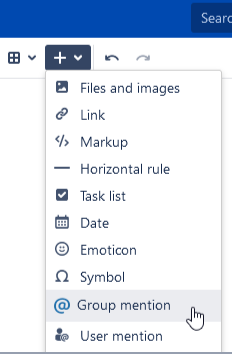
There is also a keyboard shortcut:
| Platform | Shortcut |
|---|---|
| Windows and Linux | Alt + Shift + Q |
| macOS | Control + Option + Q |
Either route opens the Insert Group Mention dialog. Start typing a group name — the field autocompletes against the Confluence groups you are allowed to mention.
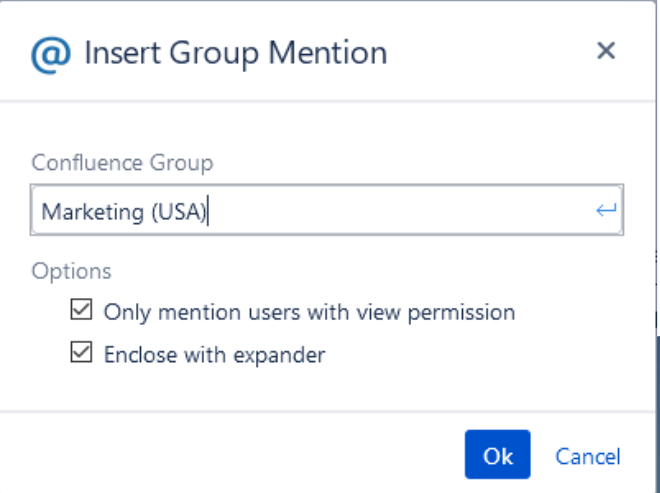
Click Ok and the app inserts one mention per group member into the page.

Members who cannot view the page are struck through, so you can see before publishing that they will not be notified.
Mention options
The dialog offers two options, both shown in the screenshot above.
Only mention users with view permission
Inserts mentions only for the group members who can view the current content. Leave it off to mention every member regardless — but note that Confluence will not notify the ones without view permission, so those mentions have no effect.
Enclose with expander
Wraps the inserted mentions in an expand macro — a collapsible container. Useful for larger groups, where a long list of names would otherwise push the rest of the page down.
Administration
Go to Administration (⚙) → General Configuration and choose Group Mentions in the left sidebar, under Configuration.
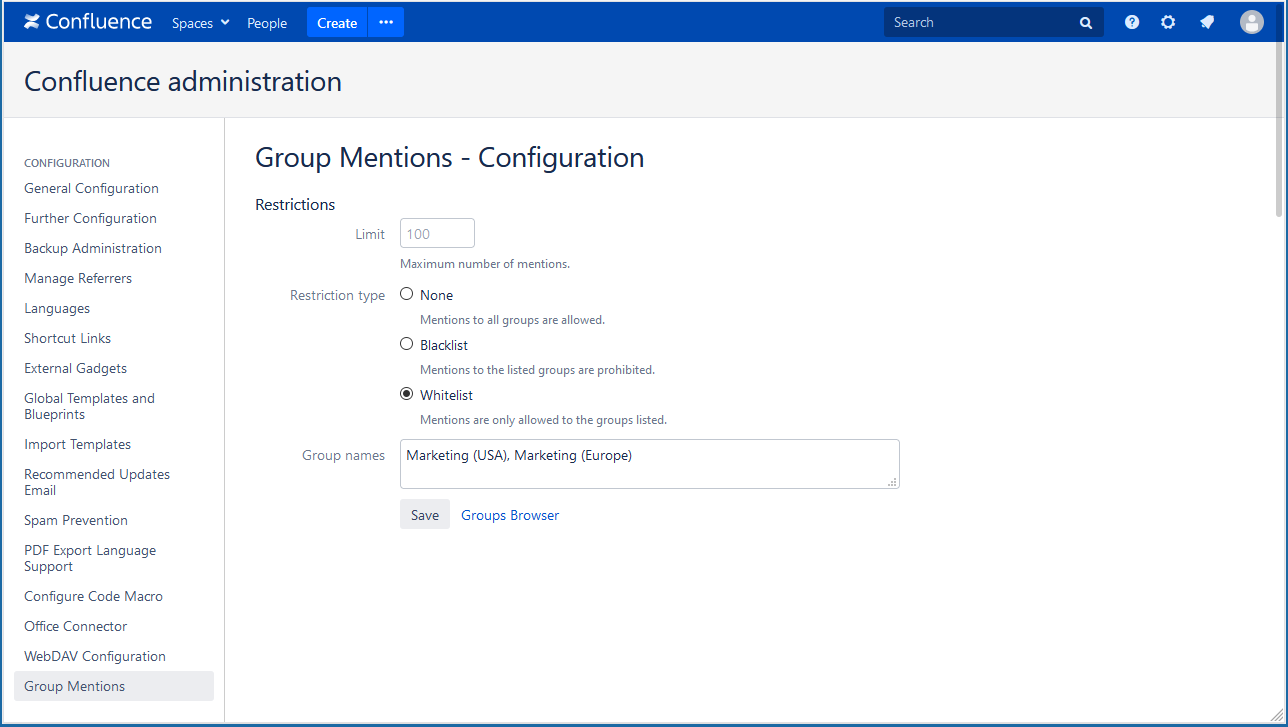
Limit
The maximum number of mentions a single group mention may insert. Use it to stop an accidental mention of a very large group from flooding notifications.
Restriction type
| Type | Effect |
|---|---|
| None | Mentions to all groups are allowed. |
| Blacklist | Mentions to the listed groups are prohibited; every other group is allowed. |
| Whitelist | Mentions are allowed only to the listed groups. |
Group names
The groups the blacklist or whitelist applies to, separated by commas. Groups Browser opens the standard Confluence group list if you need to check a name. Click Save to apply.
Compatibility
Group Mentions 2.7 supports Confluence Data Center 10.0.1 to 10.2.18. The Marketplace listing always carries the current compatibility range, including versions released after this page was written.
This is a Data Center app. There is no Confluence Cloud version.
Help & Support
Please raise a support request here, or email us at support@votazz.co.
To help us respond quickly and accurately, include the app version, your Confluence version, your browser, and the steps to reproduce the issue with examples or screenshots.