Advanced Microsoft Teams Connector for Bitbucket
Bitbucket Server / Data Center
Advanced Microsoft Teams Connector for Bitbucket for Bitbucket Server and Data Center enables one-way Bitbucket to Microsoft Teams integration. It is one way (read-only) to enable better security.
You can find Advanced Microsoft Teams Connector for Bitbucket on the Atlassian Marketplace here.
You can find additional information about Advanced Microsoft Teams Connector for Bitbucket.
Main Functionality
Receive updates from Bitbucket directly in your Microsoft Teams channels. Get notifications about events you or your team care about, including Build Status Set notification
Filter down notifications by project, repository, branch, user, event types and other entities
Configuration notification rules on Global, Project or Repository levels.
Filter by the branch masks.
Frequently Asked Questions
Frequently Asked Questions can be found on the Advanced Microsoft Teams Connector for Bitbucket product page.
Configuration
Microsoft Teams Workflows configuration
Workflows app URLs support is available since 7.15.12
Follow up this guide to get the required URL.
Microsoft Teams Incoming webhook configuration
Please note, due to the upcoming retirement of Incoming Webhook connector in Microsoft Teams, you must use the Workflows app to generate webhook URLs to receive notifications in Microsoft Teams channels.
Workflows app URLs support is available since 7.15.12
How to create webhook URL with Workflows app?
Go to the Microsoft Teams channel configuration and add a connector.
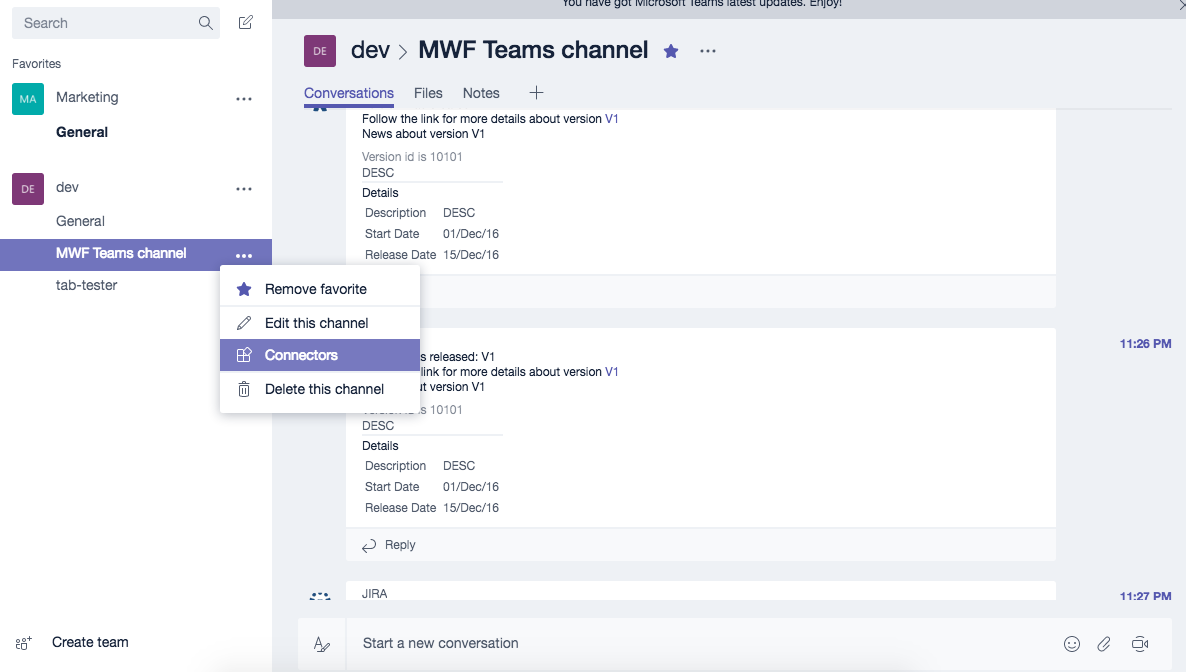
Find an Incoming Webhook and add one. Put the name as Bitbucket and download the Bitbucket logo from here.

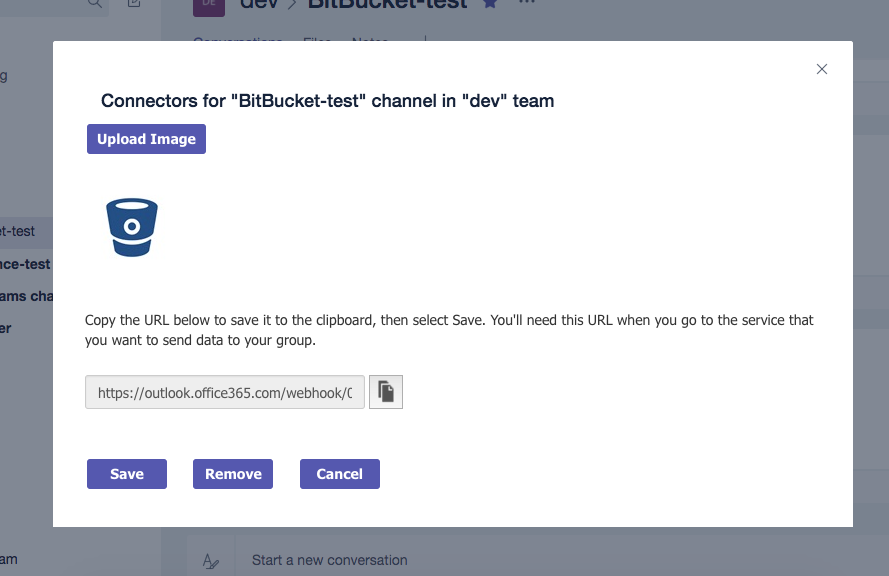
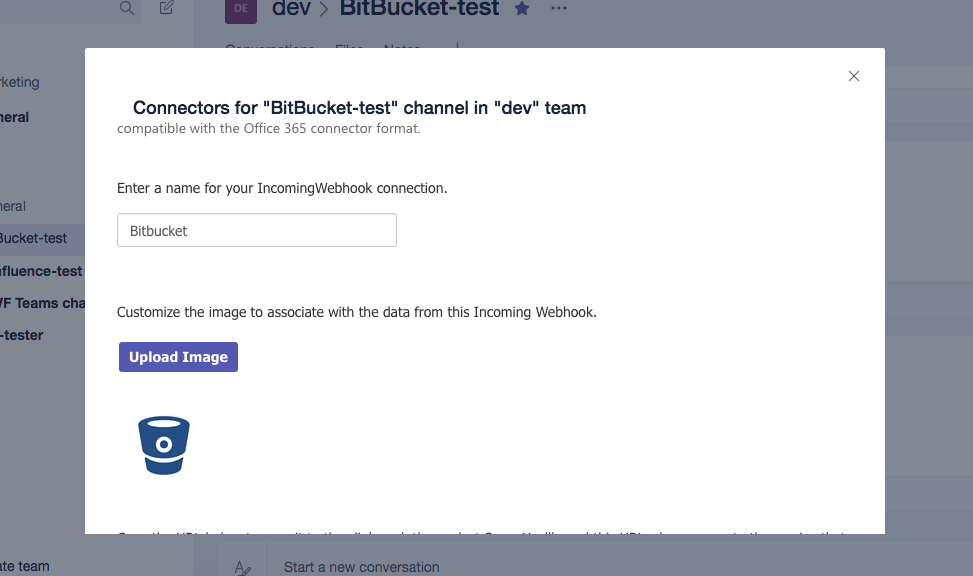
Set the logo of the Incoming webhook to the Bitbucket logo and generate the webhook URL. Copy it to the clipboard and save the Incoming Webhook.
Navigate in Bitbucket to the Advanced Microsoft Teams Connector for Bitbucket administration page (Administration -> Atlassian Marketplace -> Microsoft Teams Connector).
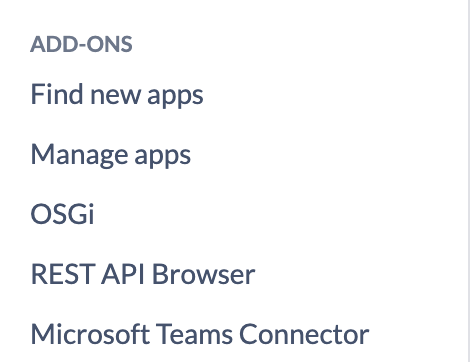
Or you can access global configuration by navigating to System → Add-ons → Microsoft Teams Connector. You need to have Global Admin permissions to see this configuration page.
Create a configuration section for every channel, enter the name and paste the incoming webhook URL. Additionally, select the events you want to notify the channel/room about. If something is missing please let us know.
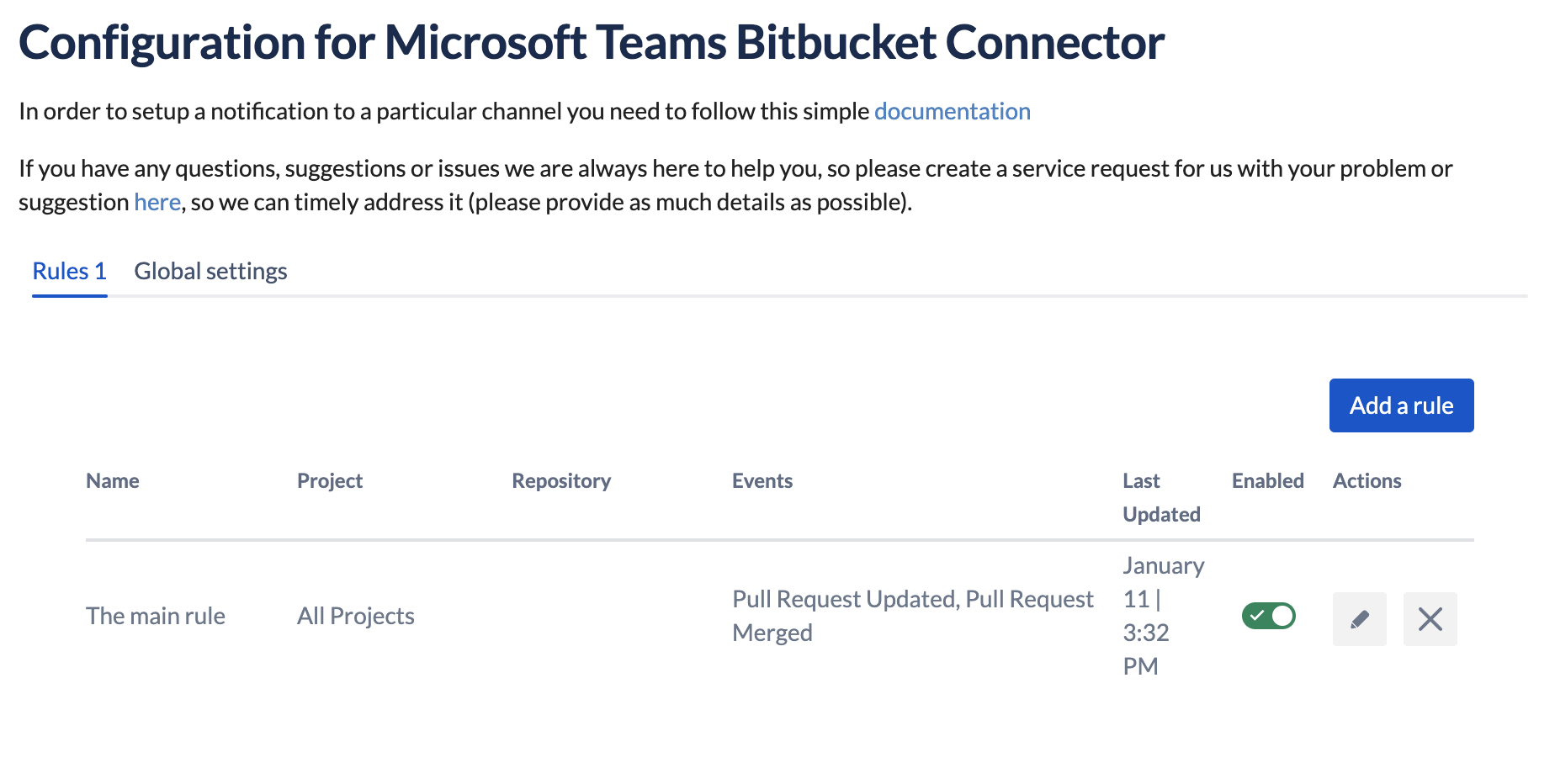
Advanced Microsoft Teams Connector for Bitbucket on the system or global level
Save the configuration and enjoy!
Branch mask configuration
In each configuration rule, you can use a branch mask to filter down the notifications. Java-style regex is used in that field. It is an alternative to the list of branches.
For instance, you can use their tag/.* to receive notifications only from the tag/ branches.
Project-level configuration
Advanced Microsoft Teams Connector for Bitbucket guide on the project level can be found here.
Repository-level configuration
Advanced Microsoft Teams Connector for Bitbucket guide on the repository level can be found here.
Global settings
Proxy configuration
You can go to Global configuration and there is a tab "Global settings" where you can enter your proxy URL. Additionally, the default project configuration is used (on the Bitbucket level).
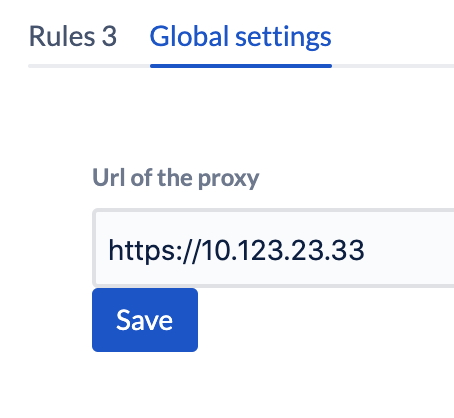
Advanced Microsoft Teams Connector for Bitbucket Global Settings
REST API (Internal)
Troubleshooting
Update
Please make sure that you have the latest App version, we fixed the issue pretty quickly and there is a chance that your problem has been fixed.
Debug mode
Enable the debug mode for a short period to see any errors, or warnings for debug information in the logs.
Download the support zip
You can send us the support zip which contains the log files. You can download it following this official Atlassian documentation.
Get help
You can create a Jira Service Desk support request with all the information you can gather, please include the screenshot of the configuration (please don't worry about the webhook URLs, we won't store or use them) and the logs or errors you could find in the browser or on the server-side.
Project settings (Server / DC)
Advanced Microsoft Teams Connector for Bitbucket integration for a Bitbucket project.
Main functionality
Receive updates from Bitbucket directly in your Microsoft Teams channels. Get notifications about events you or your team care about, including Build Status Set notification.
Filter down notifications by project, repository, branch, user, event types and other entities.
Configuration notification rules on Global, Project or Repository levels.
Filter by the branch masks.
Frequently Asked Questions
Frequently Asked Questions can be found on the Advanced Microsoft Teams Connector for Bitbucket product page.
Configuration
Microsoft Teams Workflows configuration
Workflows app URLs support is available since 7.15.12
Follow up this guide to get the required URL.
Microsoft Teams Incoming webhook configuration
Please note, due to the upcoming retirement of Incoming Webhook connector in Microsoft Teams, you must use the Workflows app to generate webhook URLs to receive notifications in Microsoft Teams channels.
Workflows app URLs support is available since 7.15.12
How to create webhook URL with Workflows app?
Go to the Microsoft Teams channel configuration and add a connector.
Find Incoming Webhook and add one. Put the name as Bitbucket and download the Bitbucket logo from here.
Set the logo of the Incoming webhook to the Bitbucket logo and generate the webhook URL. Copy it to the clipboard and save the Incoming Webhook.
Configure Advanced Microsoft Teams Connector for Bitbucket
Bitbucket project-level configuration is accessible via Project Settings. Please navigate to Project settings → Add-ons → Microsoft Teams.
You must have project admin permission to be able to see this page. You only can configure rules for this project only (including all repositories and branches). You cannot configure other projects from here even if you are an admin on those projects. Particular project rules should be configured in the project settings of that project or on a global level.
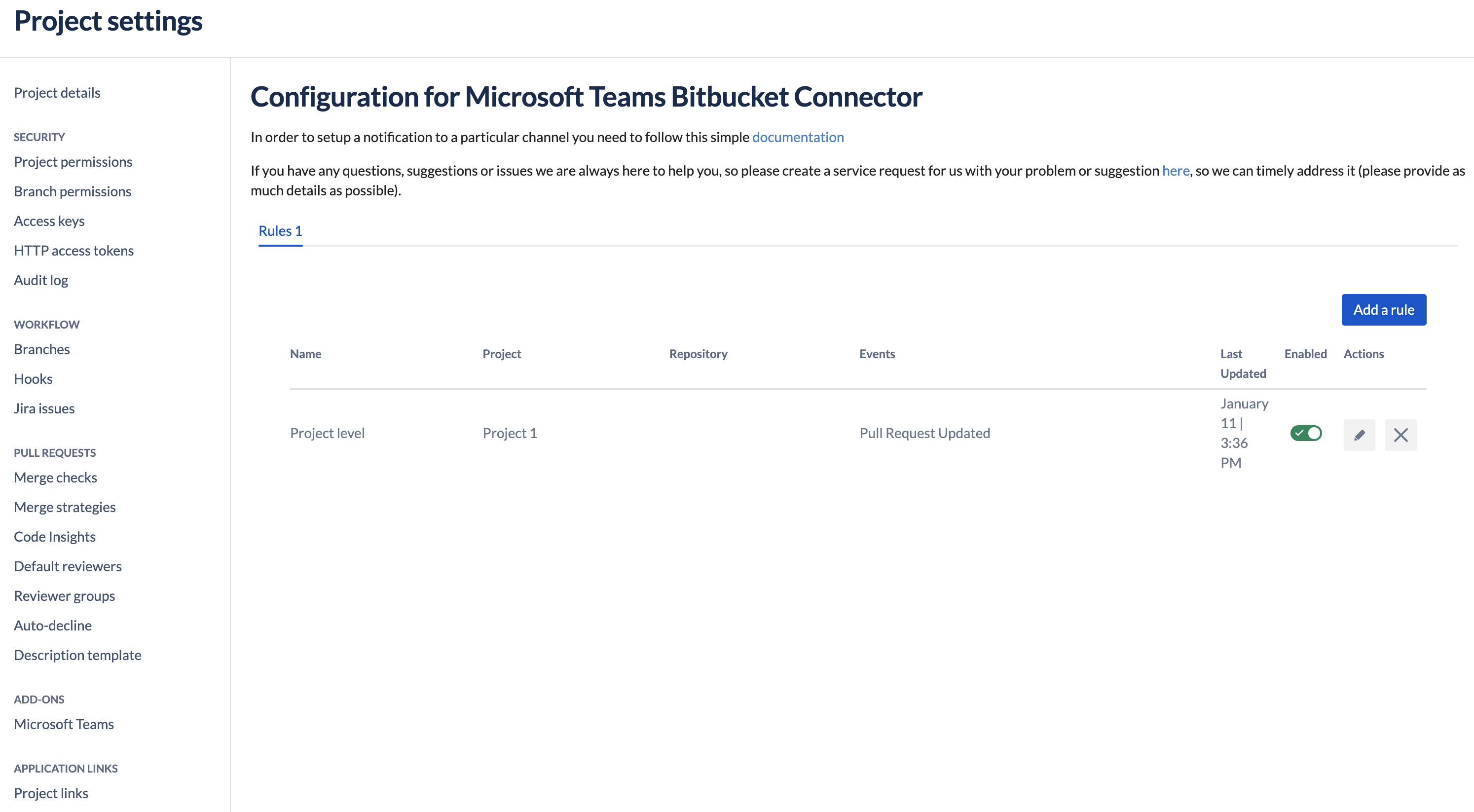
Advanced Microsoft Teams Connector for Bitbucket on the project level
Branch mask configuration
You can use a branch mask to filter down the notifications in each configuration rule. Java-style regex is used in that field. It is an alternative to the list of branches.
For instance, you can use their tag/.* to receive notifications only from the tag/ branches.
Repository-level configuration
You can find repository-level configuration following the link below, but it is the same as project-level configuration, but available only for 1 repository and for repository administrators only.
Troubleshooting
Contact your Bitbucket administrator first.
Get help
You can create a Jira Service Desk support request with all information you could gather, please include the screenshot of the configuration (please don't worry about the webhook URLs, we won't store or use them) and the logs or errors you could find in the browser or on the server-side.
Repository settings (Server / DC)
Microsoft Teams Bitbucket integration on repository level for Bitbucket Data Center.
Main functionality
Receive updates from Bitbucket directly in your Microsoft Teams channels. Get notifications about events you or your team care about, including Build Status Set notification.
Filter down notifications by project, repository, branch, user, event types and other entities.
Configuration notification rules on Global, Project or Repository levels.
Filter by the branch masks.
Frequently Asked Questions
Frequently Asked Questions can be found on the Advanced Microsoft Teams Connector for Bitbucket product page.
Configuration
Microsoft Teams Workflows configuration
Workflows app URLs support is available since 7.15.12
Follow up this guide to get the required URL.
Microsoft Teams Incoming webhook configuration
Please note, due to the upcoming retirement of Incoming Webhook connector in Microsoft Teams, you must use the Workflows app to generate webhook URLs to receive notifications in Microsoft Teams channels.
Workflows app URLs support is available since 7.15.12
How to create webhook URL with Workflows app?
Go to the Microsoft Teams channel configuration and add a connector.
Find Incoming Webhook and add one. Put the name as Bitbucket and download the Bitbucket logo from here.
Set the logo of the Incoming webhook to the Bitbucket logo and generate the webhook URL. Copy it to the clipboard and save the Incoming Webhook.
Configure Advanced Microsoft Teams Connector for Bitbucket
Bitbucket repository level configuration accessible via Repository Settings. Please navigate to Repository settings → Add-ons → Microsoft Teams.
You must have repository admin permission to be able to see this page. You only can configure rules for this repository only (including all branches and tags). You cannot configure other repositories from this Advanced Microsoft Teams Connector for Bitbucket page even if you are an admin on those repositories. Particular repository rules should be configured in the repository settings of that project, project level or on a global level.
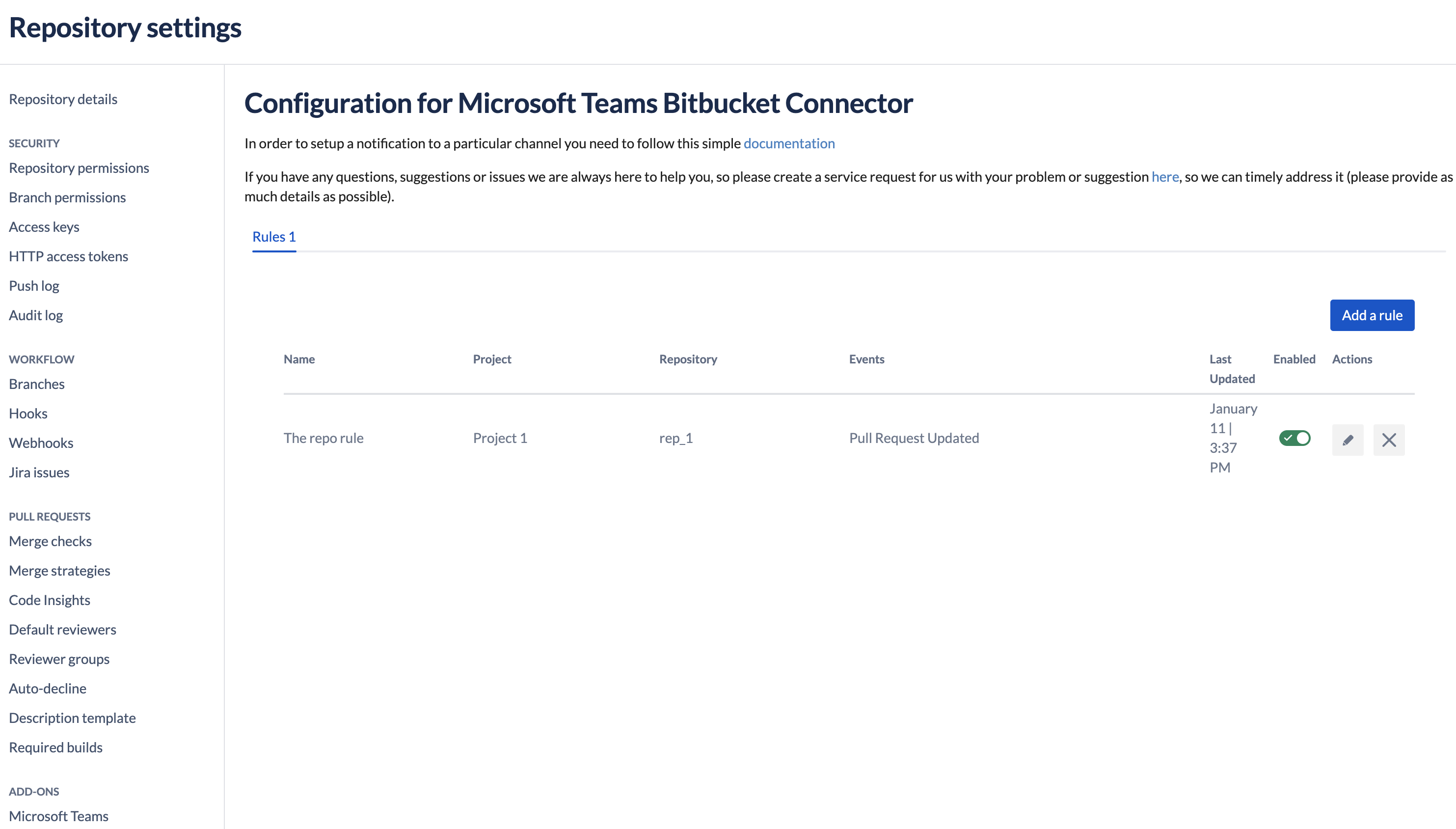
Branch mask configuration
In each configuration rule, you can use a branch mask to filter down the notifications. Java-style regex is used in that field. It is an alternative to the list of branches.
For instance, you can use their tag/.* to receive notifications only from the tag/ branches.
Configuring Activity reports
Activity Reports are available since version 7.15.15
To configure Activity Reports in Bitbucket go to the Repository Settings of the Repository in question, then scroll down to Add-ons and select Microsoft Teams. From here, select the Activity Reports tab as shown below.
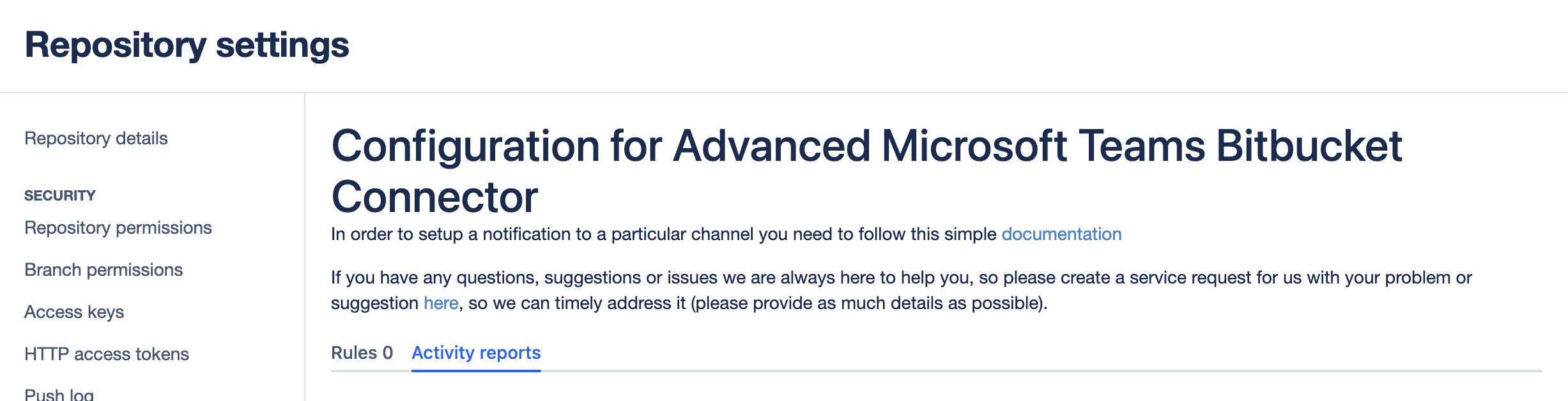
Click on  to bring up the following window:
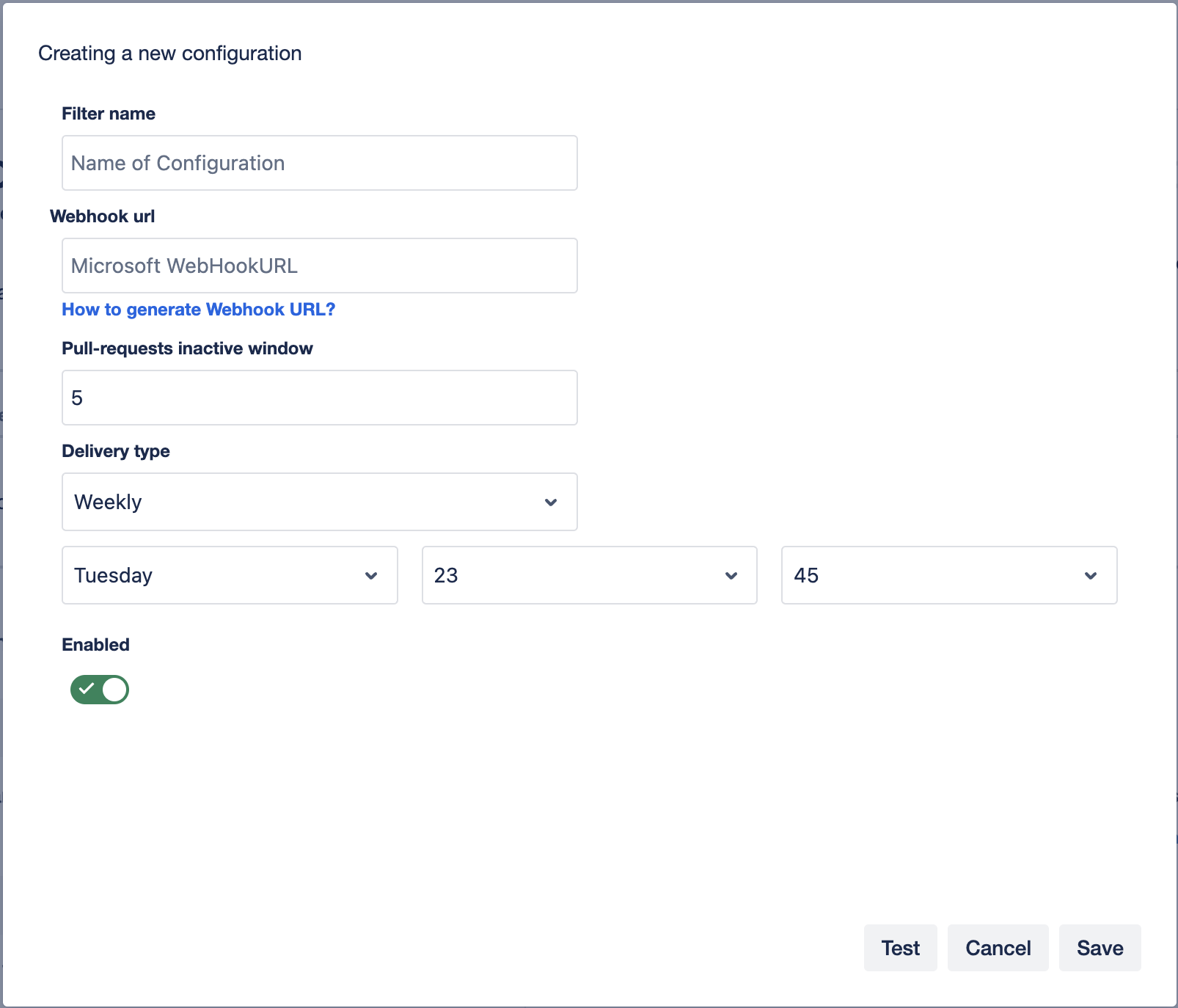
Provide a name for the configuration.
Enter the Workflow webhook URL. You can find a guide on creating webhooks using Workflows here.
Specify the number of days a pull-request should be inactive before showing in the relative section of the activity report.
Specify how often the report should be sent Daily (Every day Mon-Sun), Weekly (Once a week on the specified day) Working day (Every day Mon-Fri).
Specify the day (if weekly) and the time the report should be sent at.
Leave the Enable box active to enable to configuration.
Now you can Test the configuration and then click Save.

After the report has been saved, you should begin receiving the report in the Teams channel configured in your webhook.
You can enable or disable the report by toggling the button in the Enabled column.
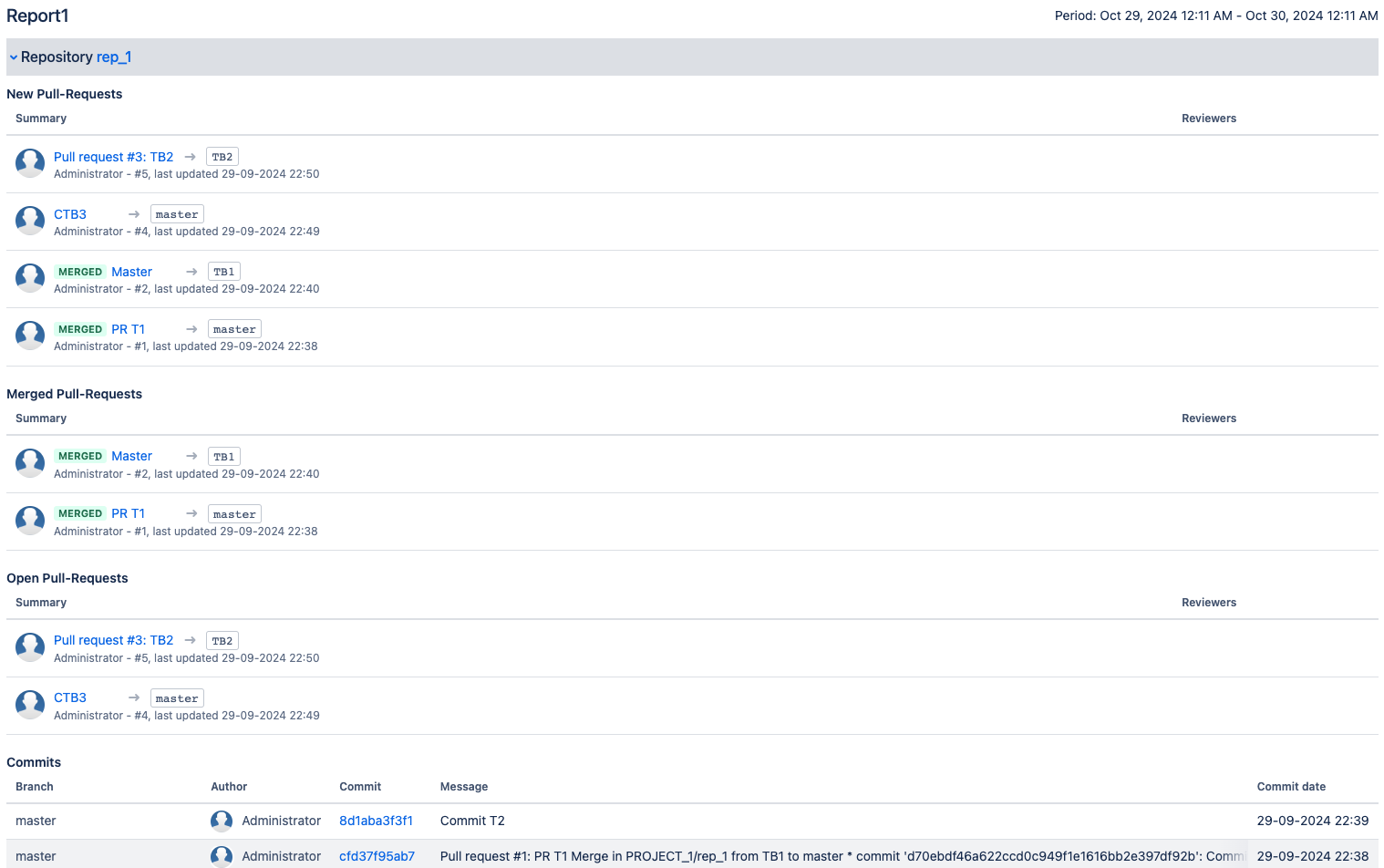
It’s possible to view the report at any time by clicking the View report button under the report column.
Clicking on the  button will allow you to edit and change your configuration, and clicking the
  will remove the configuration.
Below you can find a Sample report from Bitbucket.
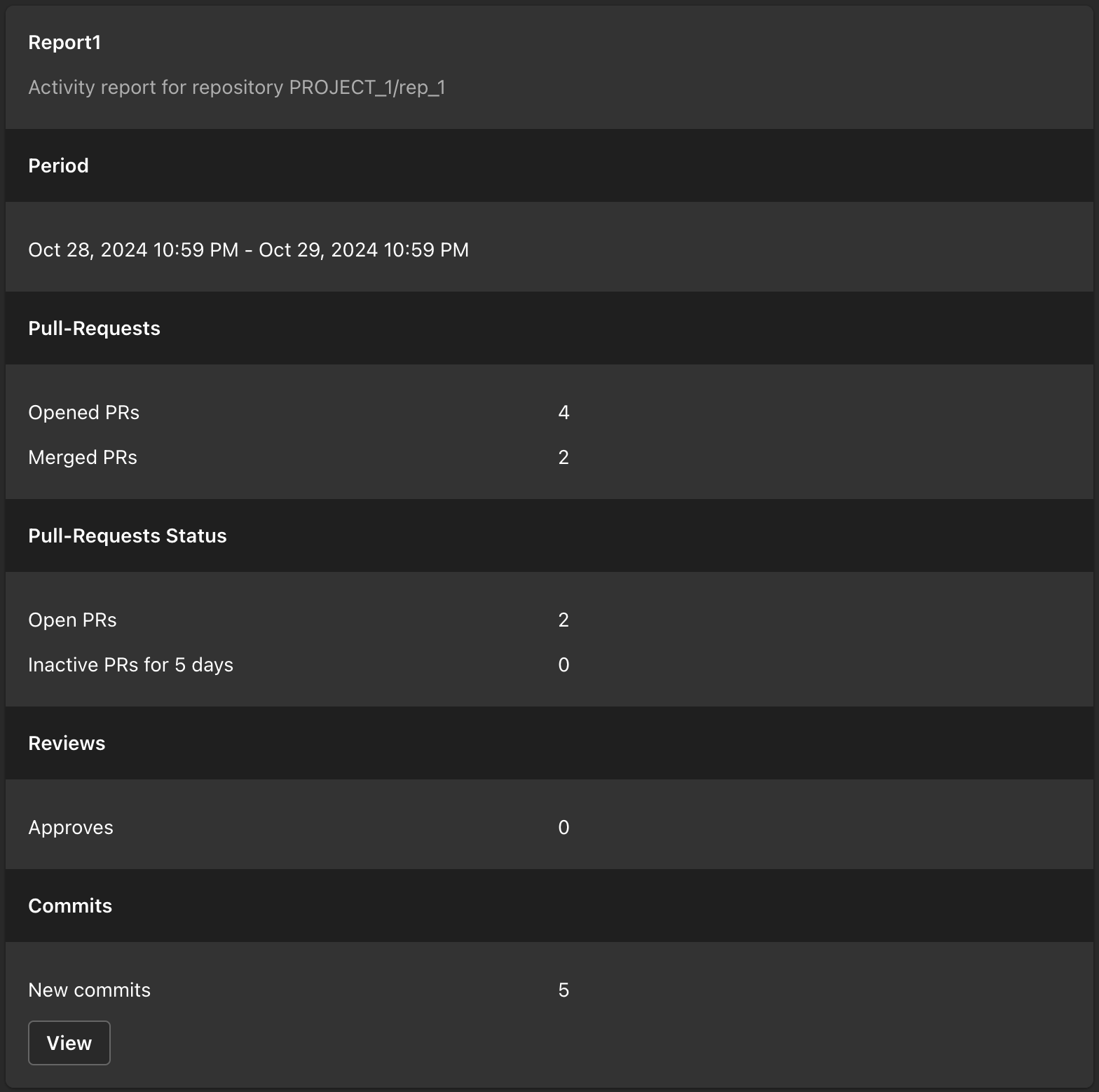
Below you can find a sample of the activity report in Microsoft Teams:
Troubleshooting
Contact your Bitbucket administrator first.
Get help
You can create a Jira Service Desk support request with all information you could gather, please include the screenshot of the configuration (please don't worry about the webhook URLs, we won't store or use them) and the logs or errors you could find in the browser or on the server-side.
Server API reference
Version 3.04.14
Base API url path <BITBUCKET_BASE_URL>/rest/mtbs/1.0/configuration
GET /filter?projectKey=<>&repositoryKey=<>
Where projectKey is an optional project filter and repositoryKey is an optional repository filter.
Gets global or project level configuration configurations
POST /filter
Creates or saves configuration
The example payload
DELETE /filter?id=<>
Deletes an existing filter by id
GET /eventTypes
Updated:
Release notes (Server / DC)
20.0.0+
Notable improvements are:
Bitbucket 9 compatibility
Note: you may need to download the version manually from the Atlassian Marketplace.
5.06.21
Date:
Notable improvements are:
New feature: Filed Edited event support added.
Update: documentation links updated.
5.06.13
Date:
Notable improvements are:
Bitbucket 8+ support. Bitbucket API 8 is not fully backward compatible with the previous Bitbucket versions, so be careful when updating.
4.06.21
Date:
Notable improvements are:
New feature: Filed Edited event support added.
Update: documentation links updated.
4.06.02
Date:
Notable improvements are:
Minor UI bug fixes.
4.01.18
Date:
Notable improvements are:
Minor UI bug fixes.
4.01.12
Date:
Notable improvements are:
New feature: New UI.
New feature: Now you can see who created or updated a configuration rule.
New feature: User group filters.
New feature: Confirmation dialogue when a rule is deleted.
Security improvements: Updated the version of the library to the latest ones.
Multiple bug fixes.
3.17.06
Date:
Notable improvements are:
Bug fixes. 🐞
3.13.02
Date:
Notable improvements are:
Add support of branch mask filter.
Audit trail support for App settings.
Multiple minor improvements.
Bitbucket Cloud
Advanced Microsoft Teams Connector for Bitbucket Cloud helps your team stay informed and aligned, ensuring work progresses smoothly and efficiently.
Frequently Asked Questions
Frequently Asked Questions can be found on the Advanced Microsoft Teams Bitbucket Connector product page.
Cloud repository configuration
This guide provides instructions for configuring Advanced Microsoft Teams Connector for Bitbucket Cloud at the repository level.
If you enter configuration, press Save and it disappears - pls check How to re-authorize Bitbucket cloud Marketplace app
Benefits
Move work forward faster with real-time notifications about important Bitbucket events.
Never miss critical updates and quickly unblock your teammates.
Reduce notification noise by filtering events to only what matters to you.
Stay informed about pipeline failures so you can take action immediately.
Receive Microsoft Teams notifications for Bitbucket Pull Requests, Pipelines, and other key events.
Leverage the Microsoft Teams Workflows app to seamlessly receive and manage Bitbucket notifications.
Installation
There are 2 ways:
Install from the Atlassian Marketplace by navigating to the app’s page and clicking “Get it now.”
Functionality
Repository-level notifications from Bitbucket Cloud to Microsoft Teams.
Flexible filtering, allowing you to send notifications based on specific Bitbucket Cloud events and destination branches.
Project-level configuration is not supported, as Bitbucket Cloud does not provide the necessary integration points or APIs to enable this functionality.
Configuration
Navigate to the Bitbucket repository for which you want to configure notifications.
In the left-hand menu, open Repository settings.
Under Microsoft Teams Bitbucket Connector in the left-hand menu, select Settings
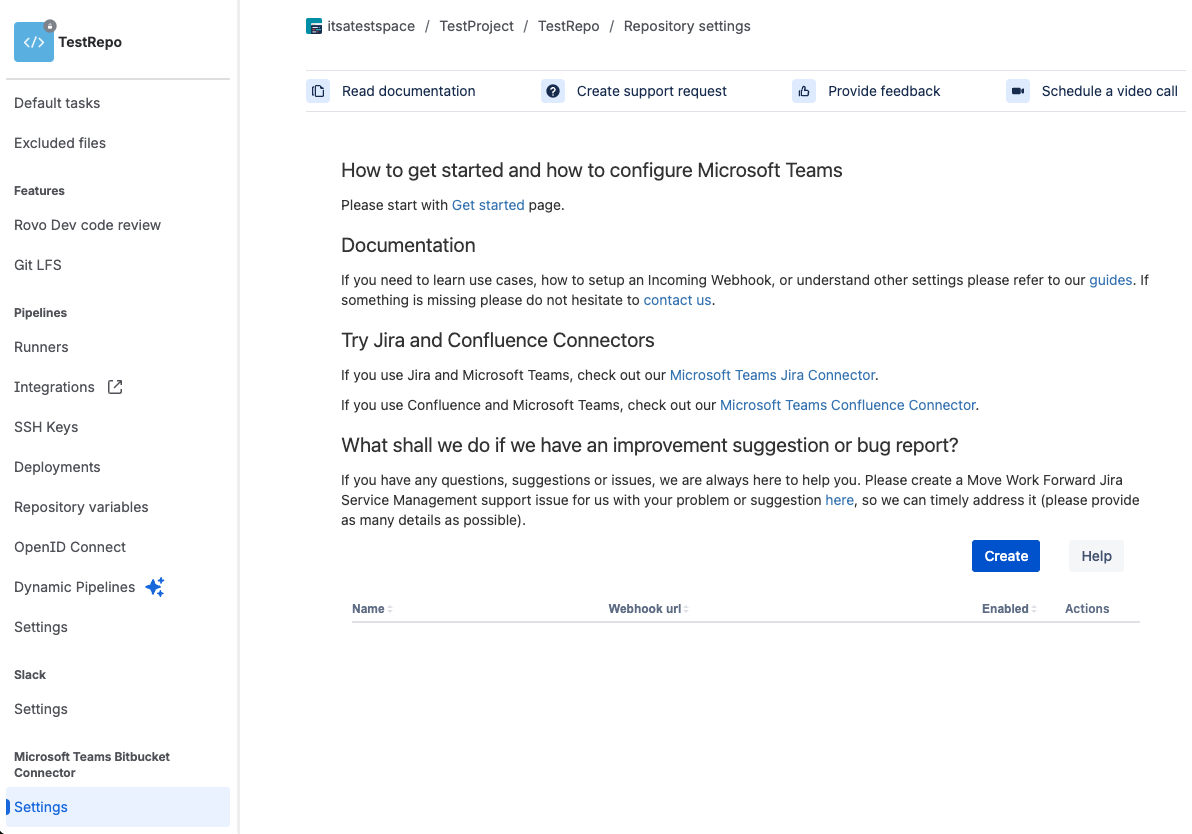
Click Create to add a new notification rule.
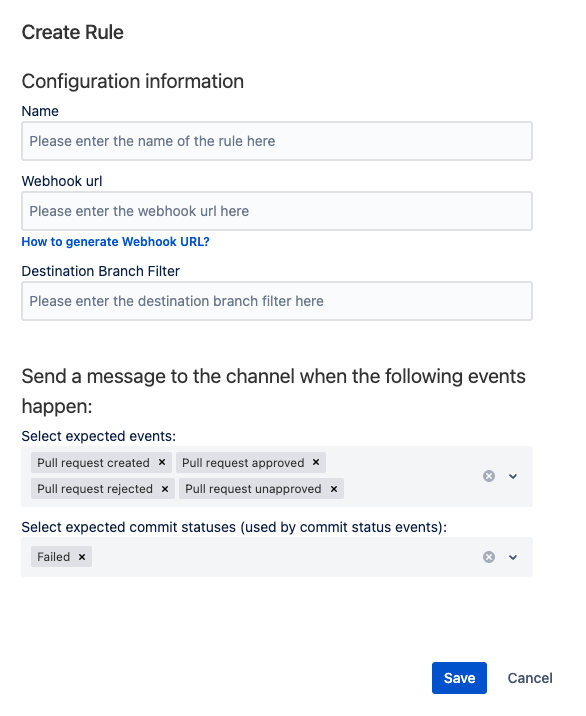
Configure the rule parameters
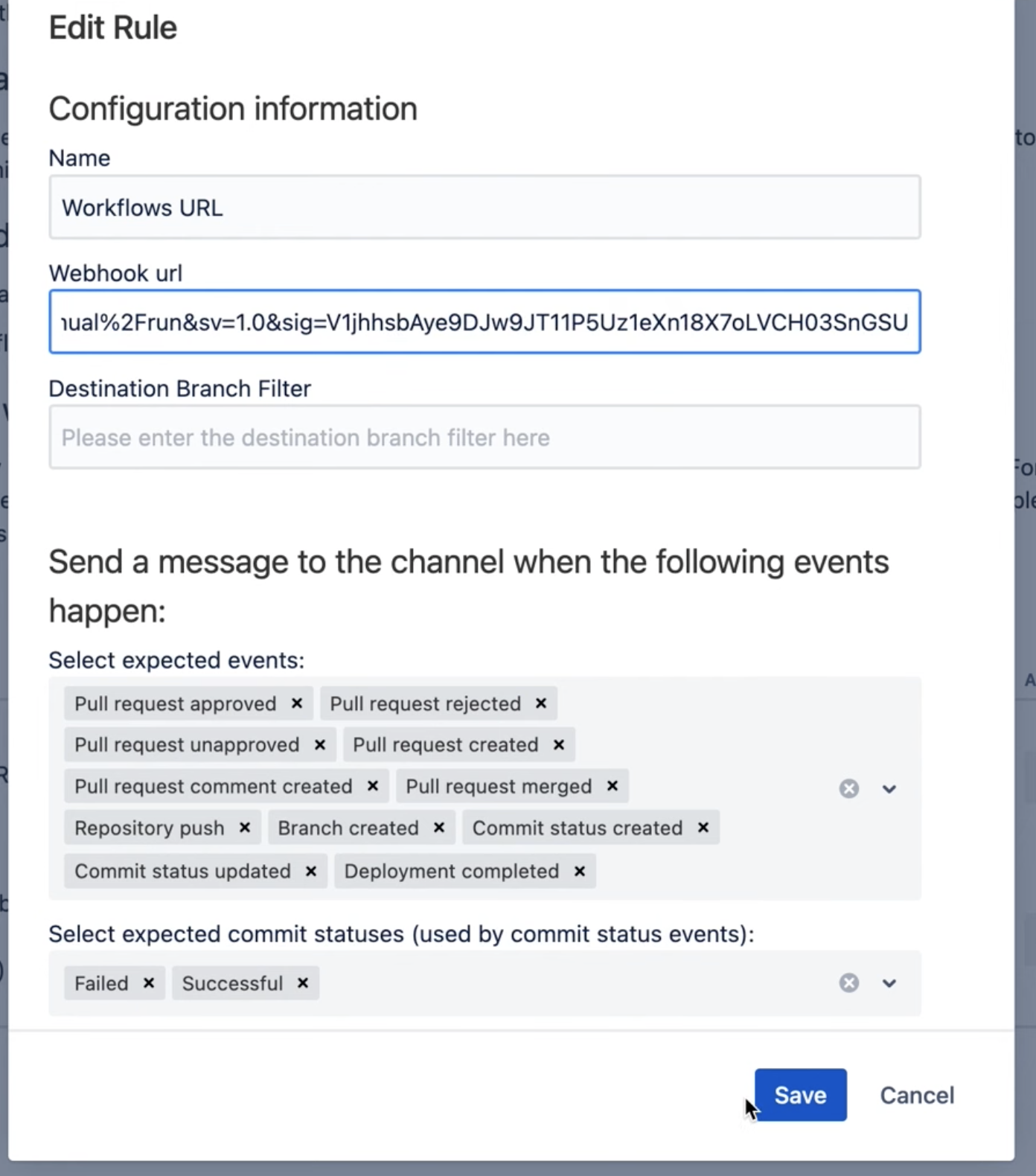
Name: Provide a descriptive name for the configuration.
Webhook URL: Enter the Workflow URL for the Microsoft Teams channel where notifications should be delivered.
Refer to this guide for instructions on creating Workflows.Destination Branch Filter: Apply a filter to trigger notifications only for specific branches.
This field accepts JavaScript regular expressions, matched against the branch associated with the event (when available).
Examples:masterissue\/DEV\-tag\-
Select Expected Events: Select which Bitbucket events should trigger notifications.
Select Expected Commit Status: Choose whether commit status notifications are sent for success, failure, or both.
Click Save to apply your settings and enable the notification rule.
Troubleshooting
If you encounter any issues with the app, or have feature requests, please feel free to contact us.
How to verify app authorizations in Bitbucket.org
This guide explains how to review and verify which apps and integrations, such as the Microsoft Teams Bitbucket Connector, have access to your Bitbucket account or workspace.
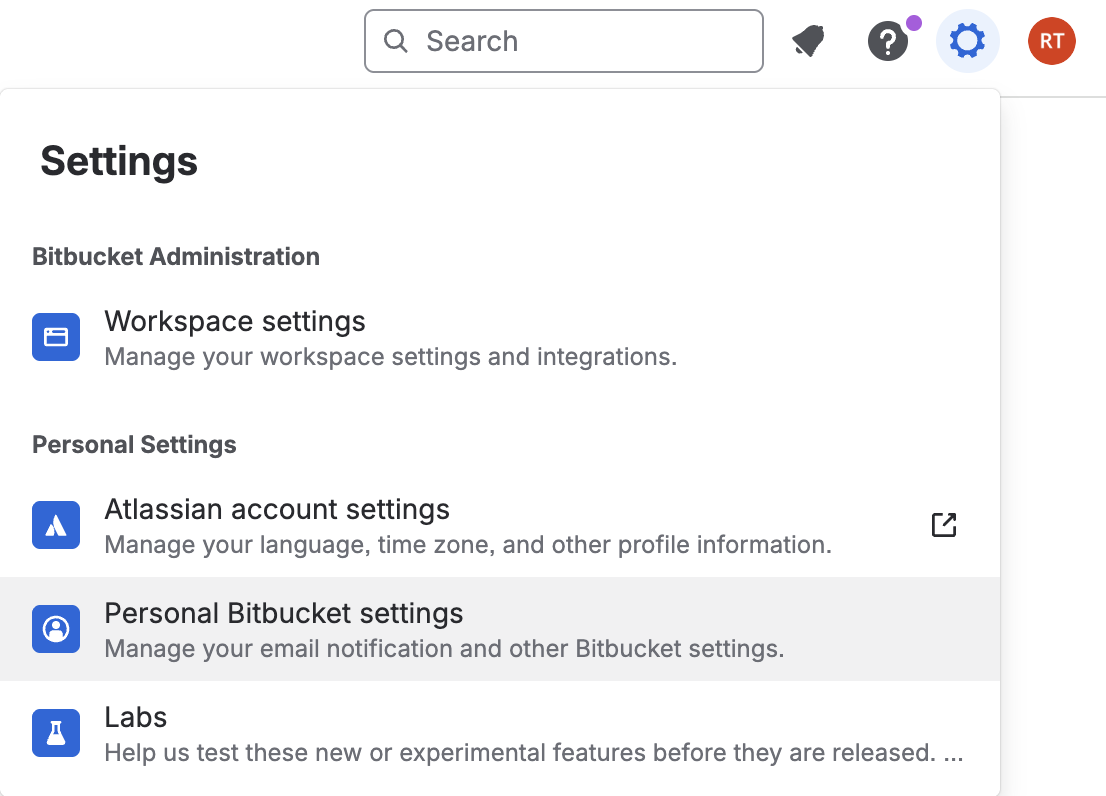
From the settings cog in the top right, select Personal Bitbucket settings.
In the left-hand menu, under Access Management, select App authorizations.
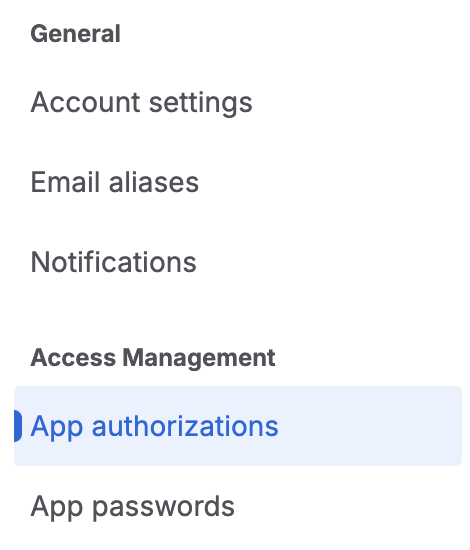
Review the list of authorized applications and confirm that Microsoft Teams Bitbucket Connector is included.
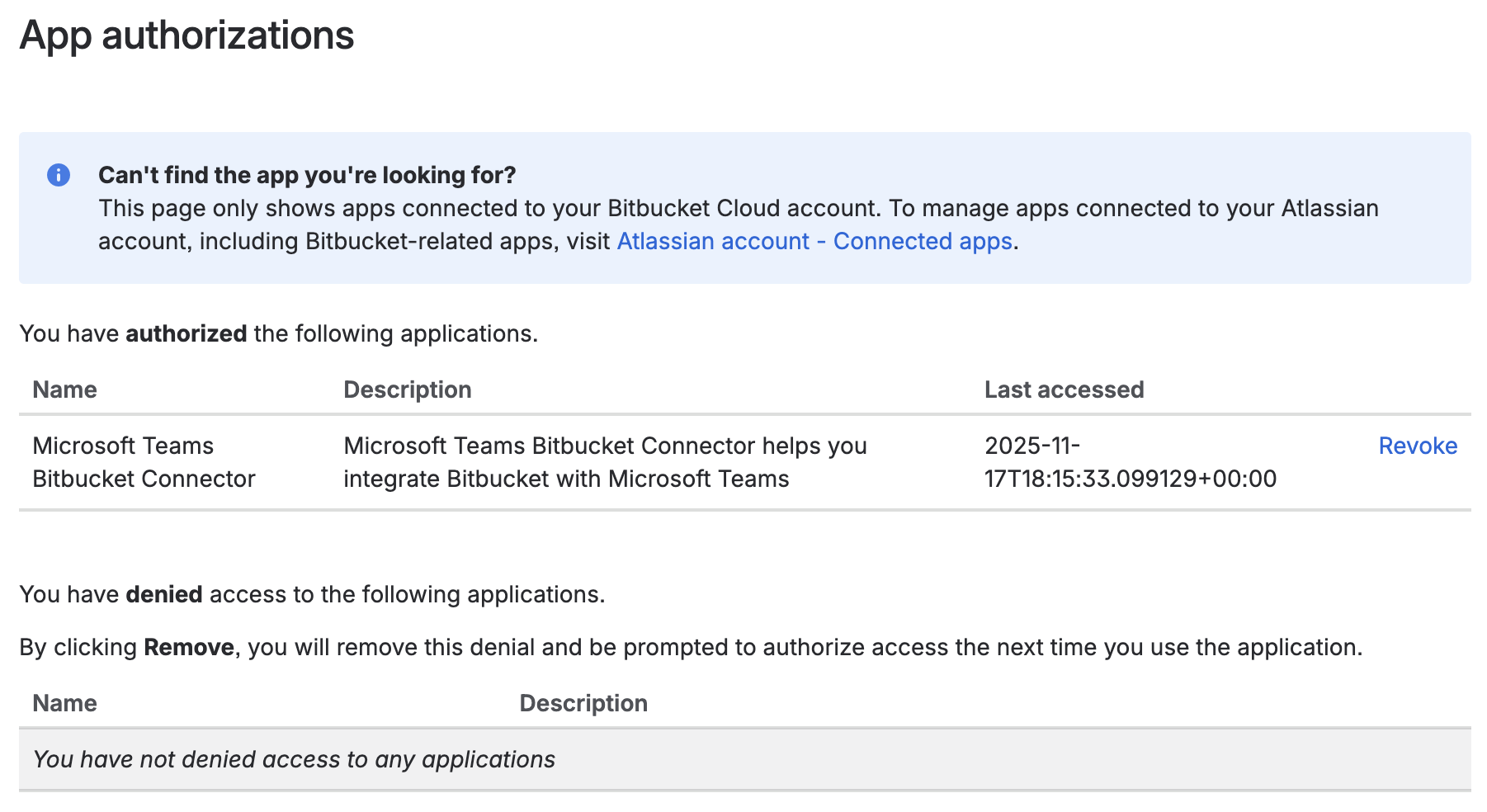
How to re-authorize the Bitbucket Cloud Marketplace app
How to re-authorize the Advanced Microsoft Teams Connector for Bitbucket for bitbucket.org
After the app is installed on the workspace, nothing happens. Once you navigate to a repository and configure the app in the repository settings, an on-screen popup (bottom left) asks to review the app access.
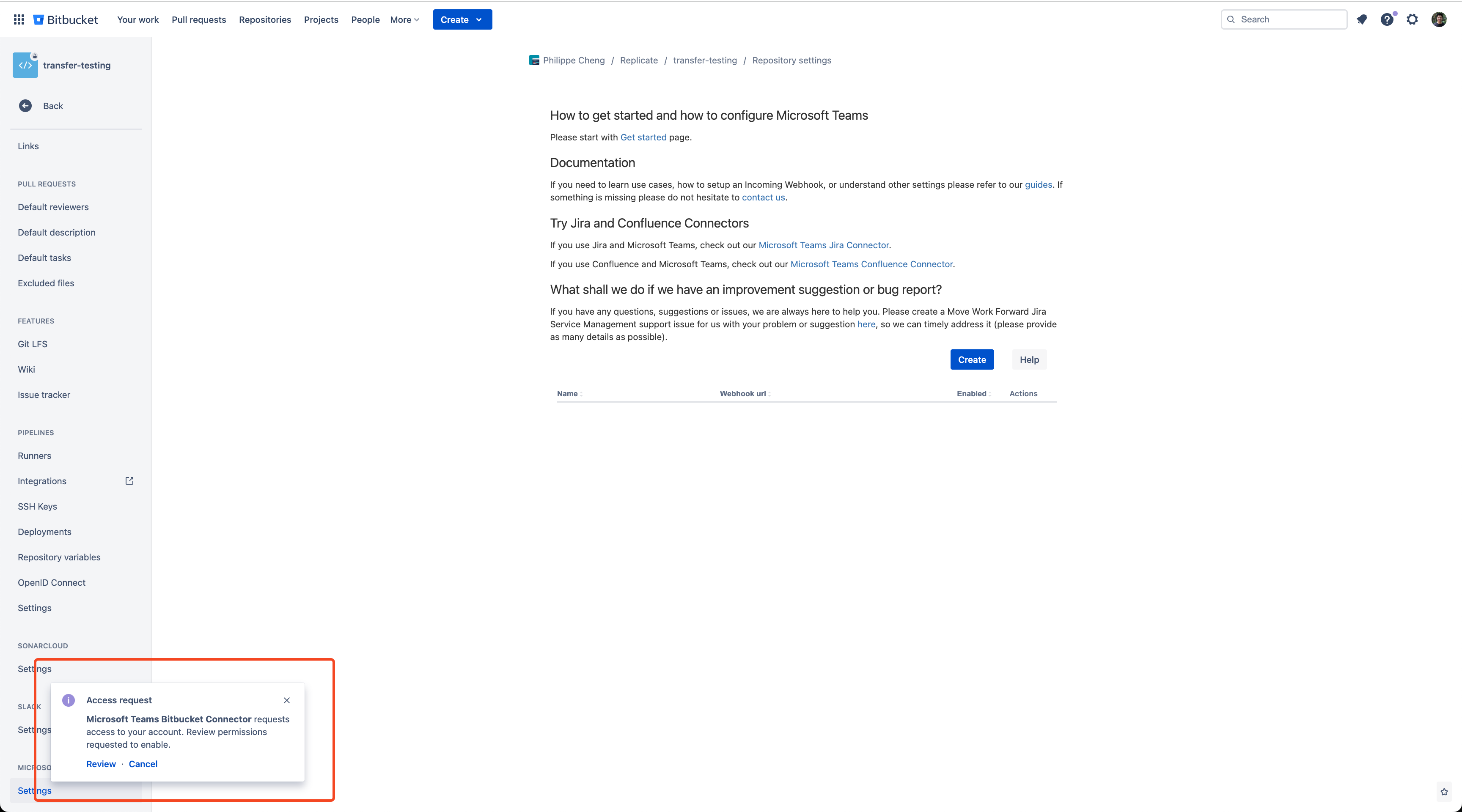
You must review and give the app access before configuring the connection. If you have cancelled the pop-up before, it will not reveal itself the next time you try to establish the connection.
Can you give the following a try?
Navigate the Application authorizations setting in your account settings - https://bitbucket.org/account/settings/app-authorizations/
Check the "You have denied access to the following applications." section at the bottom of the page.
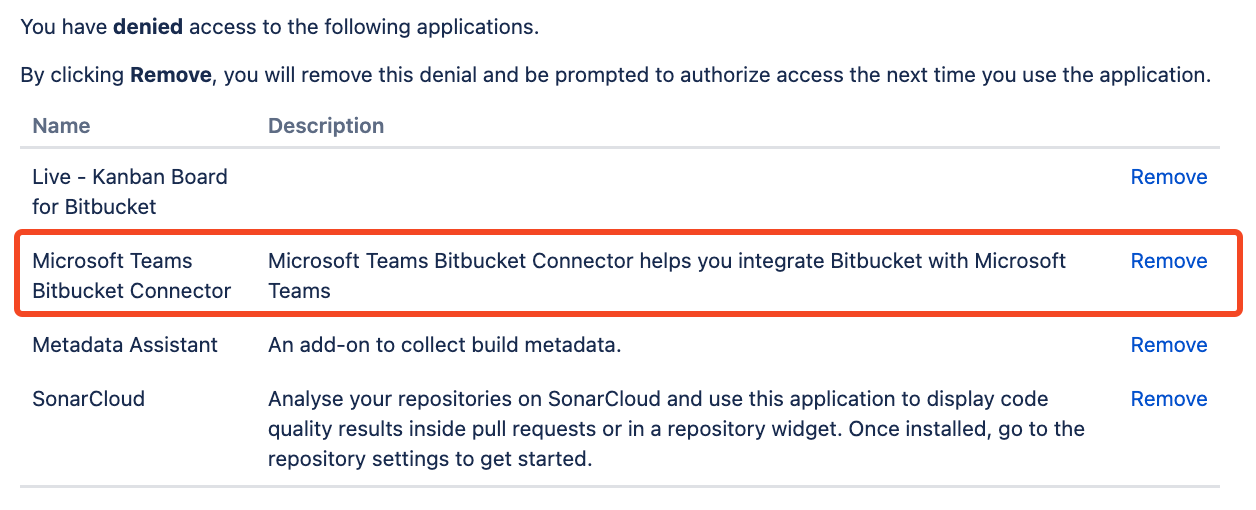
If the "Microsoft Teams Bitbucket Connector" app is in that section, you'll need to remove it.
Once removed, navigate to a repository > repository settings > Microsoft Team Bitbucket section (bottom of the left navigation panel).
The popup should appear for you to review and approve.
If the pop-up doesn't appear, try using a different browser. Safari's security features may prevent it from showing up.
How to use Microsoft Teams Workflows for notifications
Integrate Bitbucket.org with Microsoft Teams using Microsoft Teams Workflows app. Free and easy.
Short video demo
Steps
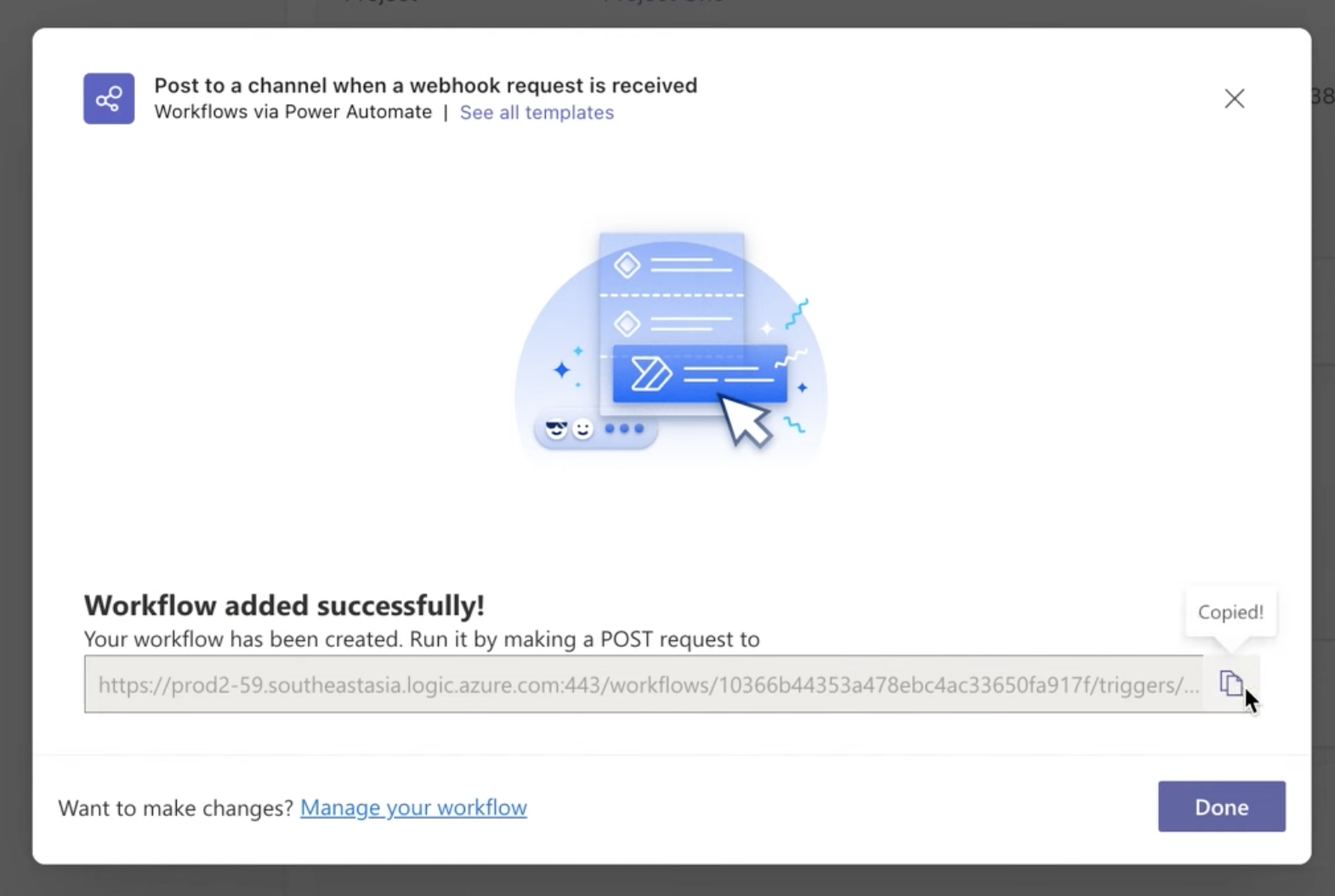
Create the Microsoft Teams Workflow to post messages in the channel. See the demo above.
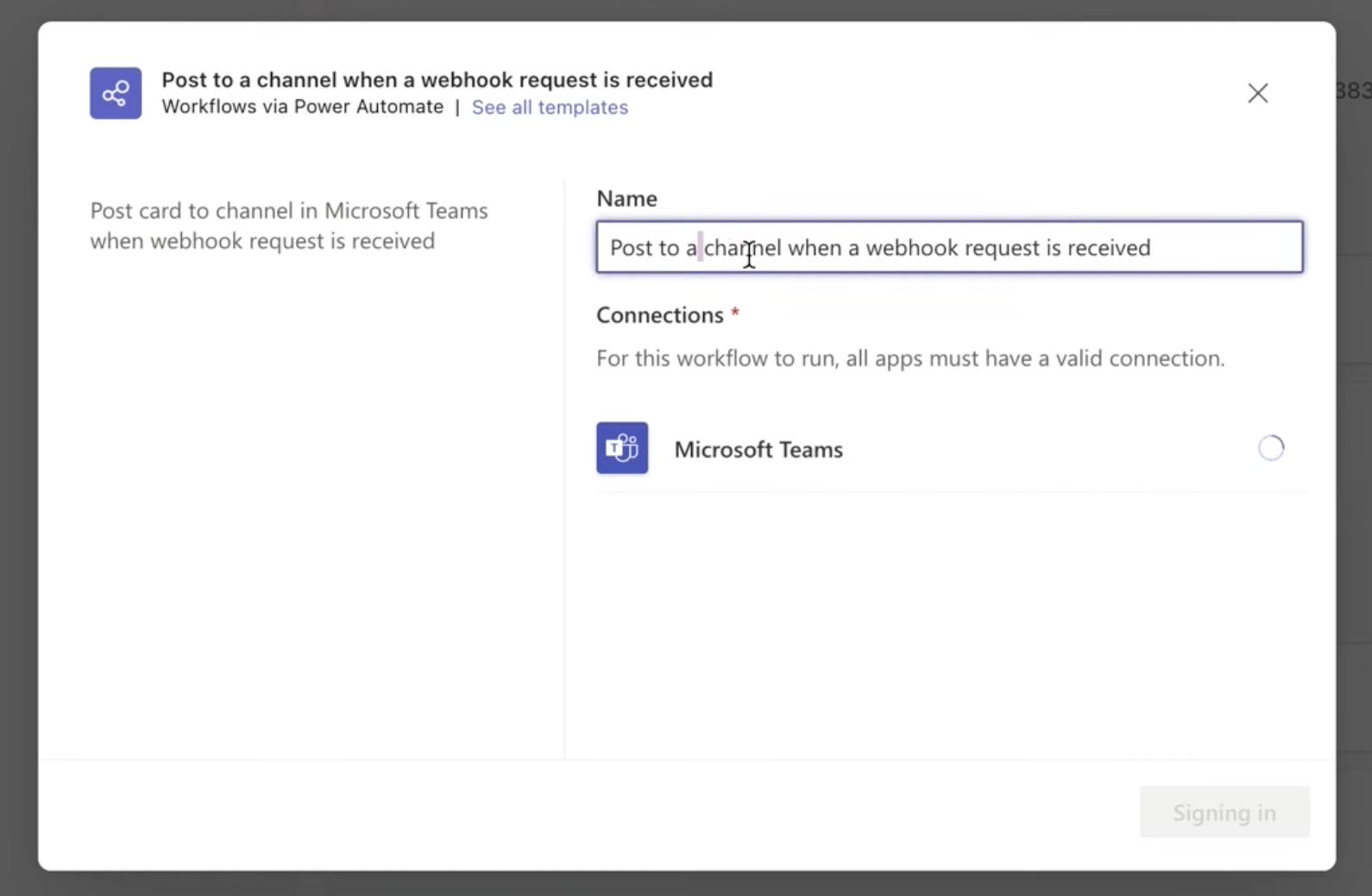
Copy the URL.
Use it with Microsoft Teams Bitbucket Connector
FAQs
Advanced Microsoft Teams Connector for Bitbucket Frequently Asked Questions for Bitbucket Cloud, Server and Data Center
Frequently Asked Questions
Frequently Asked Questions can be found at Microsoft Teams Bitbucket Connector product page.
Help & Support
For setup help, troubleshooting or general questions, please reach out via the Votazz contact page.
Please create a support request here.