Slack Notifications for Bitbucket
Overview
Slack notifications from Bitbucket Server or Data Center user guide.
Video demo
Purpose
Boost your team's productivity and transparency with Slack notifications for Bitbucket - the ultimate collaboration tool for seamless communication and efficient code management!
Main functionality
Here are some benefits of using this Bitbucket Server and Data Center app:
Stay informed about important code updates and changes with real-time notifications
Customize the level of detail in the notifications to get just the right amount of information
Filter out unnecessary notifications by only receiving updates about specific branches
Keep track of all pull request-related messages in a single thread for easier organization
Configure the app's settings to suit your team's specific needs at the global, project, or repository level
Stay up-to-date on the latest updates for Atlassian products and Marketplace apps to ensure smooth operation and take advantage of new features.
Short demo
Below is a short demo on how to configure Slack notifications for Bitbucket.
Frequently Asked Questions
Slack notifications for Bitbucket Frequently Asked Questions
Project-level configuration demo
Getting and installing the plugin
You can grab the latest release from Atlassian Marketplace. Download the jar file and install it into your Bitbucket instance from the manage Apps page.
Configuring the plugin
Slack configuration
You need to create an incoming webhook in Slack. Go to slack home using a web browser, and select Add Integrations. Scroll to the bottom, and select Incoming WebHooks (click on Add). This will generate the hook URL.
Bitbucket notifications to Slack plugin configuration
There are 3 places for the configuration. First is the global setting page that you can access from the Bitbucket administration. The second one is in the Project settings, which covers all repositories of a particular project. The project-level configuration works well for smaller Bitbucket projects or when a team owns a project.
On the repository level, you can override repository-specific preferences and settings to narrow down events.
Below you can see pull request notifications.
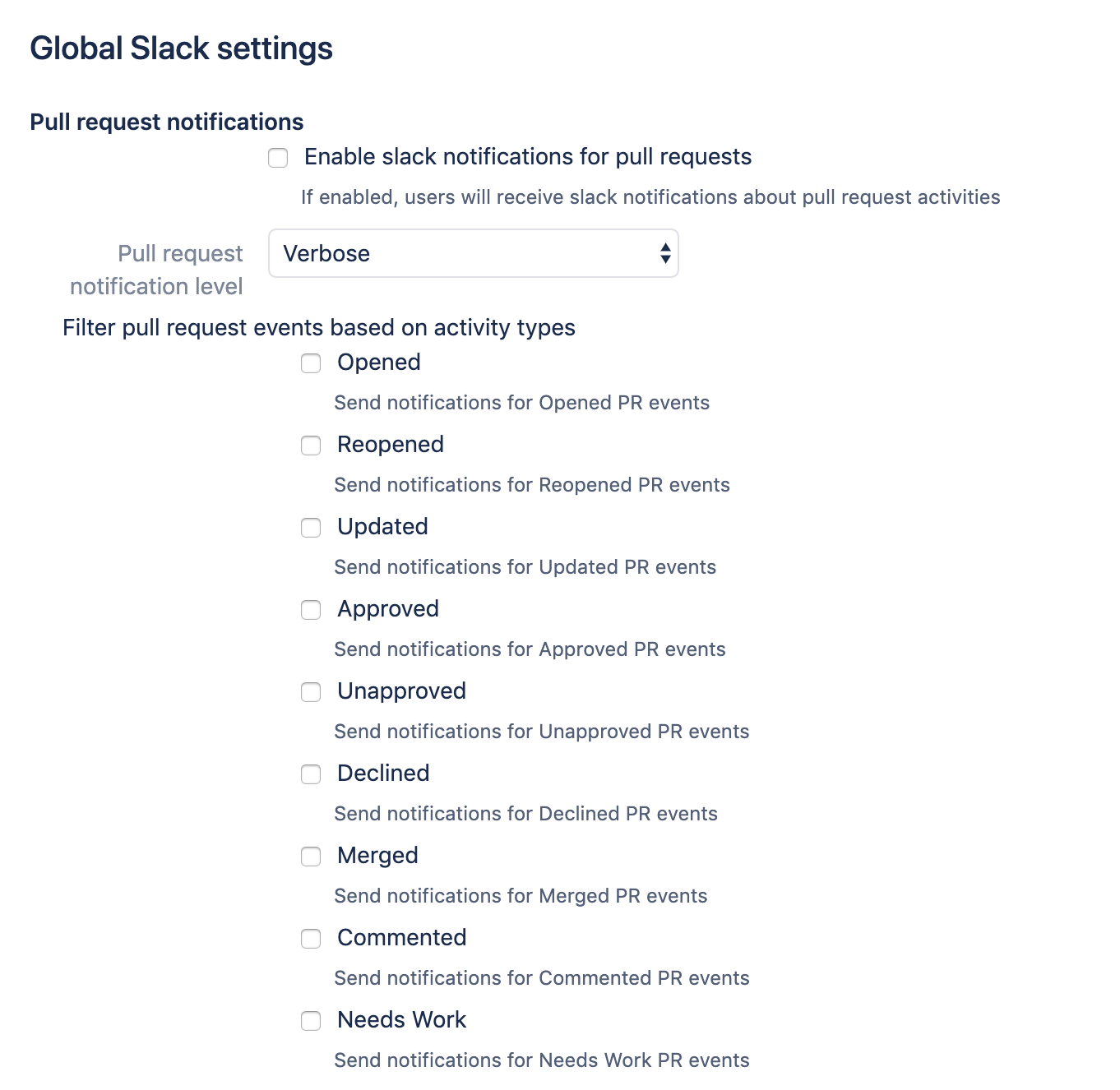
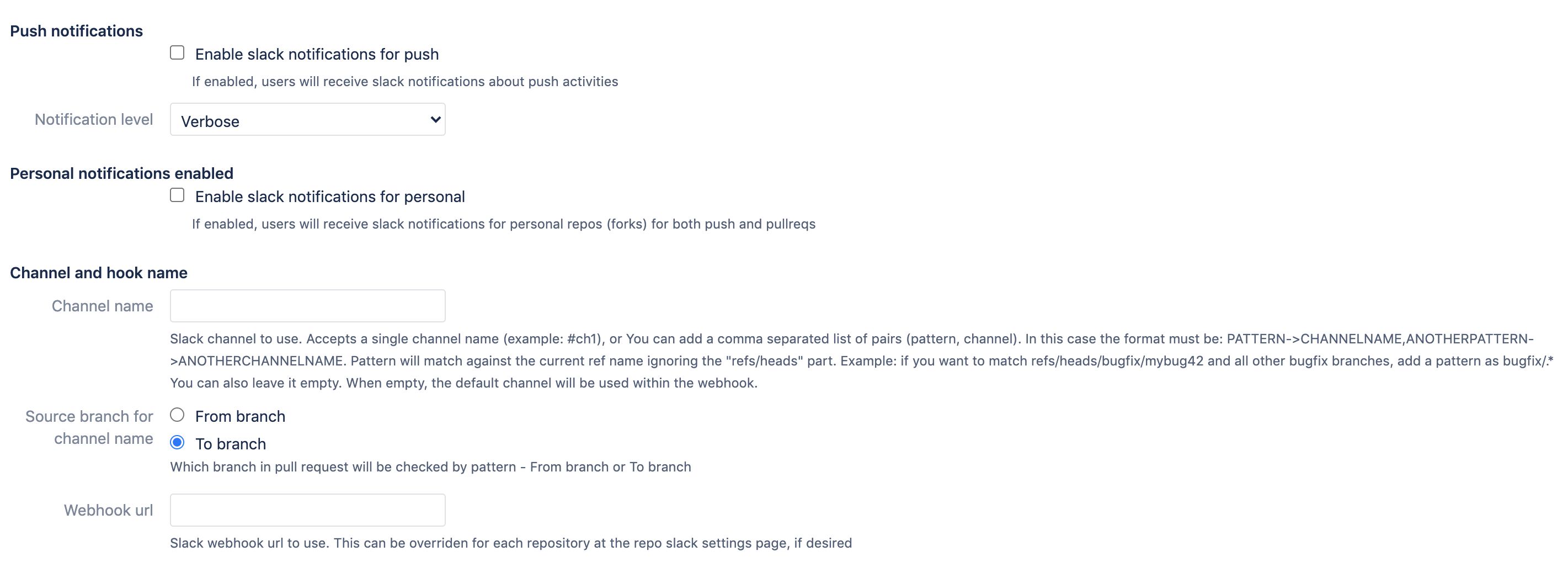
Bitbucket repository push notifications.
Branch filters
Additionally, you can set up Channels and branch patterns. Using this setting, you can configure which Slack channel should be used for notifications about events in the particular branch(s).
It accepts a single channel name (example: #it-admins), or you can add a comma-separated list of pairs (pattern->channel). In this case, the format must be PATTERN->CHANNELNAME, ANOTHERPATTERN->ANOTHERCHANNELNAME. The pattern will match against the current ref name ignoring the "refs/heads" part. For instance, if you want to match refs/heads/bugfix/mybug42 and all other bugfix branches, add a pattern as bugfix/.* You can also leave it empty. When empty, the default channel will be used within the webhook.
Note: the branch filter is an event destination branch (“to” branch selected by default). It is important for some pull request events.
For instance, if you want to be notified when the pull request is merged and filtered by branch. You have to use the destination branch (“to” branch).
The “from branch” is used to filter by the source branch. Normally, it is used for pull request activities.
For example, I’ve got a branch issue/DEV-564-slack-card-refactoring and I want to receive notifications about PR comments to slack into my channel. I will set up `issue/DEV-564-slack-card-refactoring->#pull-request-comments`.
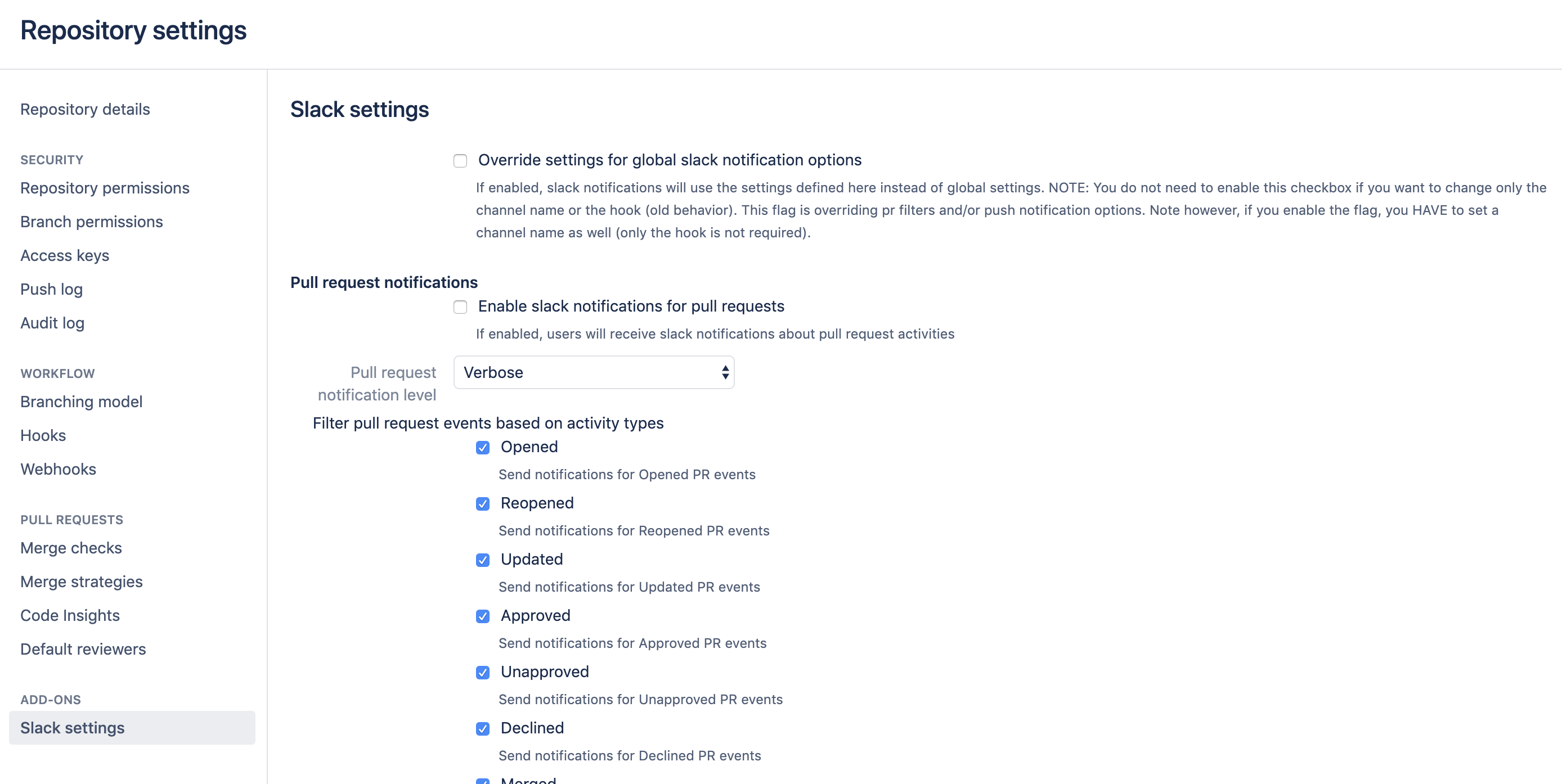
You have the option to enable notifications on a per-repository basis. Go to your repository settings page, select Slack settings and enable pull requests and/or push notifications with the checkboxes. You can override here the default global settings.
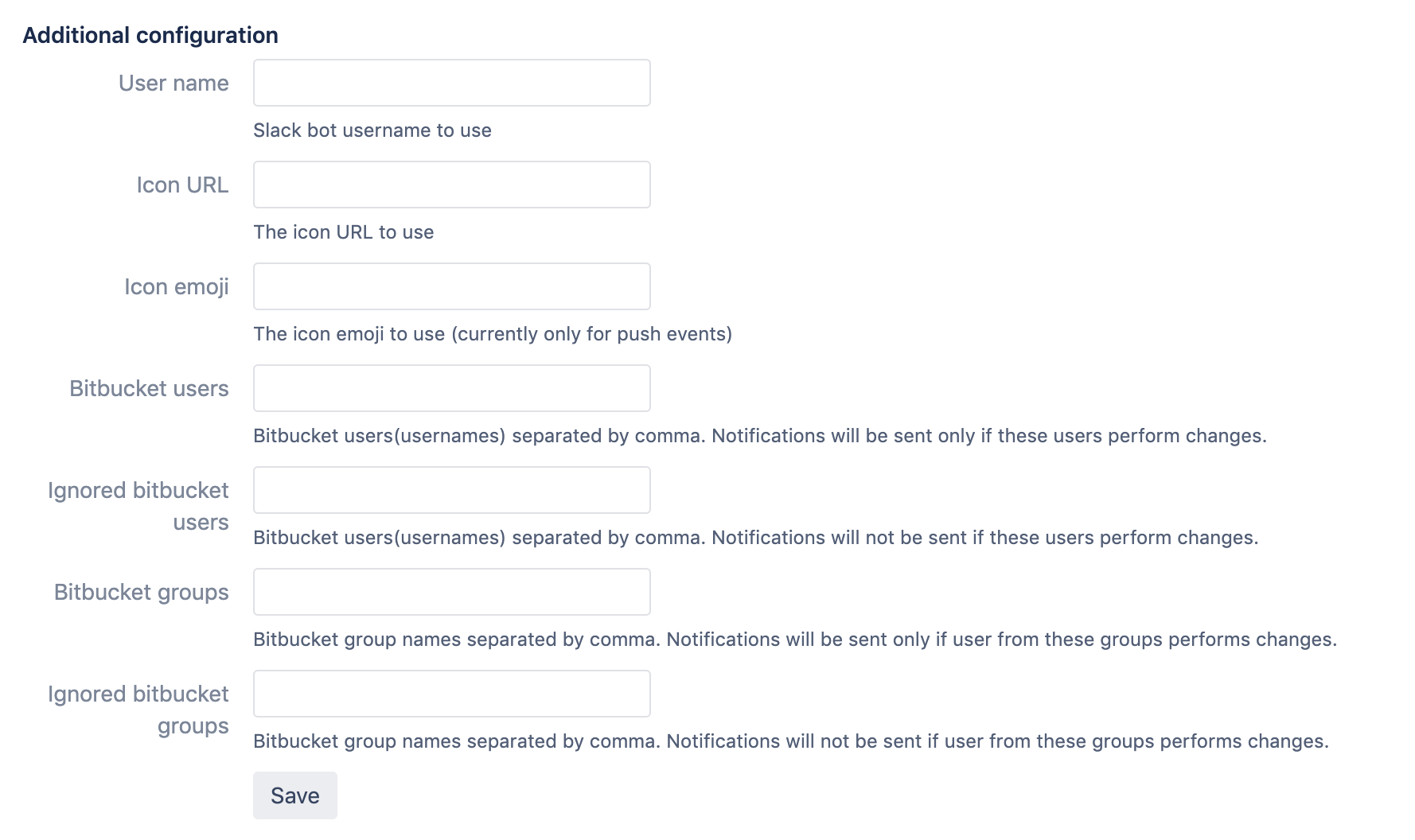
Additional filters
There are 4 additional filters are present:
users that triggered the events (users whitelist).
users that triggered the events and should be ignored (users blacklist).
user groups a user that had triggered an event should belong to (user groups whitelist).
user groups a user that had triggered an event should belong to and will be ignored (user groups blacklist).
Override settings for global Slack notification options - If enabled, Slack notifications will use the settings defined on the repository level instead of global settings. This flag overrides pull request filters or push notification options. Note, if you enable the flag, you MUST set a channel name as well (only the hook is not required).
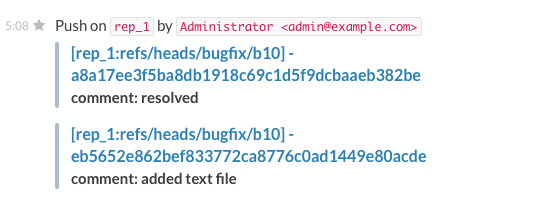
Here is an example screenshot about the push notifications:
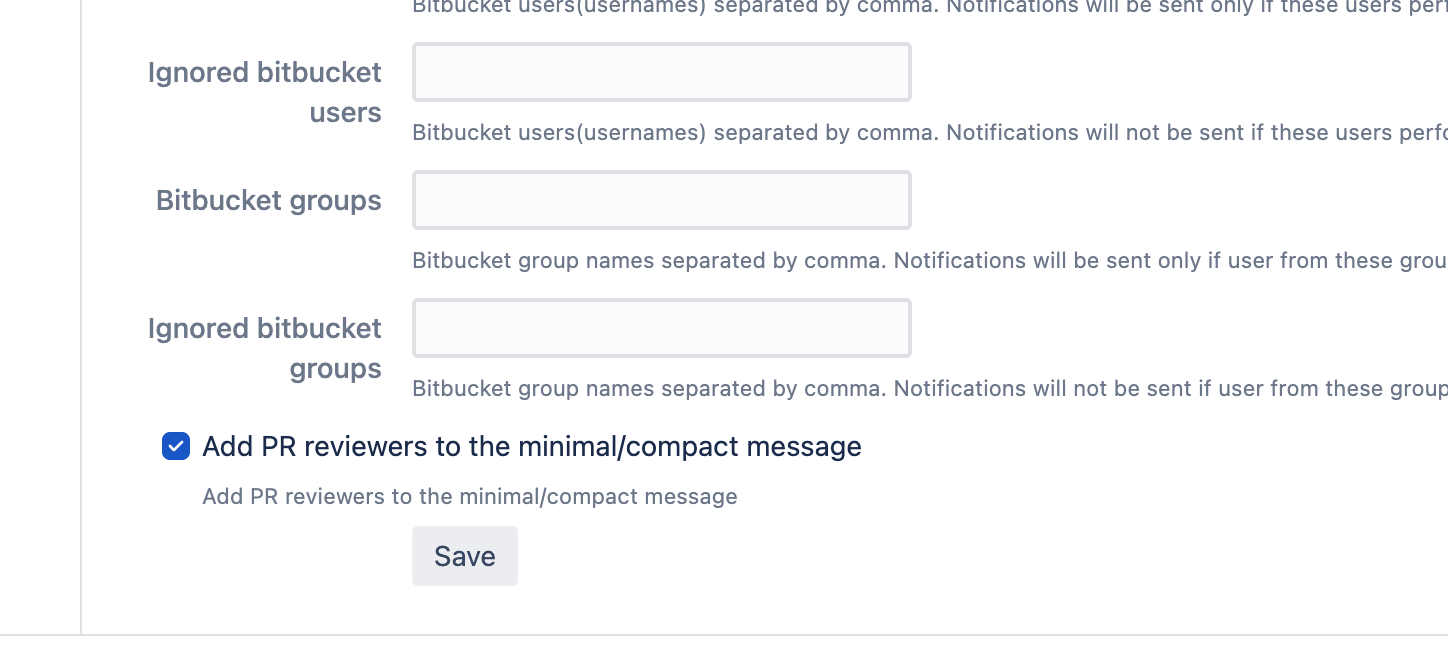
Add reviewers to the compact and minimal message types
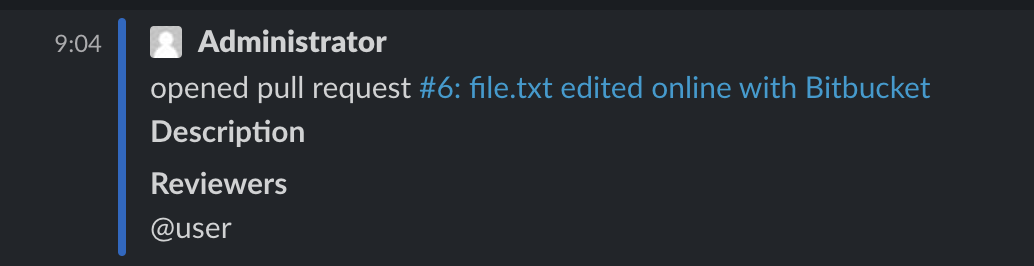
There is a setting that controls whether the reviewers are added to the minimal and compact messages. It is present on all three levels.
This is how it looks when the setting is on.
Happy Slack notifications!
If you have any questions please let us know.
Disable statistics collection
Bitbucket global administrator can navigate to the application global configuration and disable statistics collection and sending.
Version updates Slack notifications
Global administrators can receive Slack notifications for new releases of major Atlassian products and Atlassian Marketplace applications.
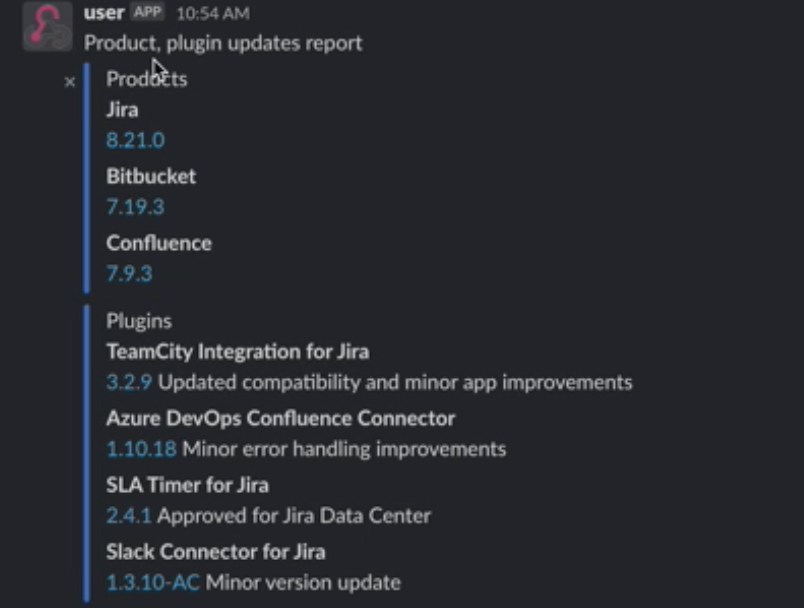
By clicking on the new version of the app you are redirected to the change logs of a particular application or plugin.
The configuration looks like this:
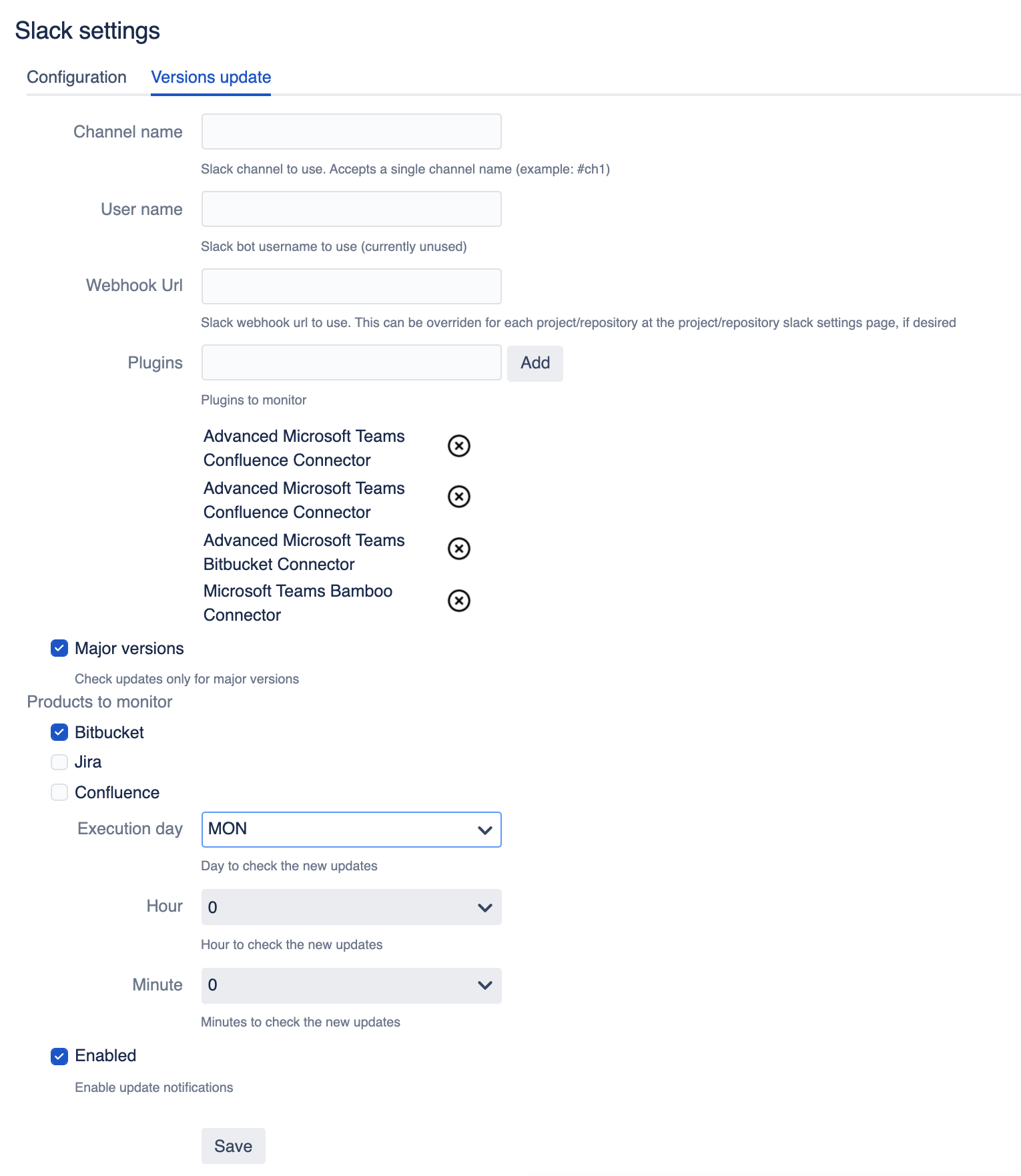
You need to configure where you want to get notifications, for which Apps and when (schedule it). Don’t forget to enable change log notifications.
If you have any feedback about this feature please do not hesitate to reach out.
Debugging
To enable debug mode for Bitbucket and supply us with the support zip or Bitbucket log file.
Project level guide
Elevate collaboration with our guide on enabling Slack notifications for Bitbucket at the project level. Streamline workflows effortlessly for efficient communication.
Video demo
Purpose
Boost your team's productivity and transparency with Slack notifications for Bitbucket - the ultimate collaboration tool for seamless communication and efficient code management!
Main functionality
Here are some benefits of using this Bitbucket Server and Data Center app:
Stay informed about important code updates and changes with real-time notifications
Customize the level of detail in the notifications to get just the right amount of information
Filter out unnecessary notifications by only receiving updates about specific branches
Keep track of all pull request-related messages in a single thread for easier organization
Configure the app's settings to suit your team's specific needs at the global, project, or repository level
Stay up-to-date on the latest updates for Atlassian products and Marketplace apps to ensure smooth operation and take advantage of new features.
Short demo
Below is a short demo on how to configure Slack notifications for Bitbucket.
Configuration demo
Frequently Asked Questions
Slack notifications for Bitbucket Frequently Asked Questions
Configuring Slack notifications for Bitbucket
Slack configuration
You need to create an incoming webhook in Slack. Go to slack home using a web browser, and select Add Integrations. Scroll to the bottom, and select Incoming WebHooks (click on Add). This will generate the hook URL.
Project configuration for Slack notifications for Bitbucket
There are 3 places for the configuration. First is the global setting page that you can access from the Bitbucket administration. The second one is in the Project settings, which covers all repositories of a particular project. The project-level configuration works well for smaller Bitbucket projects or when a team owns a project.
On the project level, you can override project-specific preferences and settings to narrow down events.
Below you can see pull request notifications.
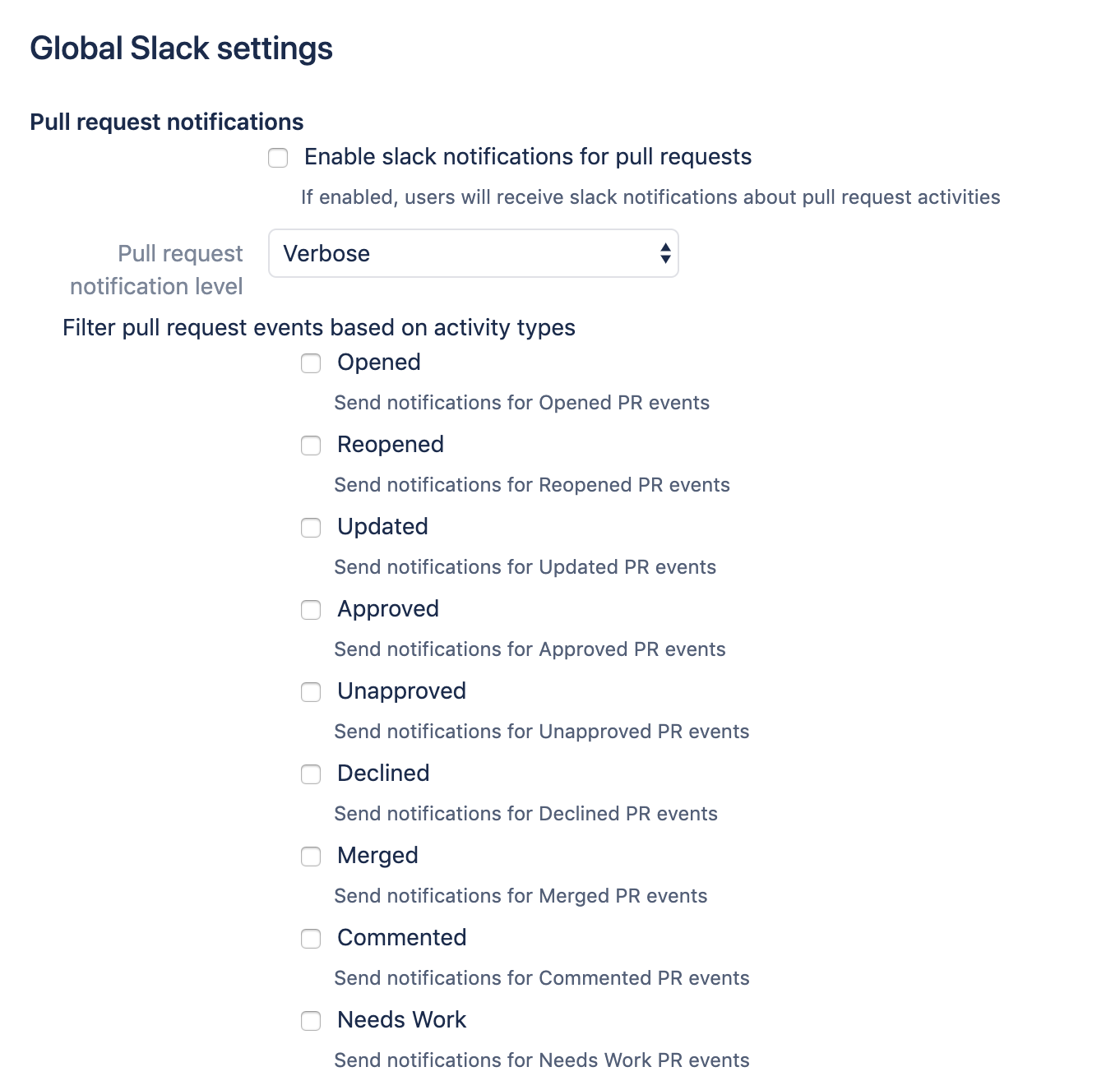
Branch filters
Additionally, you can set up Channels and branch patterns. Using this setting you can configure which Slack channel should be used for notifications about events in the particular branch(s).
It accepts a single channel name (example: #it-admins), or you can add a comma-separated list of pairs (pattern->channel). In this case, the format must be PATTERN->CHANNELNAME, ANOTHERPATTERN->ANOTHERCHANNELNAME. The pattern will match against the current ref name ignoring the "refs/heads" part. For instance, if you want to match refs/heads/bugfix/mybug42 and all other bugfix branches, add a pattern as bugfix/.* You can also leave it empty. When empty, the default channel will be used within the webhook.
Note: the branch filter is an event destination branch (“to” branch selected by default). It is important for some pull request events.
For instance, if you want to be notified when the pull request is merged and filtered by branch. You have to use the destination branch (“to” branch).
The “from branch” is used to filter by the source branch. Normally, it is used for pull request activities.
For example, I’ve got a branch issue/DEV-564-slack-card-refactoring and I want to receive notifications about PR comments to slack into my channel. I will set up `issue/DEV-564-slack-card-refactoring->#pull-request-comments`.
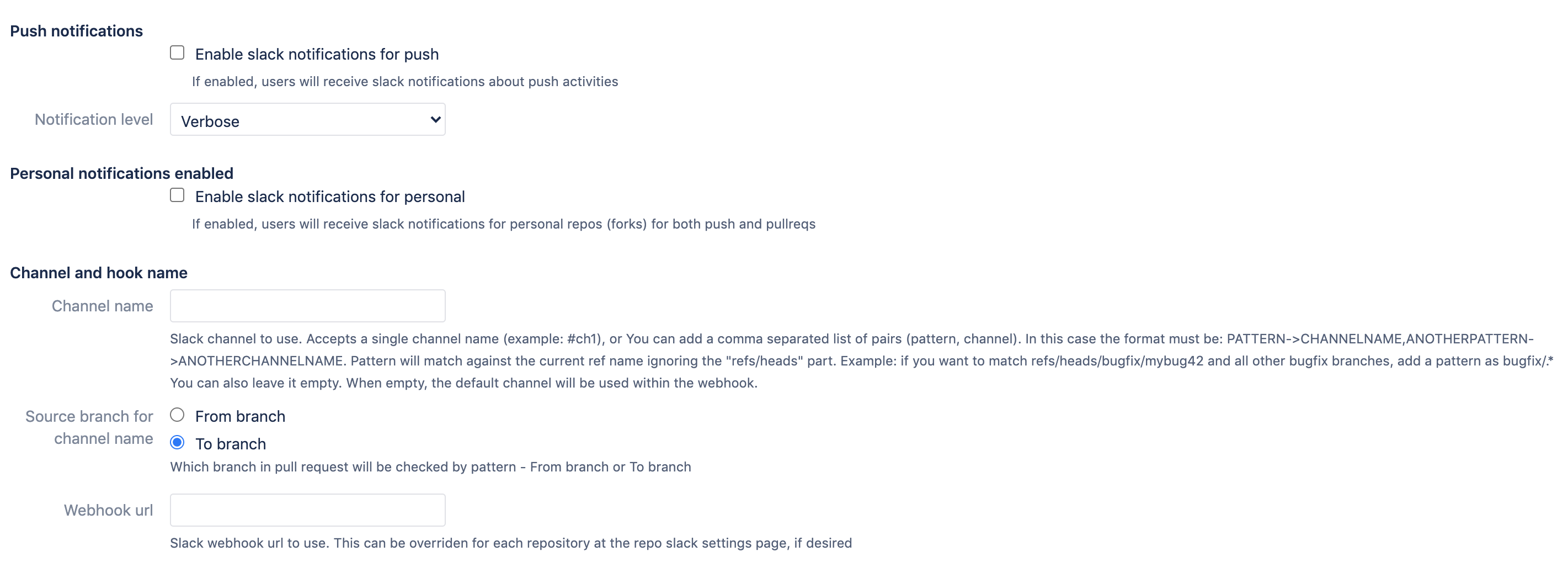
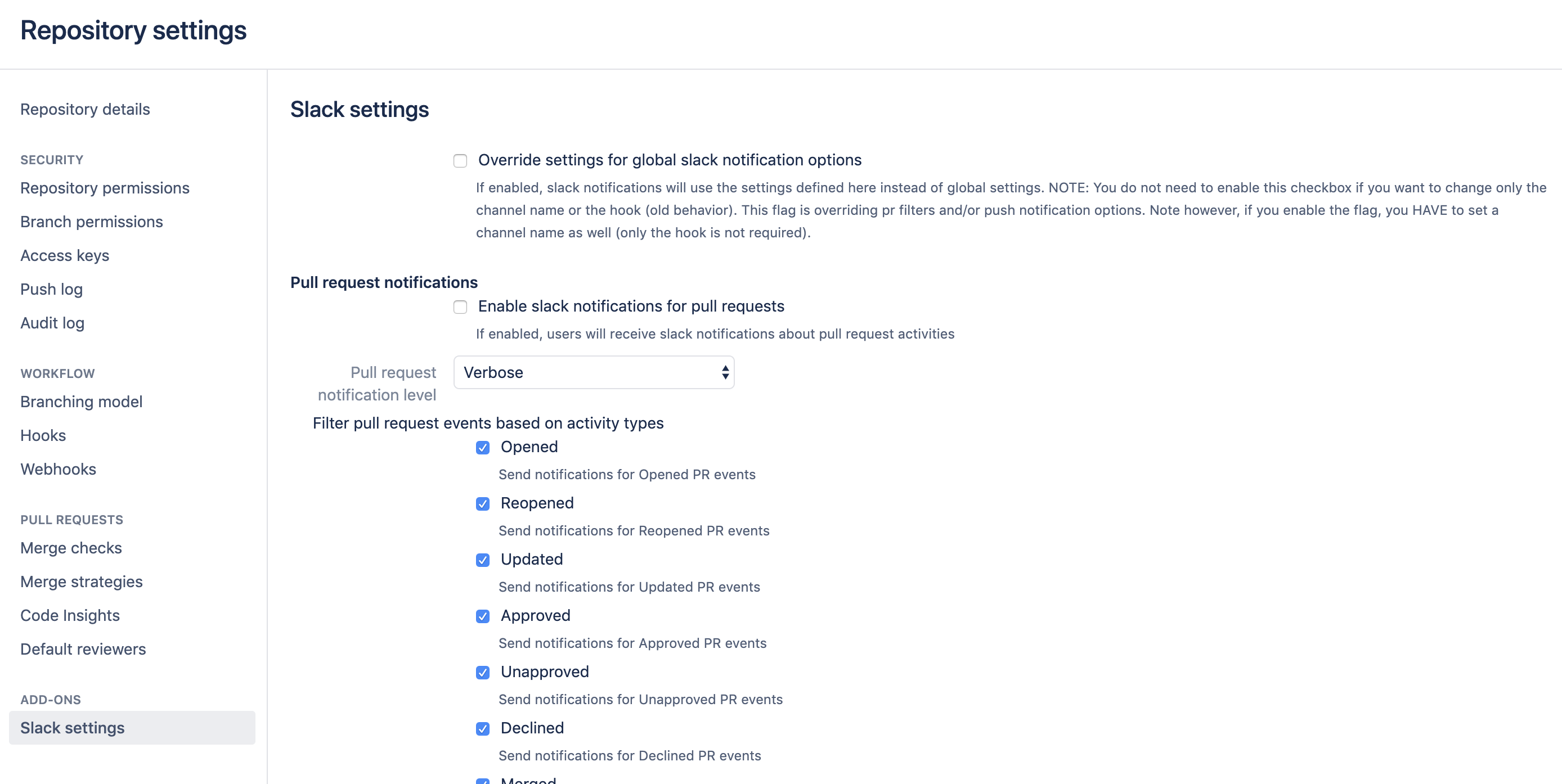
You have the option to enable notifications on a per-project basis. Go to your project settings page, select Slack settings and enable pull requests and/or push notifications with the checkboxes. You can override here the default global settings.
Additional filters
There are 4 additional filters are present:
users that triggered the events (users whitelist).
users that triggered the events and should be ignored (users blacklist).
user groups a user that had triggered an event should belong to (user groups whitelist).
user groups a user that had triggered an event should belong to and will be ignored (user groups blacklist).
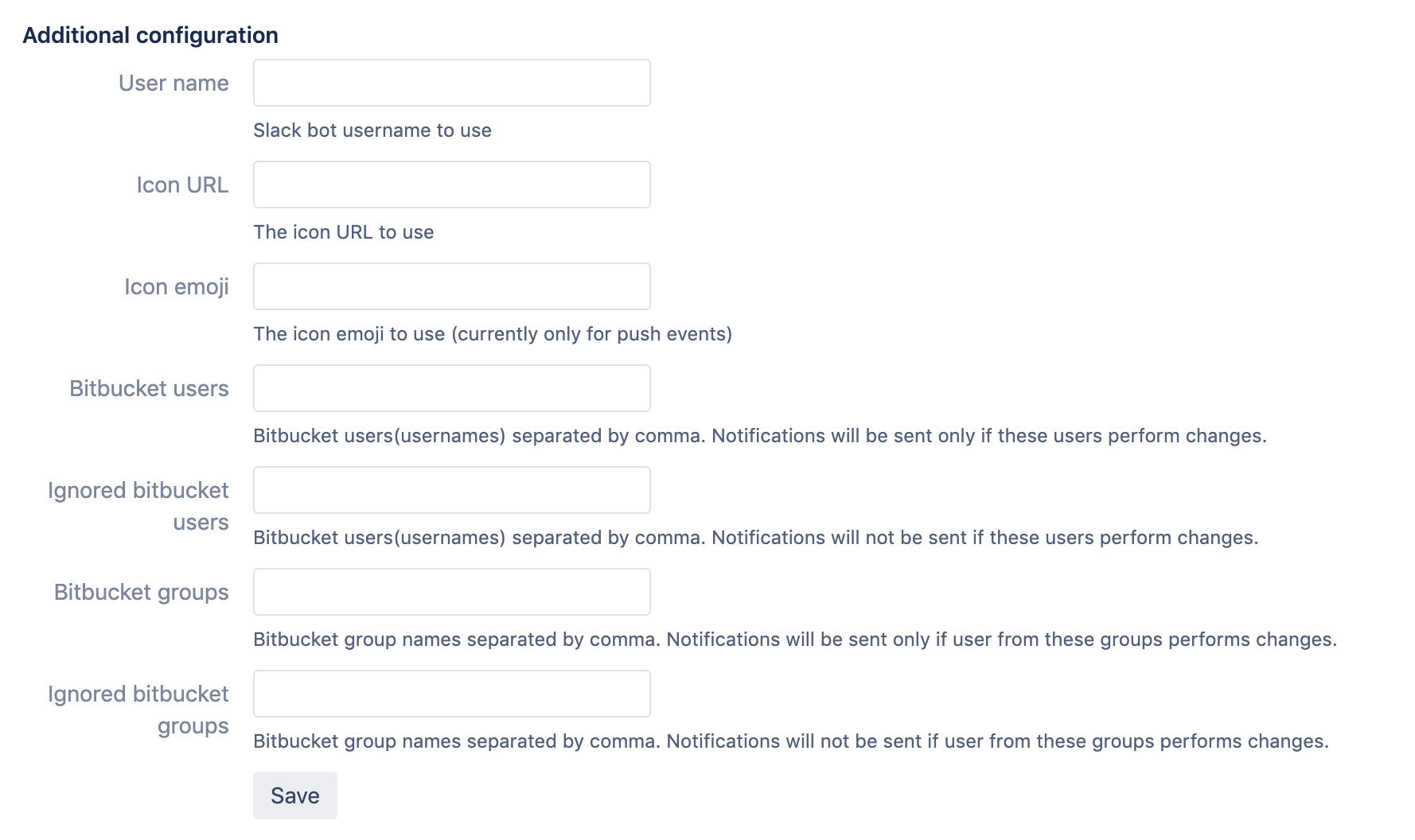
Override settings for global slack notification options - If enabled, Slack notifications will use the settings defined on the project level instead of global settings. This flag overrides pull request filters or push notification options.
If you enable the flag, you MUST set a channel name as well (only the hook is not required).
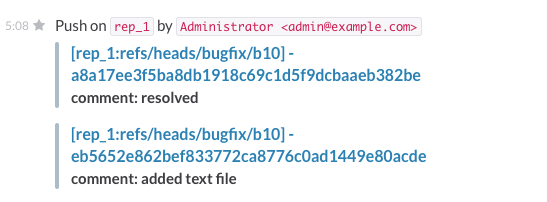
Here is an example screenshot about the push notifications:
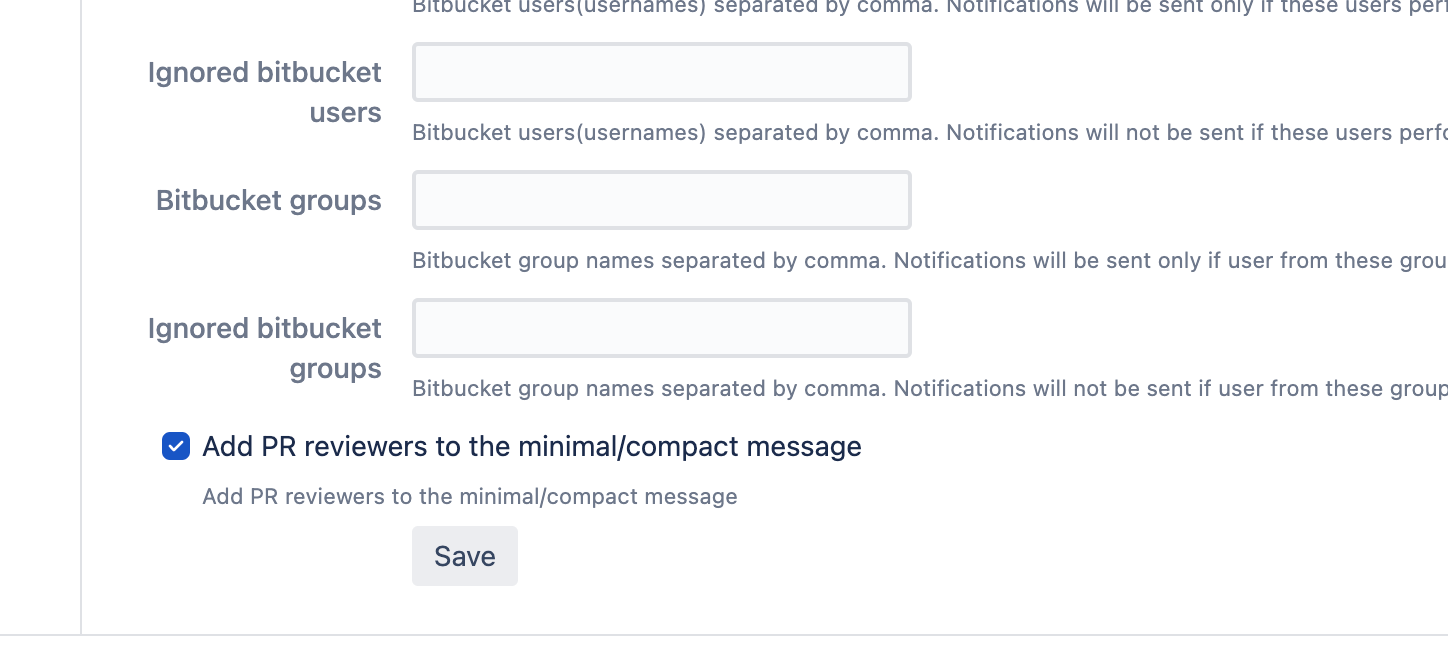
Add reviewers to the compact and minimal message types
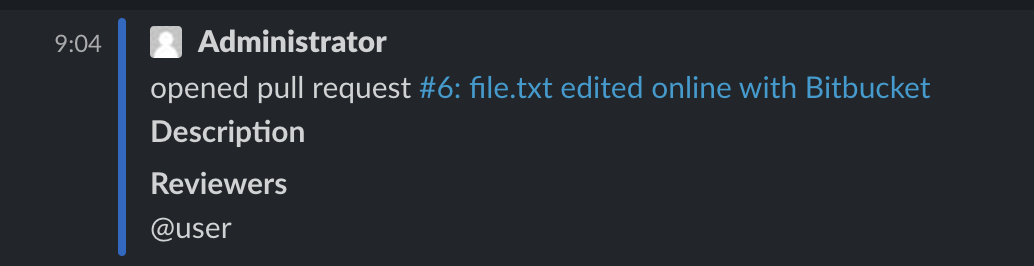
There is a setting that controls whether the reviewers are added to the minimal and compact messages. It is present on all three levels.
This is how it looks when the setting is on.
Happy Slack notifications!
If you have any questions please let us know.
Version updates Slack notifications (global settings)
Global administrators can receive Slack notifications for new releases of major Atlassian products and Atlassian Marketplace applications.
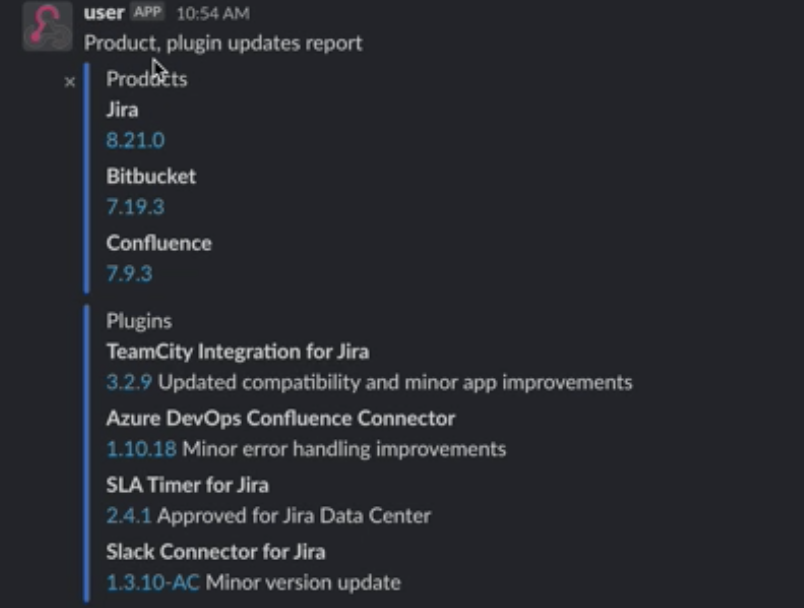
By clicking on the new version of the app you are redirected to the change logs of a particular application or plugin.
The configuration looks like this:
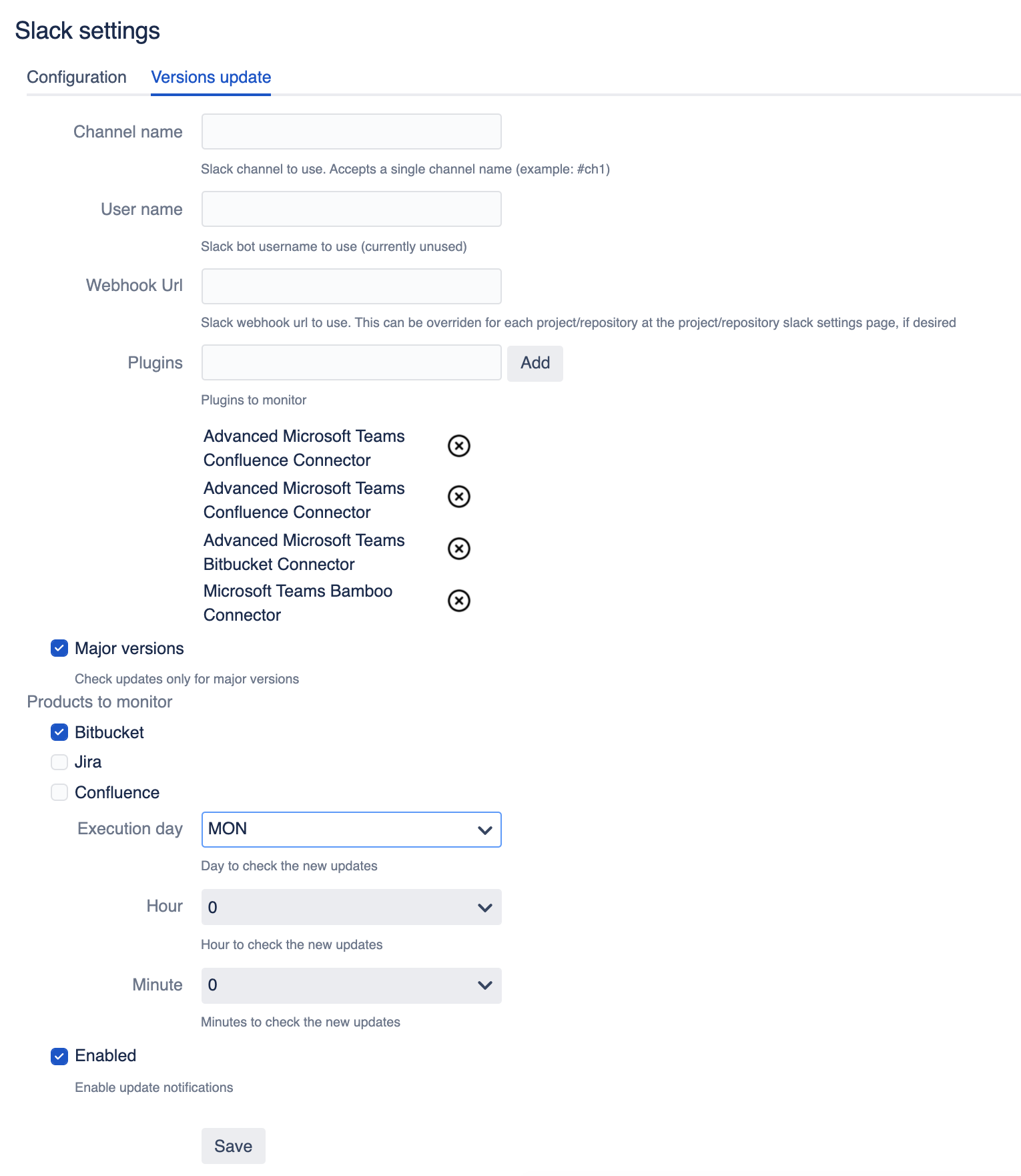
You need to configure where you want to get notifications, for which Apps and when (schedule it). Don’t forget to enable change log notifications.
If you have any feedback about this feature please do not hesitate to reach out.
Debugging
You need to enable debug mode for Bitbucket and supply us with the support zip or Bitbucket log file.
Repository level guide
Learn how to set up Slack notifications for Bitbucket at the repository level. Streamline communication for efficient workflows with our detailed guide.
Video demo
Purpose
Boost your team's productivity and transparency with Slack notifications for Bitbucket - the ultimate collaboration tool for seamless communication and efficient code management!
Main functionality
Here are some benefits of using this Bitbucket Server and Data Center app:
Stay informed about essential code updates and changes with real-time notifications
Customize the level of detail in the notifications to get just the right amount of information
Filter out unnecessary notifications by only receiving updates about specific branches
Keep track of all pull request-related messages in a single thread for easier organization
Configure the app's settings to suit your team's specific needs at the global, project, or repository level
Stay up-to-date on the latest updates for Atlassian products and Marketplace apps to ensure smooth operation and take advantage of new features.
Short demo
Below is a short demo on how to configure Slack notifications for Bitbucket.
Project-level configuration demo
Frequently Asked Questions
Slack notifications for Bitbucket Frequently Asked Questions
Configuring Slack notifications for Bitbucket
Slack configuration
You need to create an incoming webhook in Slack. Go to slack home using a web browser, and select Add Integrations. Scroll to the bottom, and select Incoming WebHooks (click on Add). This will generate the hook URL.
Repository configuration for Slack notifications for Bitbucket
There are 3 places for the configuration. First is the global setting page that you can access from the Bitbucket administration. The second one is in the Project settings, which covers all repositories of a particular project. The project-level configuration works well for smaller Bitbucket projects or when a team owns a project.
On the repository level, you can override repository-specific preferences and settings to narrow down events.
Below you can see pull request notifications.
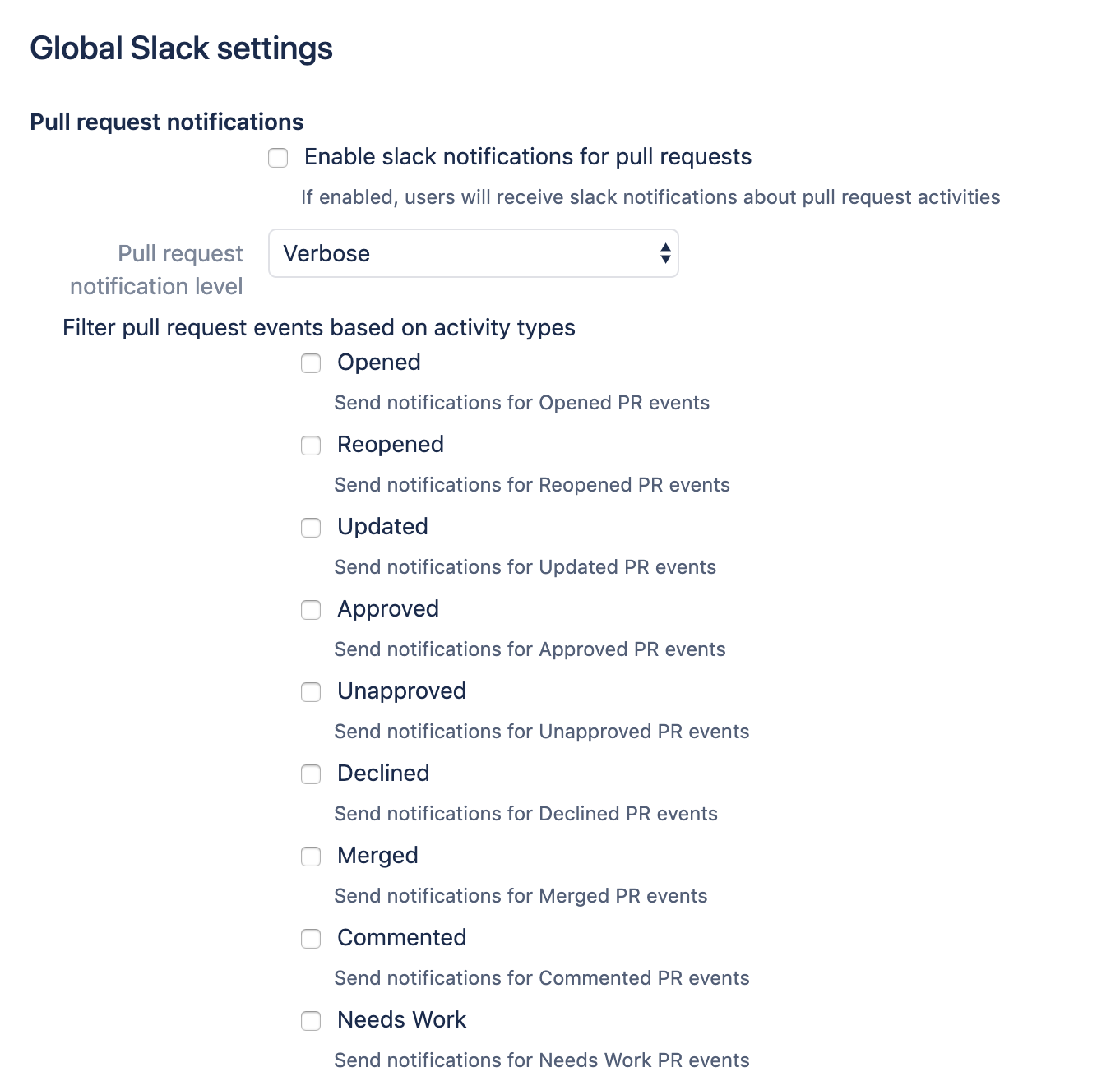
Bitbucket repository push notifications.
Branch filters
Additionally, you can set up Channels and branch patterns. Using this setting you can configure which Slack channel should be used for notifications about events in the particular branch(s).
It accepts a single channel name (example: #it-admins), or you can add a comma-separated list of pairs (pattern->channel). In this case, the format must be PATTERN->CHANNELNAME, ANOTHERPATTERN->ANOTHERCHANNELNAME. The pattern will match against the current ref name ignoring the "refs/heads" part. For instance, if you want to match refs/heads/bugfix/mybug42 and all other bugfix branches, add a pattern as bugfix/.* You can also leave it empty. When empty, the default channel will be used within the webhook.
Note: the branch filter is an event destination branch (“to” branch selected by default). It is important for some pull request events.
For instance, if you want to be notified when the pull request is merged and filtered by branch. You have to use the destination branch (“to” branch).
The “from branch” is used to filter by the source branch. Normally, it is used for pull request activities.
For example, I’ve got a branch issue/DEV-564-slack-card-refactoring and I want to receive notifications about PR comments to slack into my channel. I will set up `issue/DEV-564-slack-card-refactoring->#pull-request-comments`.
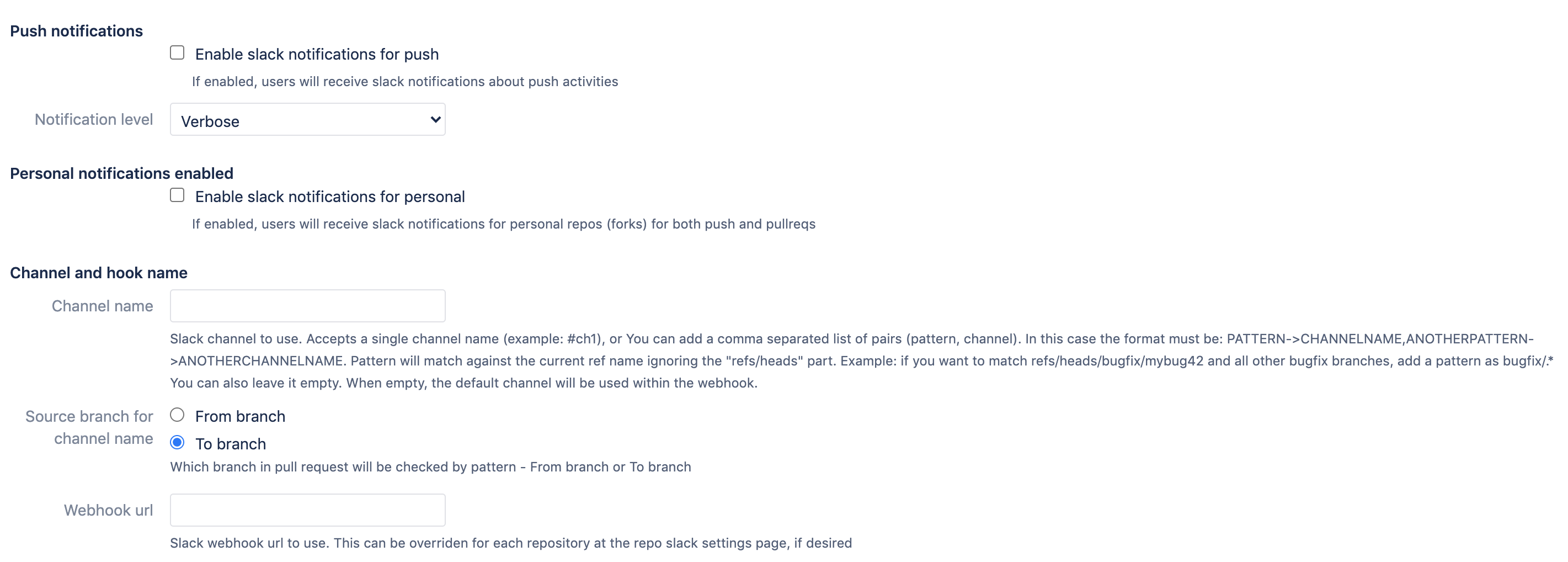
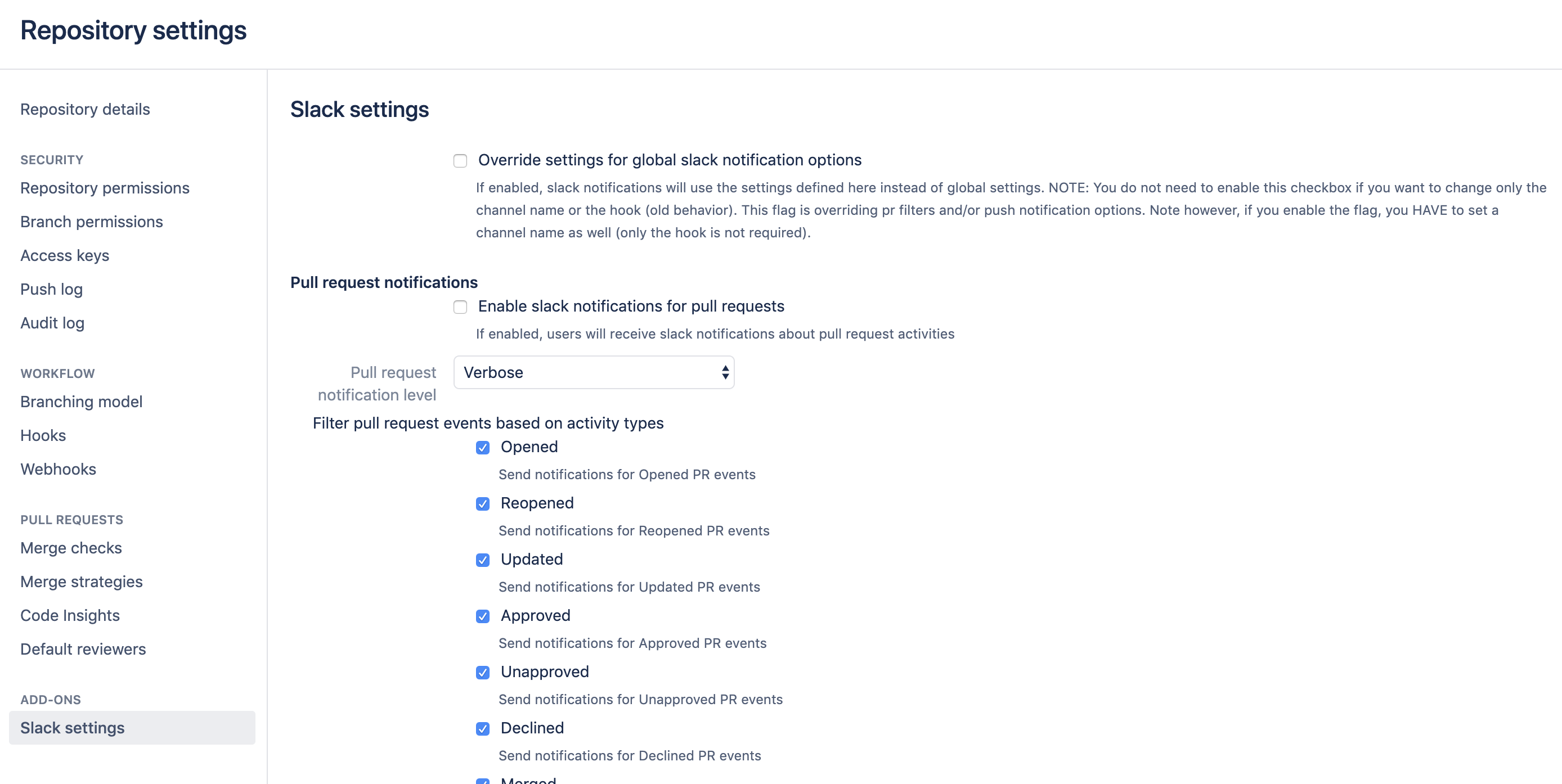
You have the option to enable notifications on a per-repository basis. Go to your repository settings page, select Slack settings and enable pull requests and/or push notifications with the checkboxes. You can override here the default global settings.
Additional filters
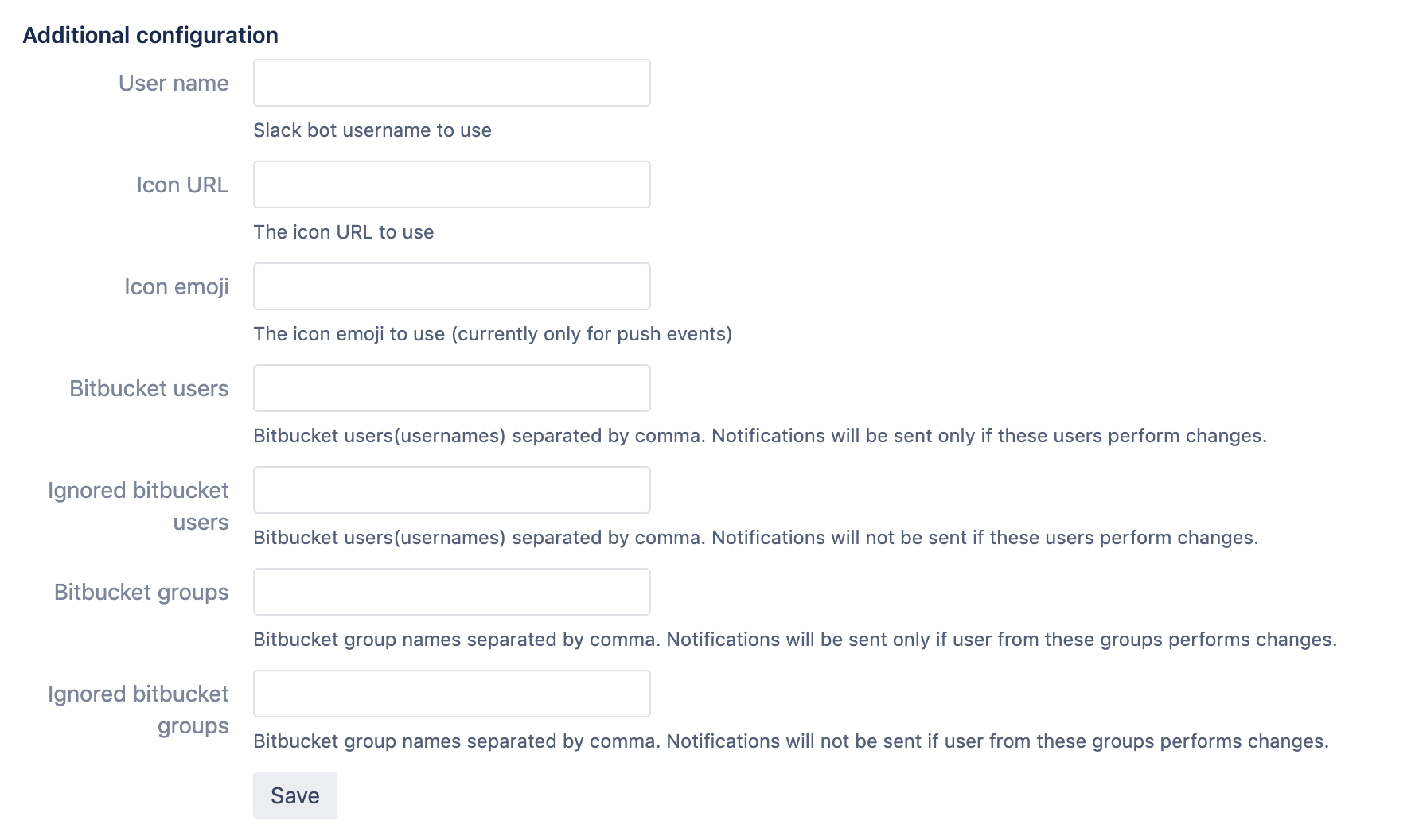
There are 4 additional filters are present:
users that triggered the events (users whitelist).
users that triggered the events and should be ignored (users blacklist).
user groups a user that had triggered an event should belong to (user groups whitelist).
user groups a user that had triggered an event should belong to and will be ignored (user groups blacklist).
Override settings for global slack notification options - If enabled, Slack notifications will use the settings defined on the repository level instead of global settings. This flag overrides pull request filters or push notification options.
If you enable the flag, you MUST set a channel name as well (only the hook is not required).
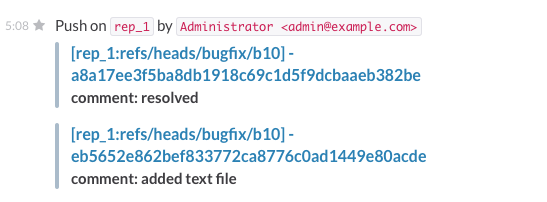
Here is an example screenshot about the push notifications:
Add reviewers to the compact and minimal message types
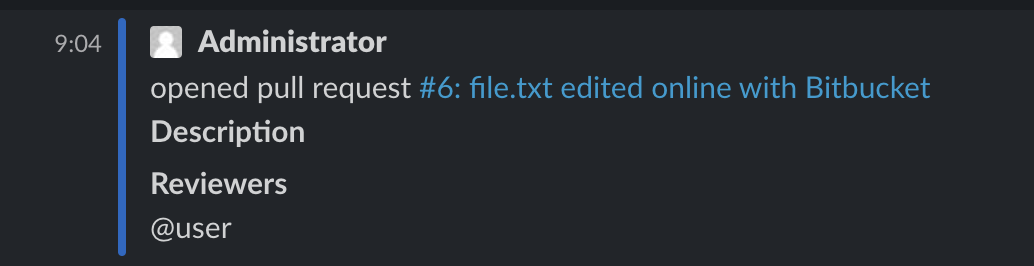
There is a setting that controls whether the reviewers are added to the minimal and compact messages. It is present on all three levels.
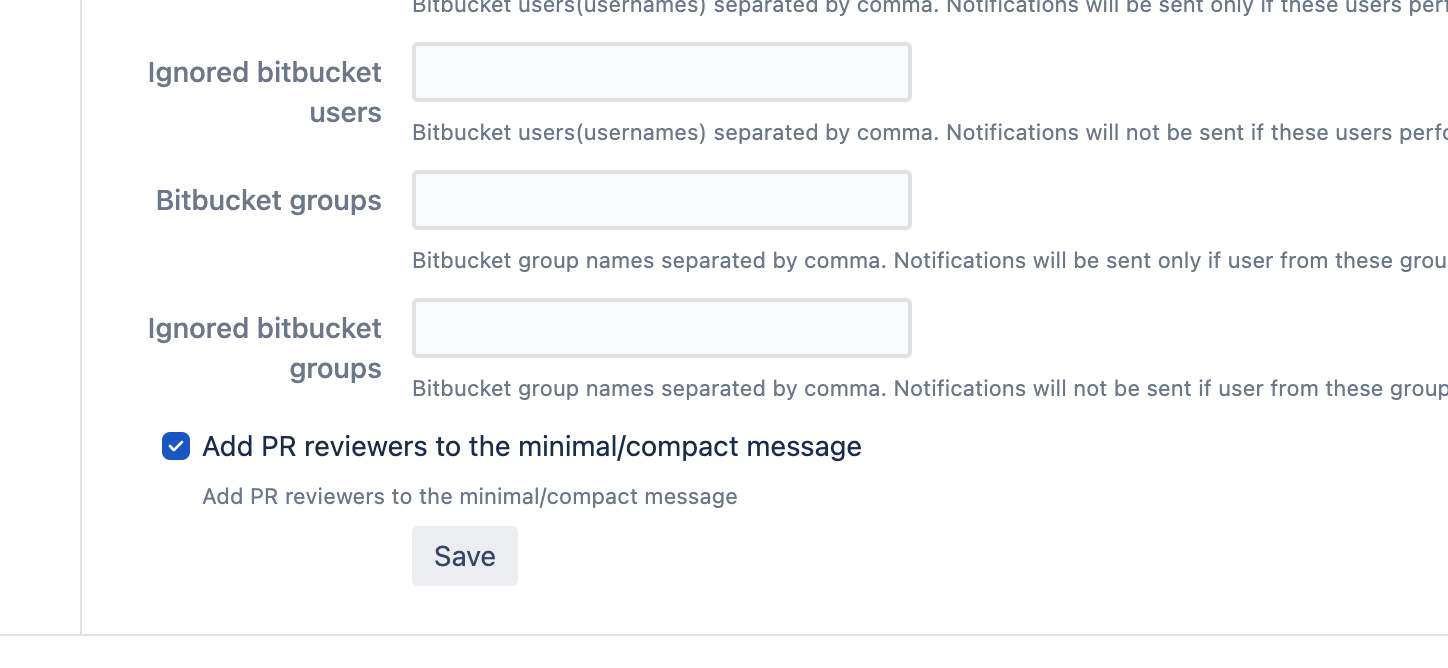
This is how it looks when the setting is on.
Configuring Activity Reports
Activity Reports are available since version 8.0.1
To configure Activity Reports in Bitbucket go to the Repository Settings of the Repository in question, then scroll down to Add-ons and select Slack Settings. From here, select the Activity Reports tab as shown below.

Click on  to bring up the following window:
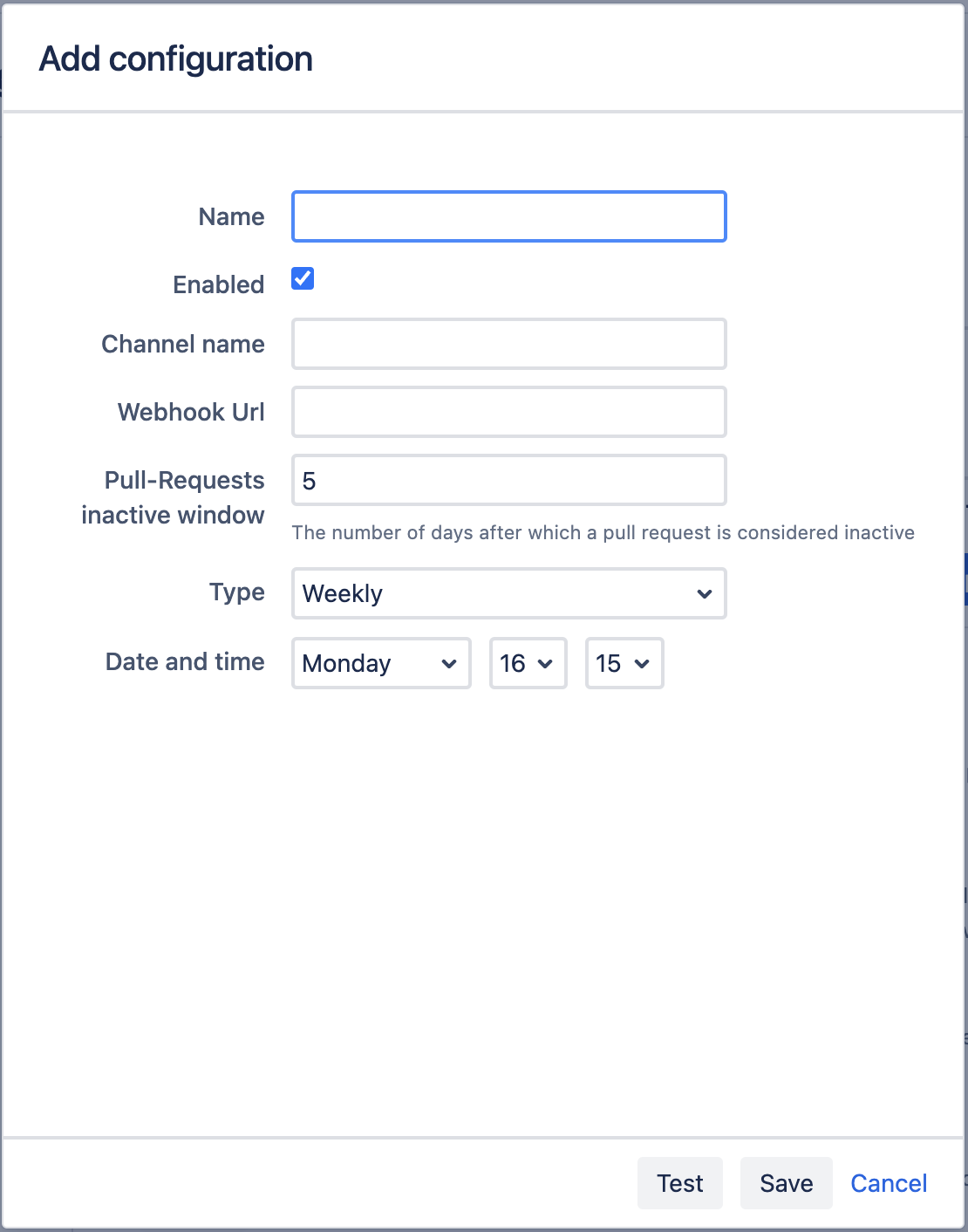
Name - Provide a name for the configuration.
Enabled - Leave the box ticked to enable to configuration.
Channel Name - Provide the Channel name which should receive the Activity Report
Webhook URL - Enter the Webhook URL of your Slack channel.
Pull-Requests inactive window - Specify the number of days a pull-request should be inactive before showing in the relative section of the activity report
Type - Specify how often the report should be sent Daily (Every day Mon-Sun), Weekly (Once a week on the specified day) Working days (Every day Mon-Fri).
Date and time - Specify the day (if weekly) and the time the report should be sent.
Now you can Test the configuration, which will send an Activity Report to Slack, and then click Save.

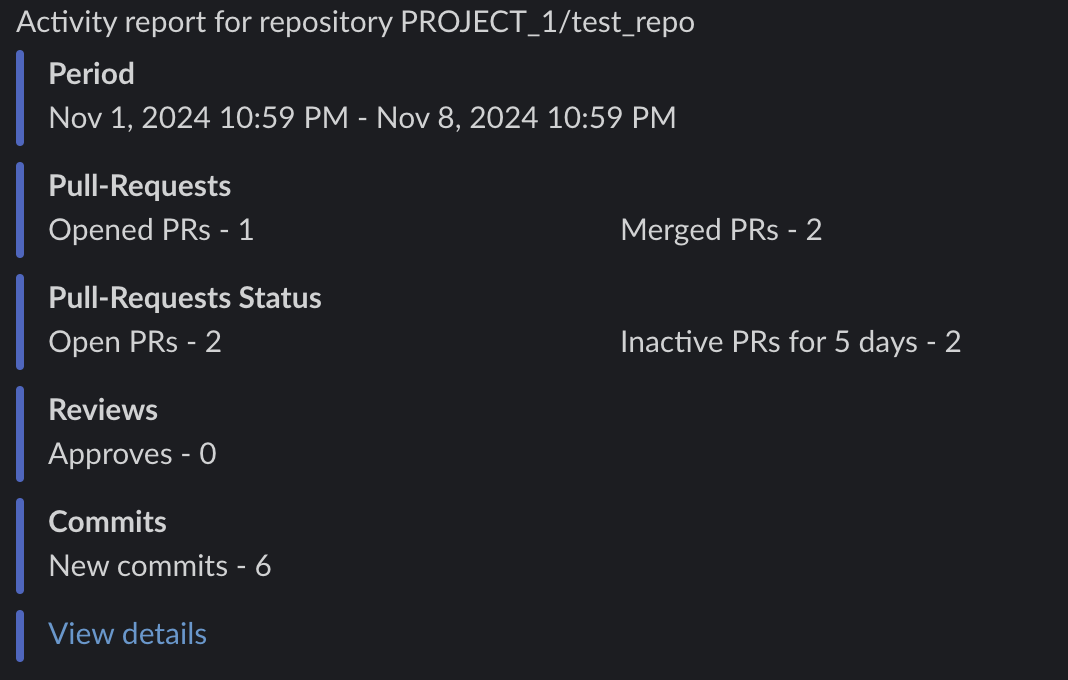
After the report has been saved, you should begin receiving reports in the Slack channel linked to the webhook.
The Edit button under Actions will allow you to edit and update your existing configuration.
The Delete button will remove the configuration.
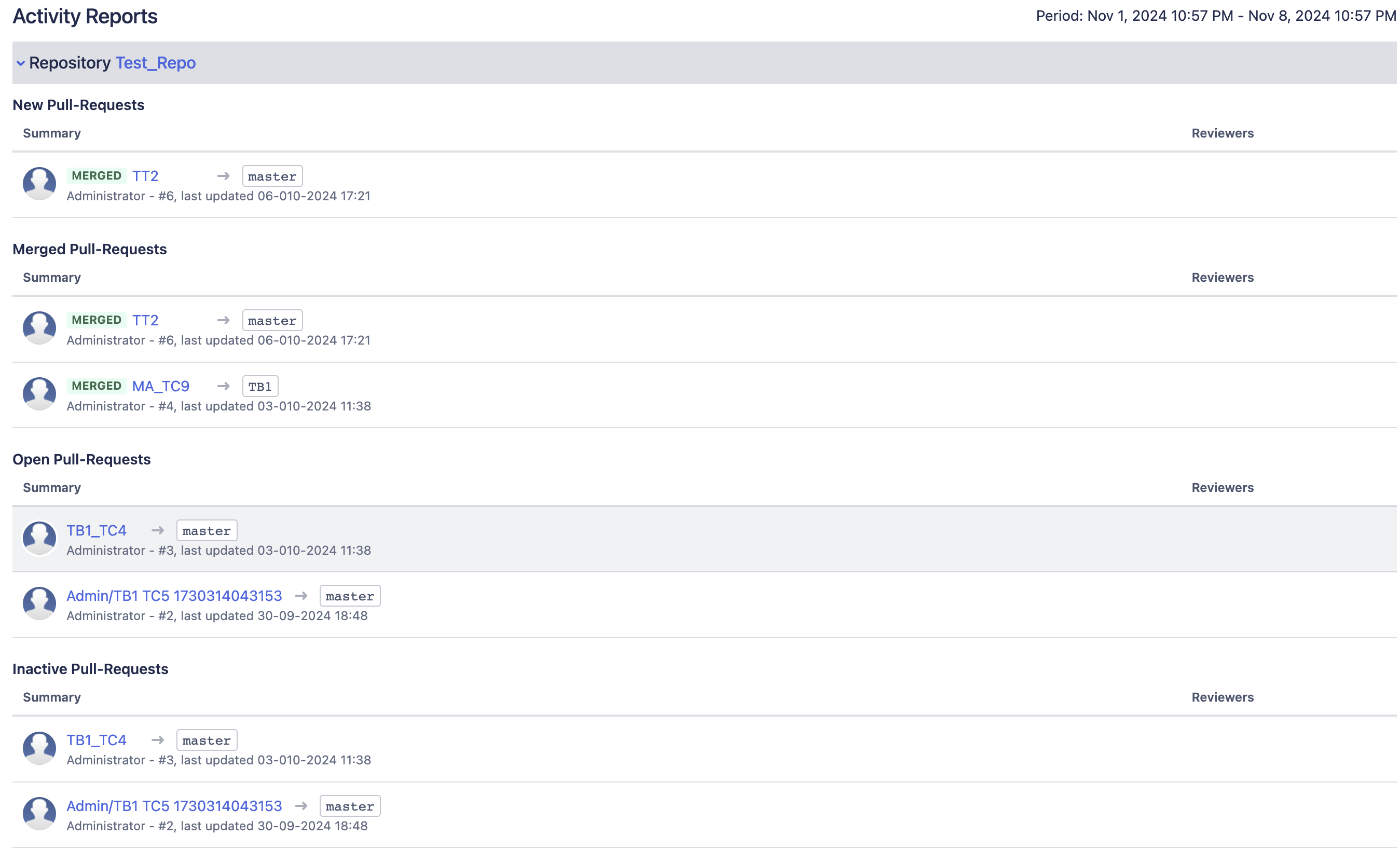
View Activity allows you to view the report at anytime from Bitbucket.
Below you can find a sample Activity Report from Bitbucket:
Below you can find a sample of the Activity Report from Slack:
Happy Slack notifications!
If you have any questions, please let us know.
Version updates Slack notifications (global settings)
Global administrators can receive Slack notifications for new releases of major Atlassian products and Atlassian Marketplace applications.
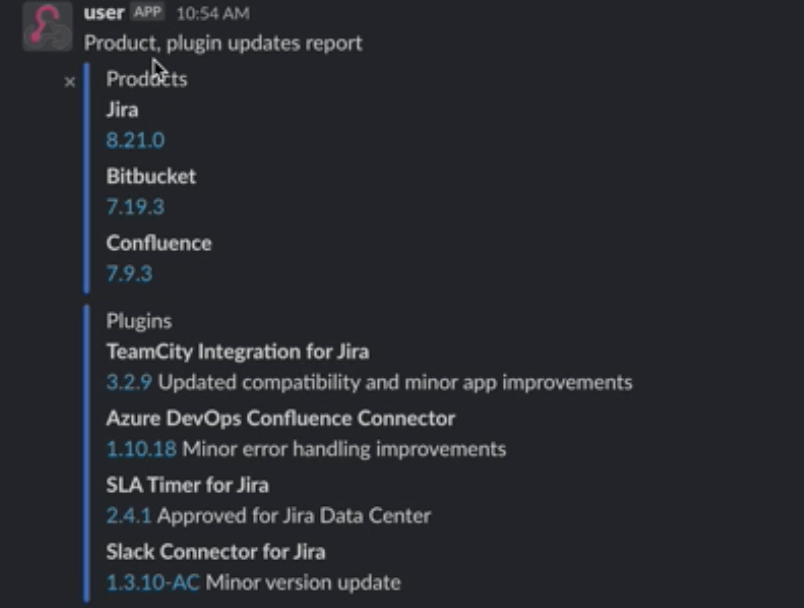
By clicking on the new version of the app you are redirected to the change logs of a particular application or plugin.
The configuration looks like this:
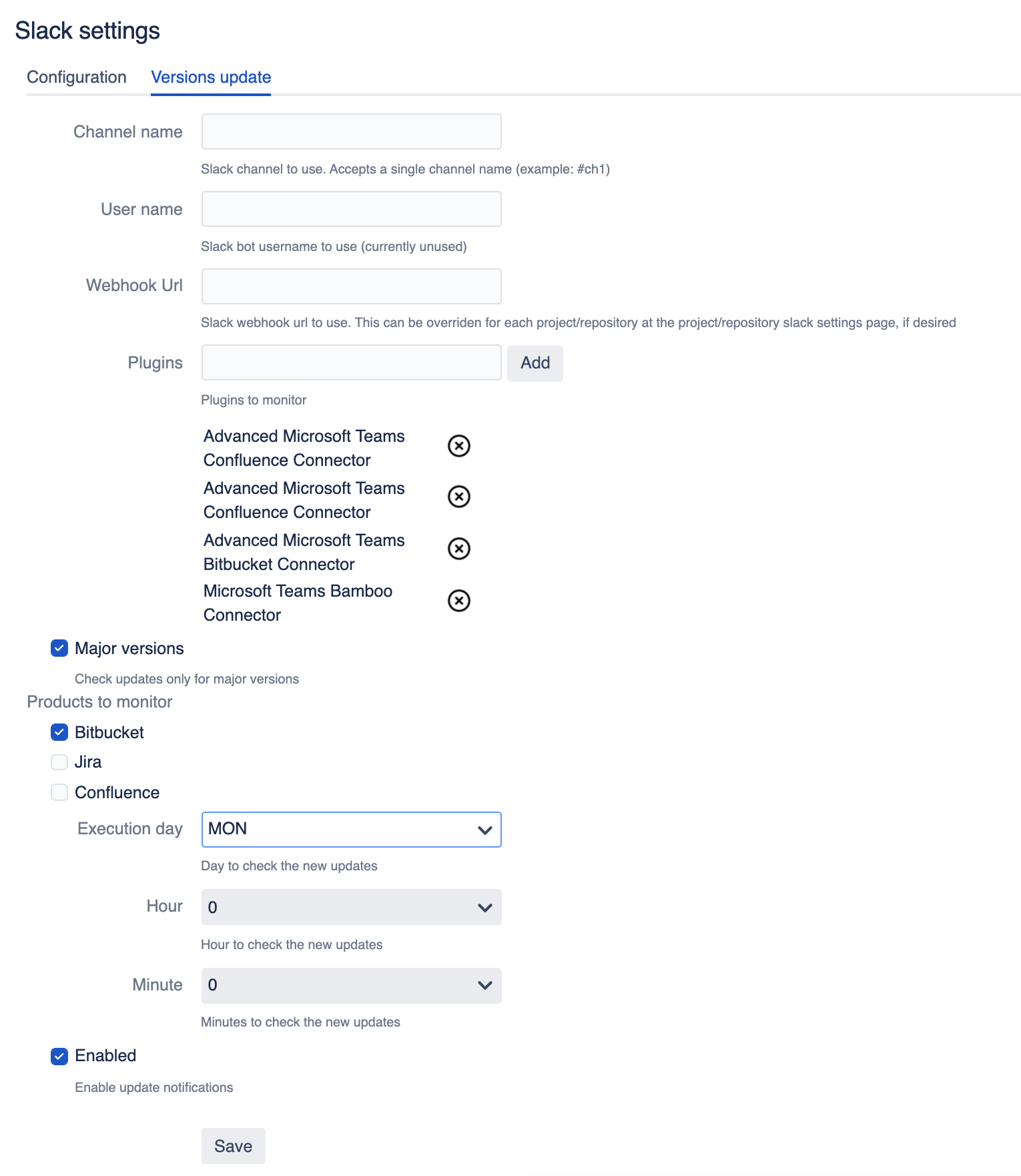
You need to configure where you want to get notifications, for which Apps and when (schedule it). Don’t forget to enable change log notifications.
If you have any feedback about this feature please do not hesitate to reach out.
Debugging
You need to enable debug mode for Bitbucket and supply us with the support zip or Bitbucket log file.
Use Slack App to thread pull request messages
Summary
Below you will find the details on how to create a simple Slack App that permits Slack notifications for Bitbucket App to create threads for each pull request instead of posting all messages as separated messages.
Slack Bot creation
Url to create a new Slack App: https://api.slack.com/apps
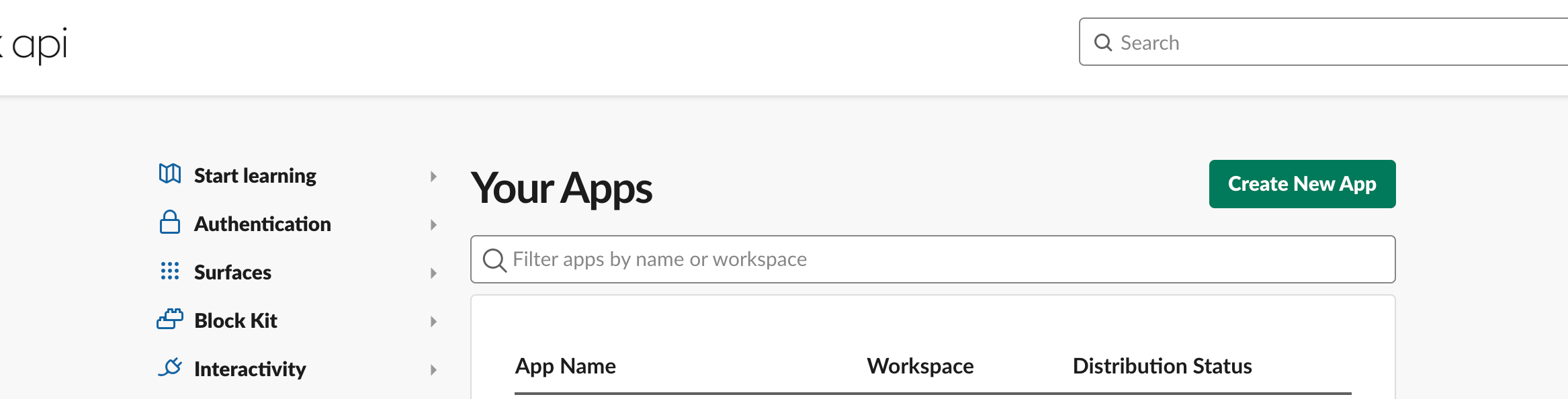
Click on “Create New App“.
Then choose: “From scratch”
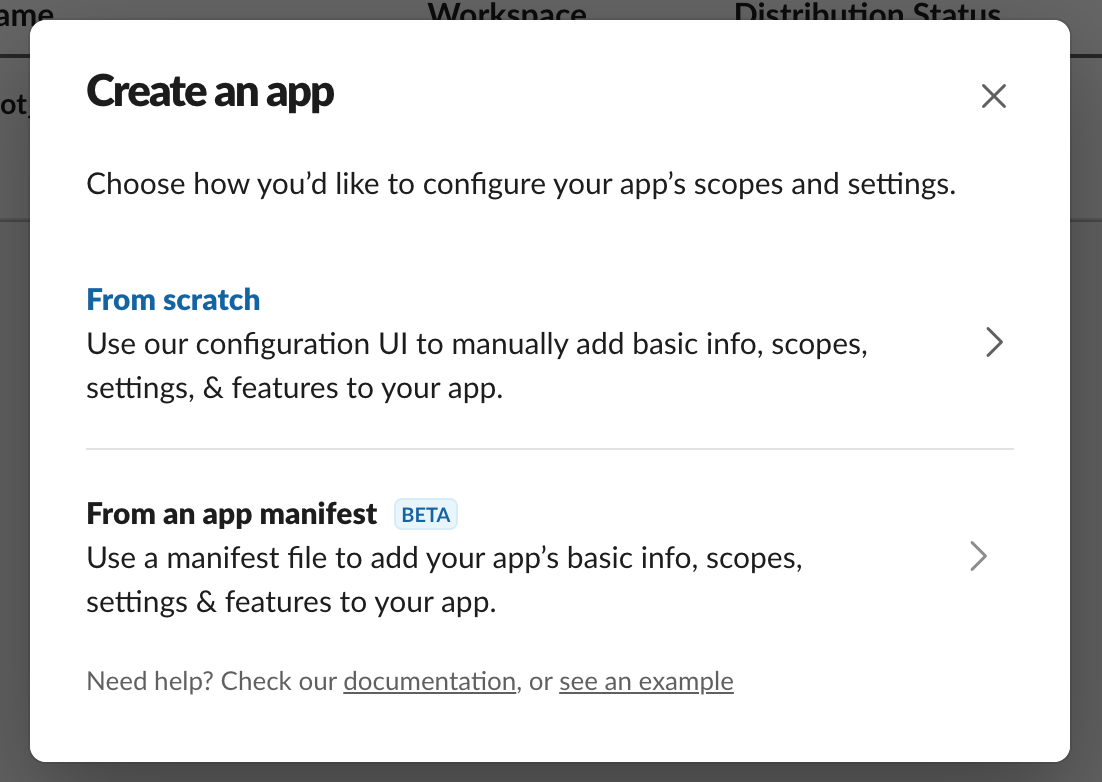
Fill in the required information:
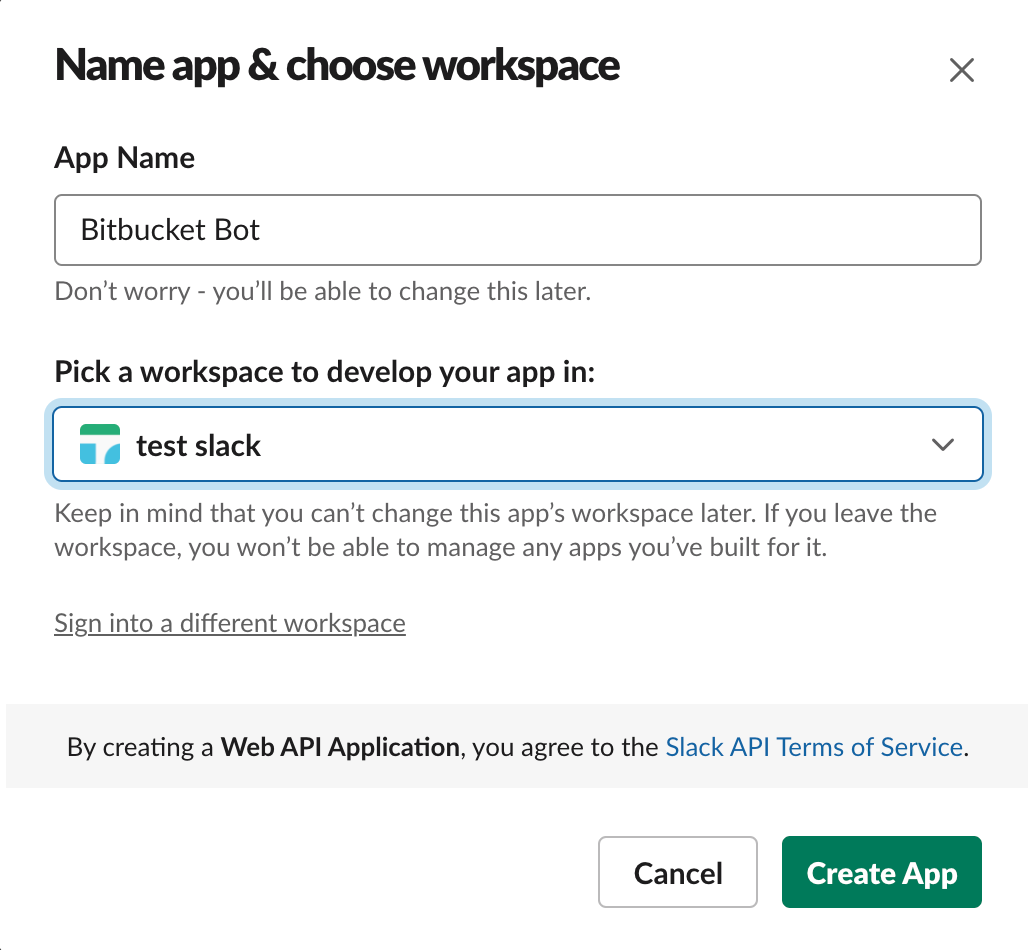
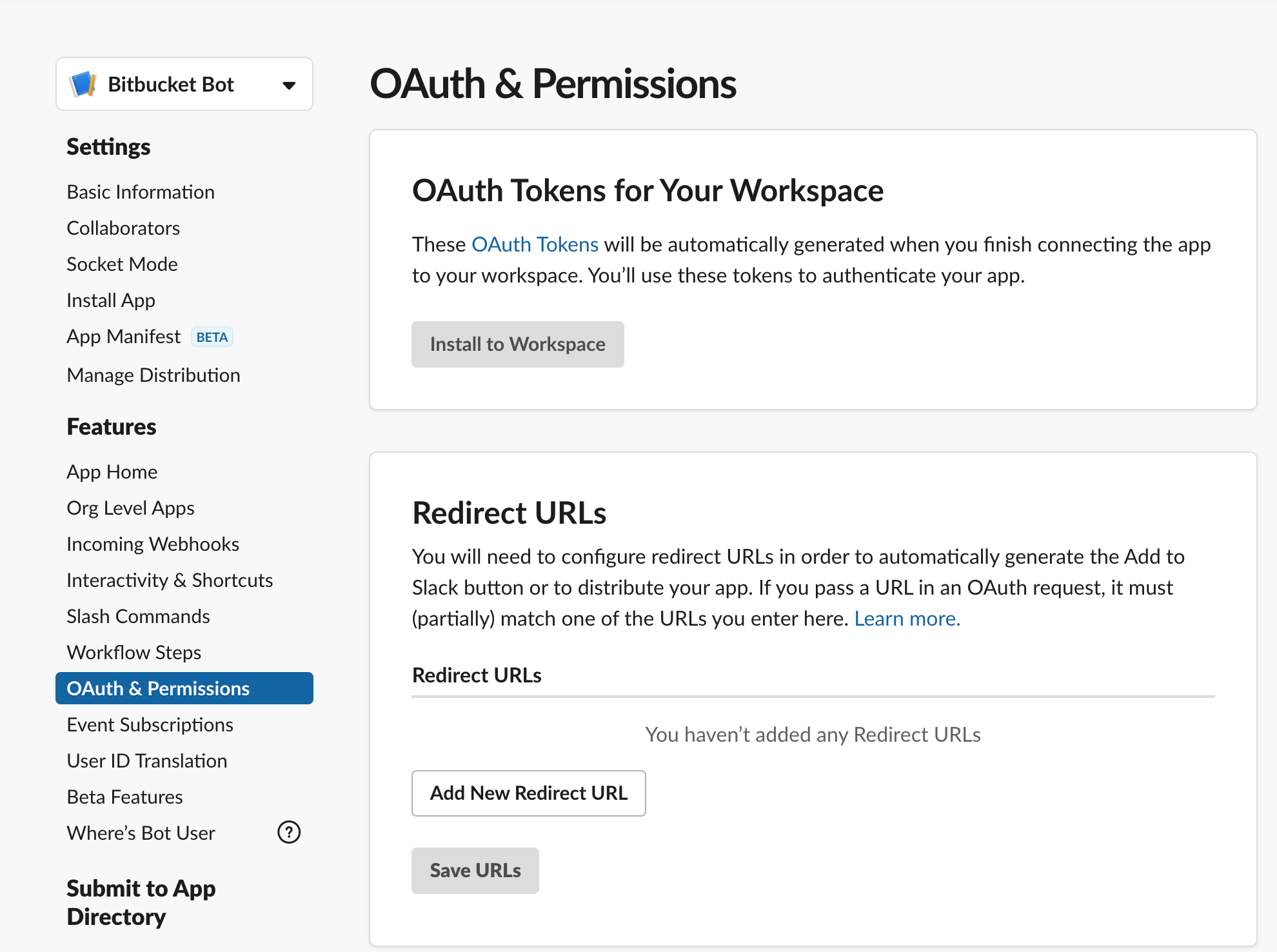
After the application is created required permissions should be added. Go to “OAuth & Permissions”
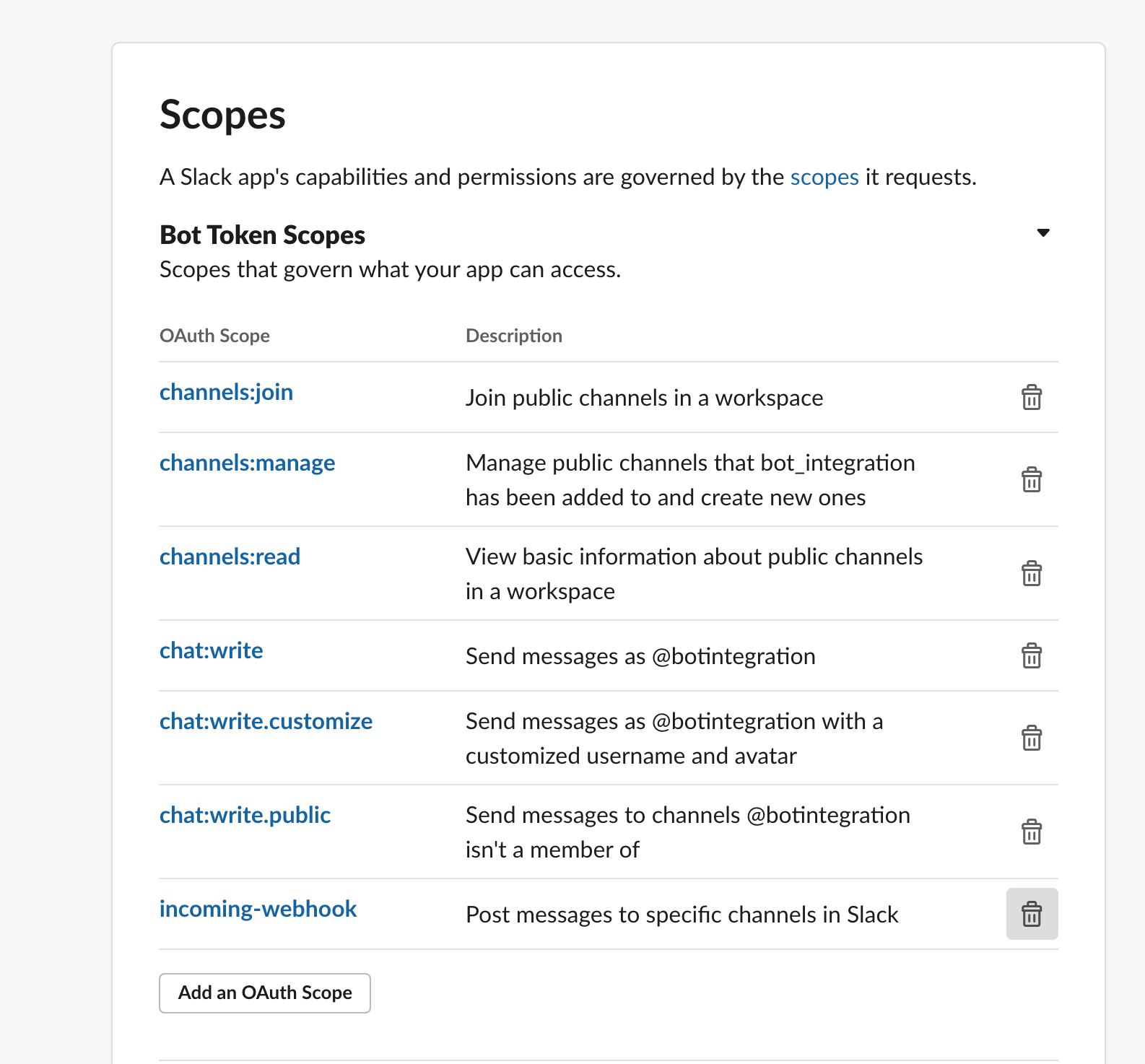
Scroll down to “Bot Token Scopes”. Add next permissions:
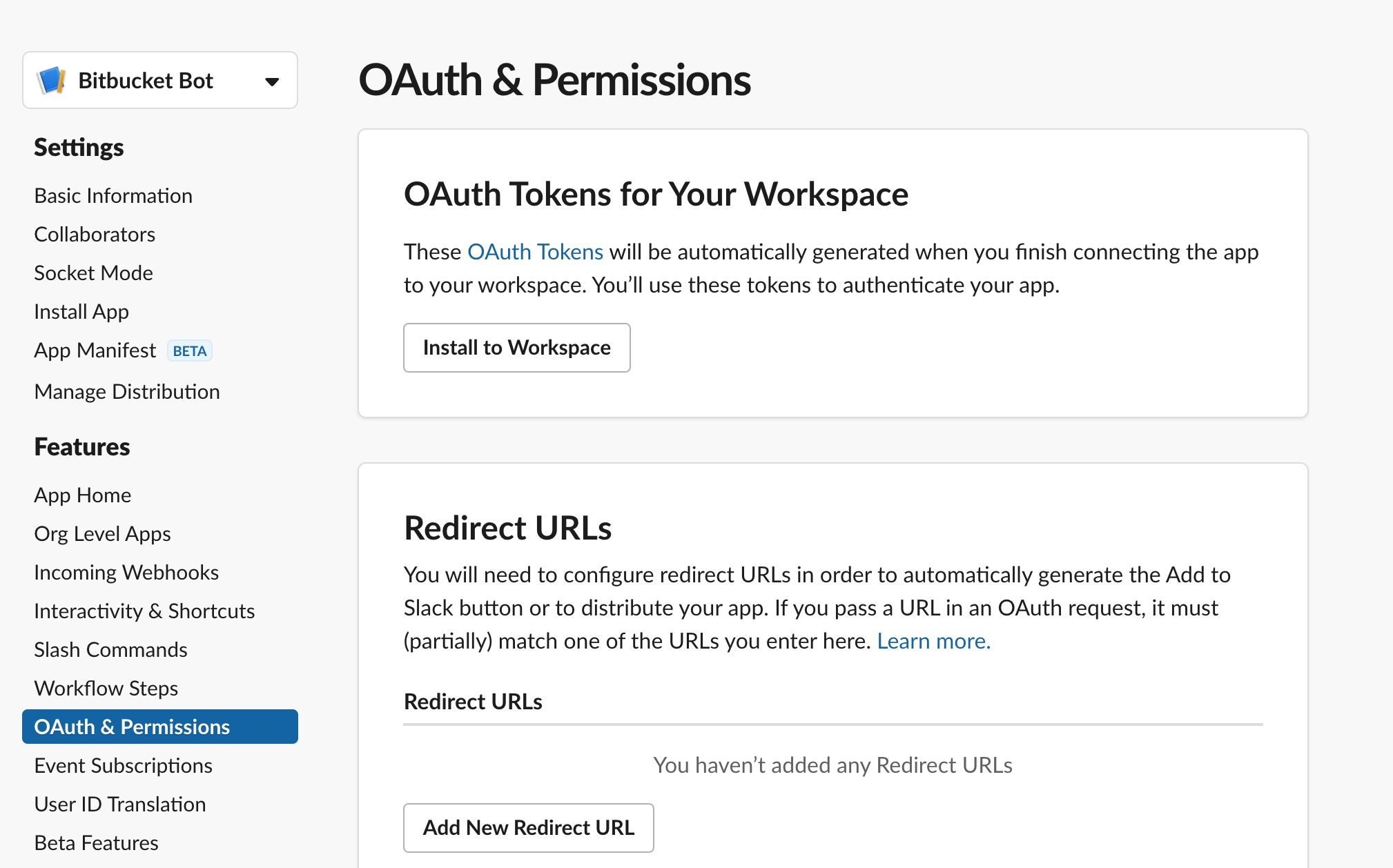
Then scroll up and install the app to the workspace:
Choose the channel to post messages:
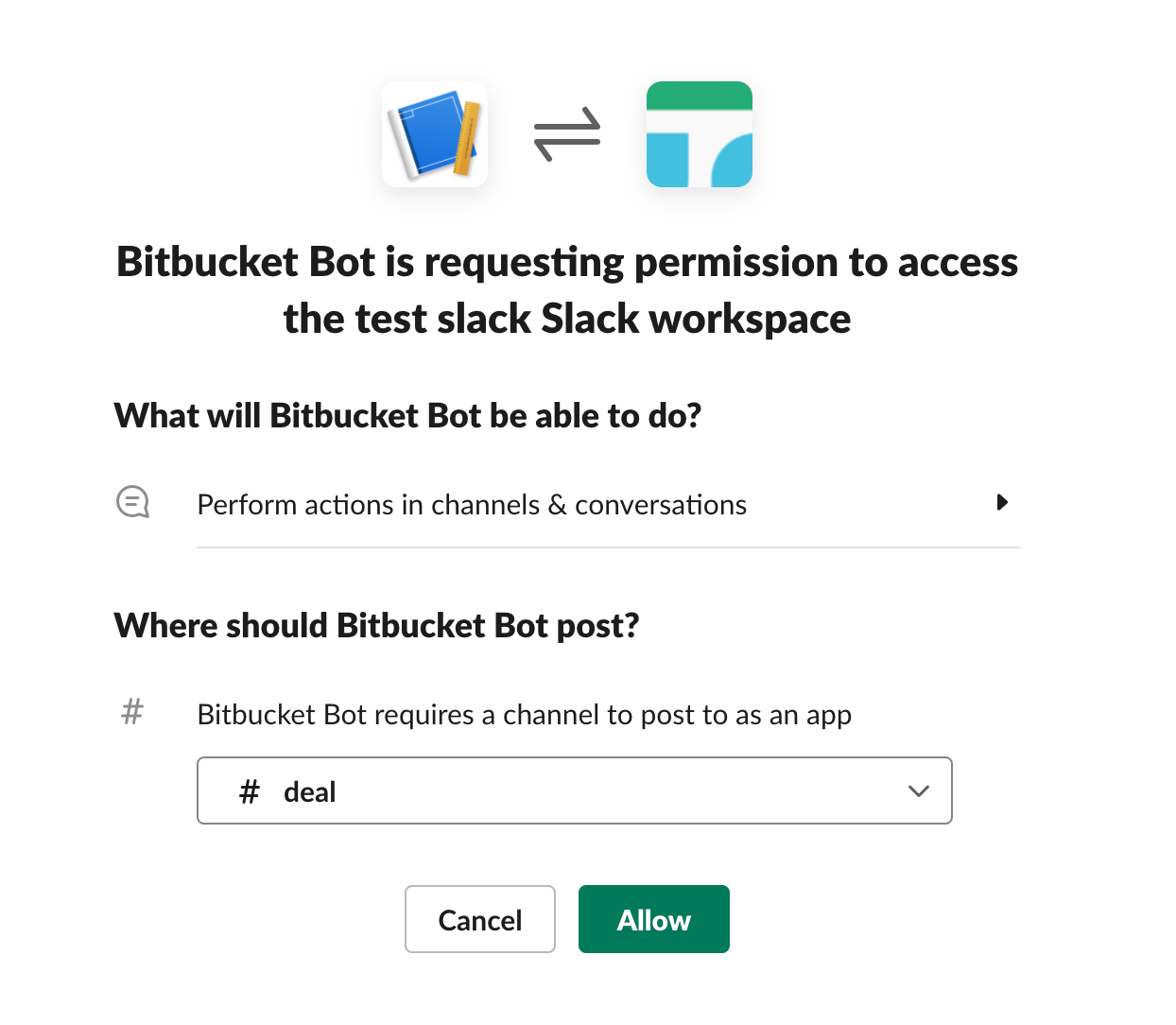
Your token is ready:
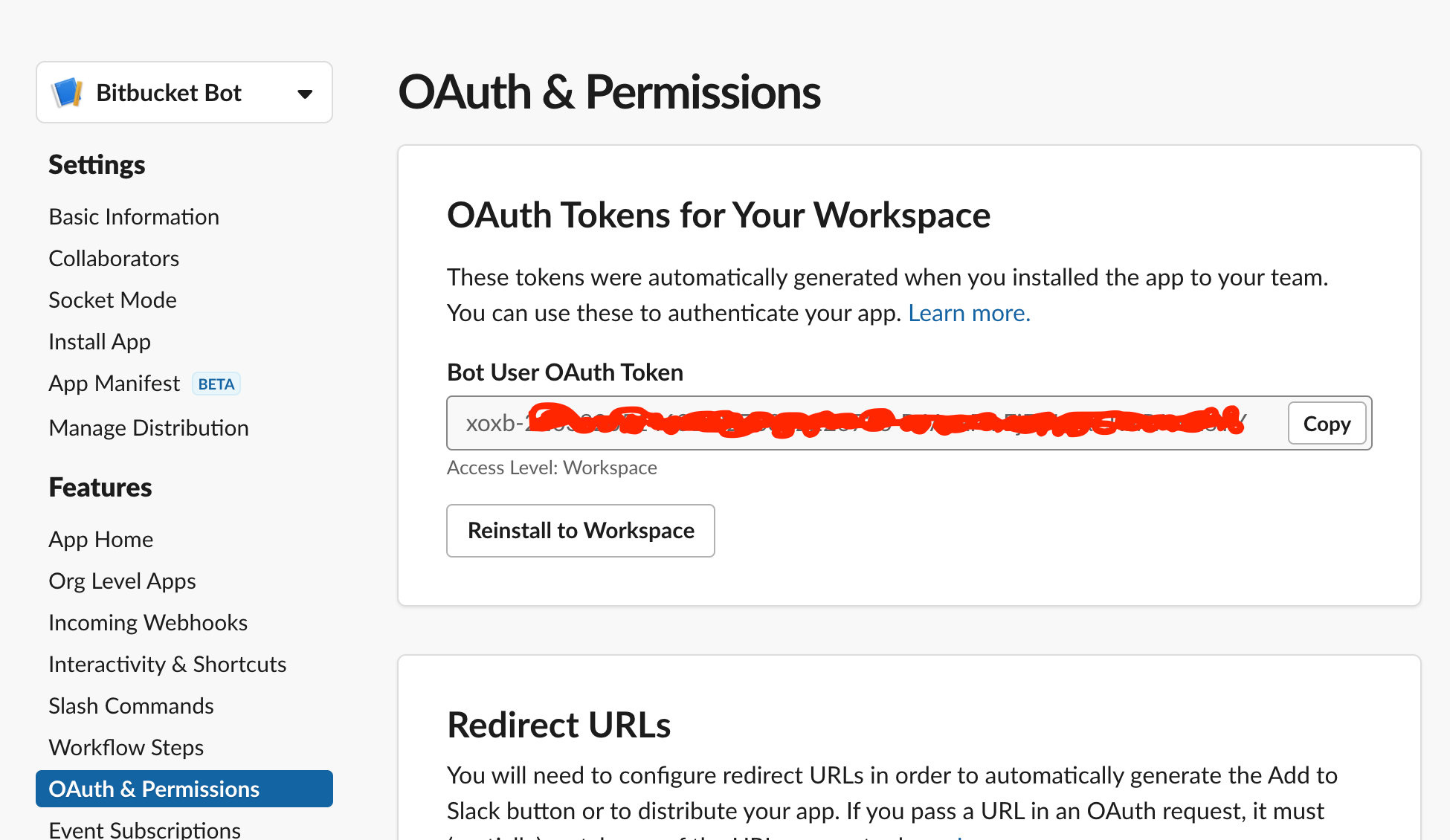
Additional useful links:
https://api.slack.com/authentication/basics
https://api.slack.com/authentication/token-types
Using Bot token in Bitbucket Slack plugin
Bot token can be used in Bitbucket Slack plugin settings at any level instead of the Incoming Webhook URL.
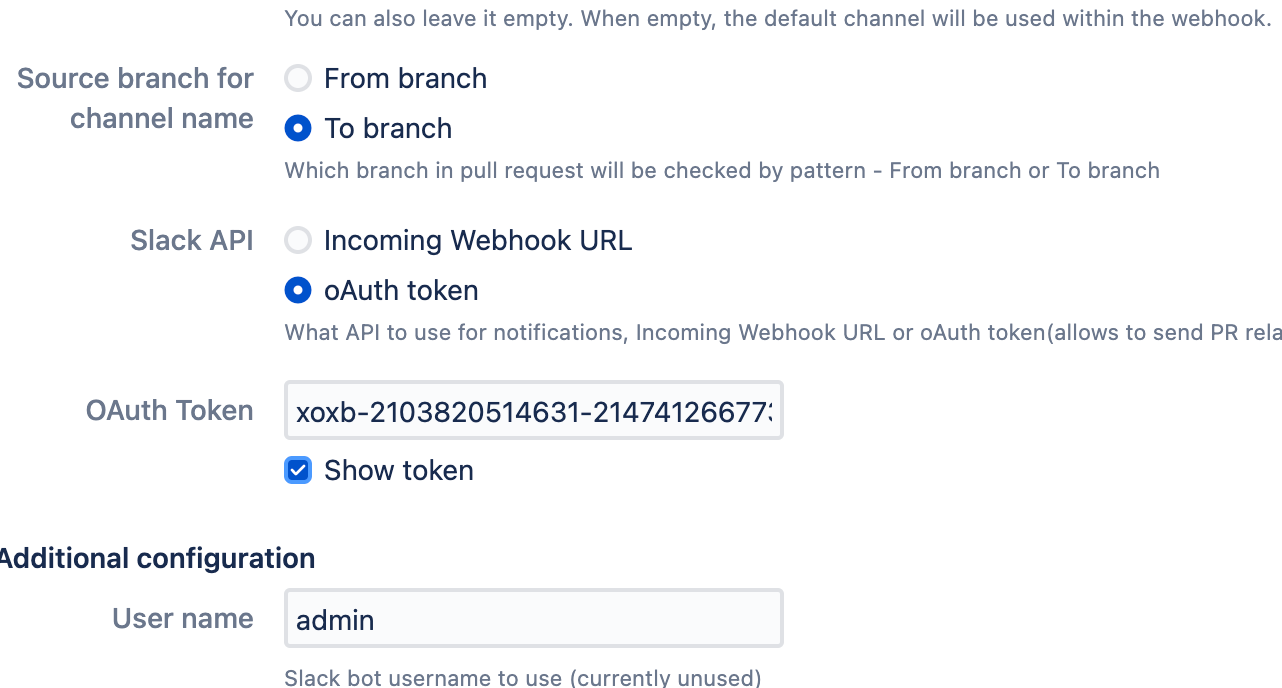
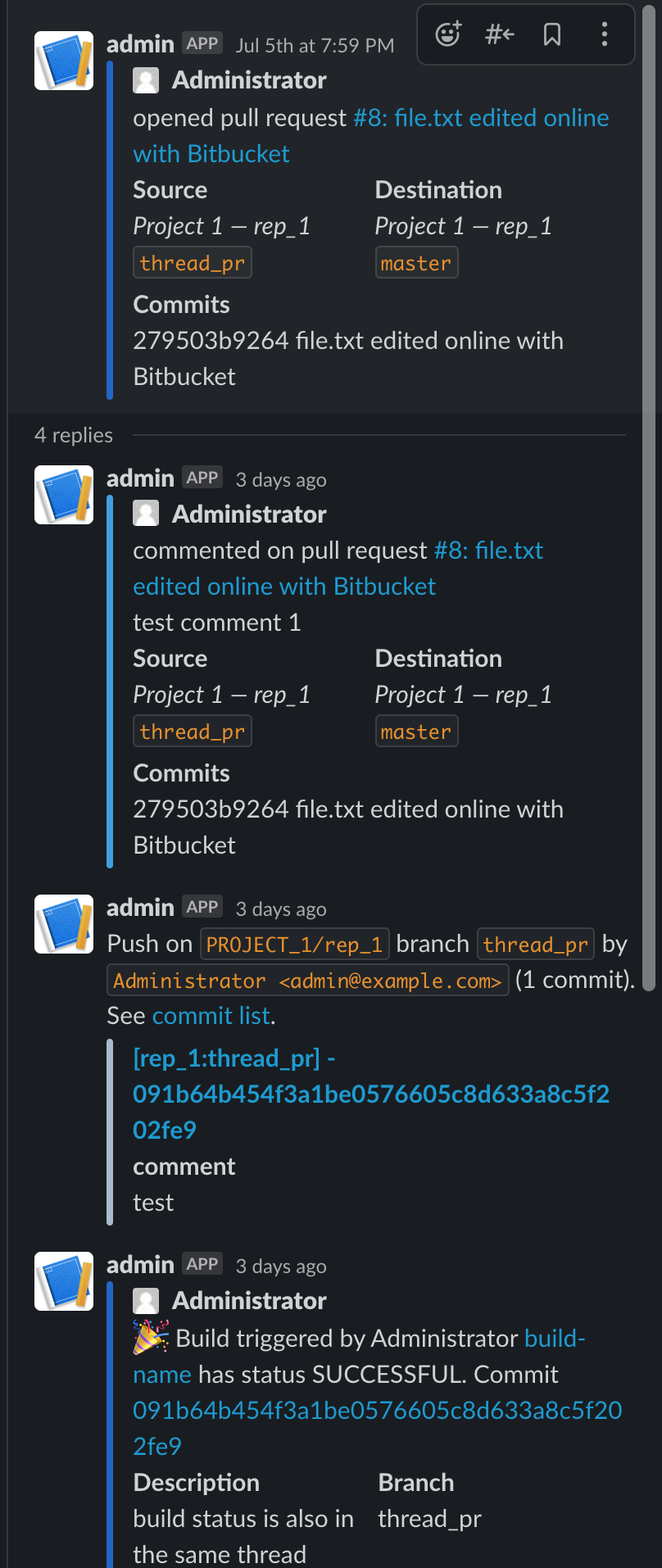
If OAuth token is used then all messages related to the same pull request are grouped in a thread.
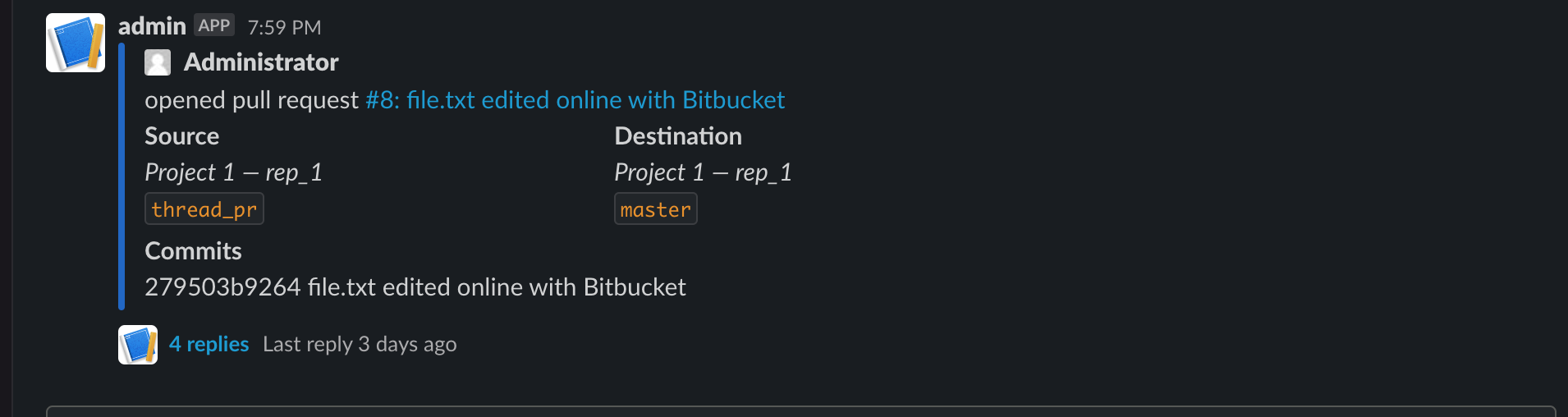
Which looks like this when open.
REST APIs
The REST APIs are primary for the internal use and can be changed without notice.
Slack notifications for Bitbucket REST APIs
Slack notifications for Bitbucket provides the following endpoints:
Get all configurations
CODEPermission: Global admin permissions are required.
Get configurations for a project
CODE
Permission: Global or project admin permissions are required.
Get configurations for the repository
CODE
Permission: Global, project or repository admin permissions are required.
Get configuration by ID
CODEPermission: Global, project or repository admin permissions are required.
Create new configuration
CODEPermission: Admin on the level (global, project, repository) the configuration is created.
Update configuration by ID
CODE
Permission: Admin on the level (global, project, repository) the configuration is created.
Delete configuration by ID
CODE
Permission: Admin on the level (global, project, repository) the configuration is created.
Configuration scheme
FAQs
Slack notifications for Bitbucket Frequently Asked Questions
Video demo
Frequently Asked Questions
Release Notes
20.0.0+
Notable improvements are:
Bitbucket 9 compatibility
Note: you may need to download the version manually from the Atlassian Marketplace.
8.0.0
Date:
Notable improvements are:
Improvement: Configuration and usage statistics collection.
20.0.0
Date:
Notable improvements are:
Improvement: Bitbucket 9 support.
5.06.29
Date:
Notable improvements are:
Improvement: Bitbucket 8 support.
3.30.24
Date:
Notable improvements are:
Improvement: Updated and added documentation links.
3.30.03
Date:
Notable improvements are:
Improvement: PR images preview in the configuration.
Improvement: Update 3rd party library dependencies to more secure versions.
3.28.12
Date:
Notable improvements are:
Improvement: When the App cannot access some required properties due to permission restrictions, it adds a small error section to the message and displays the information it could access.
3.25.11
Date:
Notable improvements are:
Bugfix: app had a conflict with a global body style.
3.24.23
Date:
Notable improvements are:
Bug fixes: avatar related bug fixes and improvements. Like Atlassian Bitbucket the avatars are taken from Gravatar service.
3.24.01
Date:
Notable improvements are:
New feature: Added scheduled notifications about new versions of Atlassian products like Jira, Confluence and Bitbucket.
New feature: Added scheduled notifications about new versions of Atlassian Marketplace applications.
A few minor bug fixes and reliability improvements.
3.22.08
Date:
Notable improvements are:
Added support on all levels of a setting “Add PR reviewers for minimal and compact pull request notifications“.
3.20.22
Date:
Notable improvements are:
Mattermost related improvements.
2.20.06
Date:
Notable improvements are:
🎉 improved logging for sensitive information.
🚀 you can use Slack threads to group pull request messages. More details are in our docs.
3.18.25
Date:
Notable improvements are:
Added a setting to hide pr reviewers for minimal size PR notifications.
3.18.03
Date:
Notable improvements are:
The reviewer added/removed events added.
Reviewers added to PR-related compact messages.
Help & Support
For setup help, troubleshooting or general questions, please reach out via the Votazz contact page.
Please create a support request here.