Thycotic Secret Server
Introduction
This tutorial demonstrates how to get started with Secret Managers for Bamboo and Thycotic Secret Server. Both the on-premises and cloud variants of Secret Server are supported.
Secret Server Setup
Enable Webservices
Go to the Admin > Configuration page and ensure webservices are enabled.
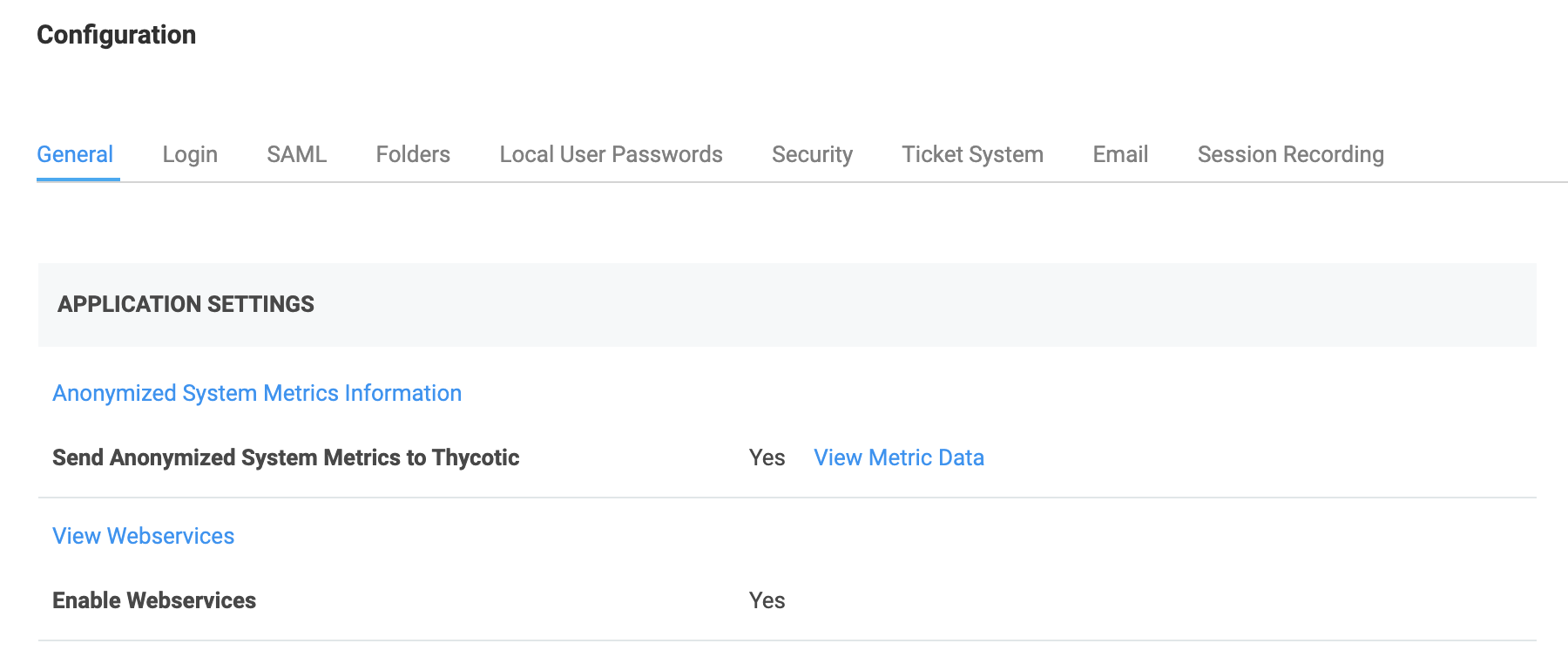
Create Application Account
We will create an Application Account which can be used by Bamboo to access the server. Go to the Admin > Users page and click Create new. Complete the details as shown in the screenshot below. Choose a strong password, and ensure the Application Account checkbox is selected below Advanced.
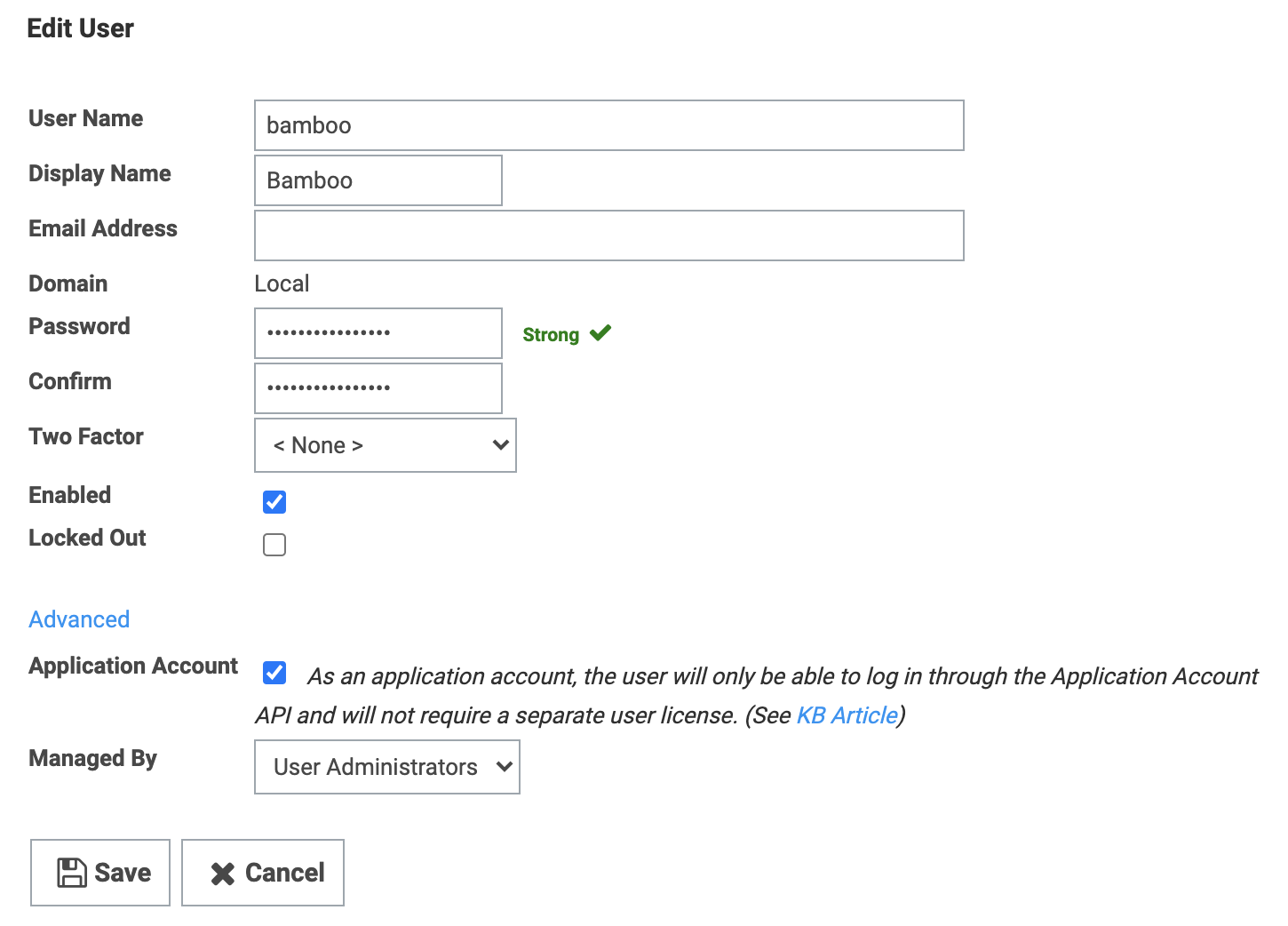
Save the user, and confirm the Convert to Application Account dialog.
Define Folder Hierarchy
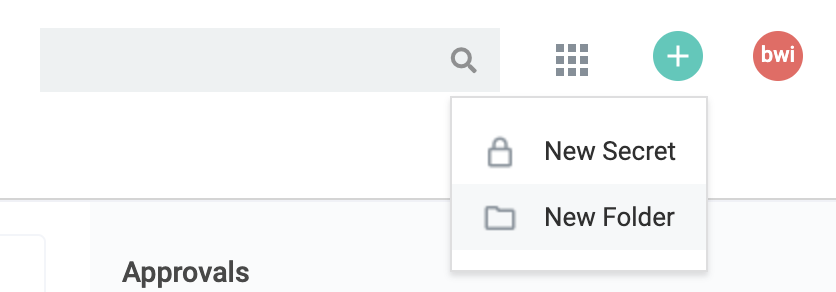
Next, use the top-level menu on the home page to create a new folder.
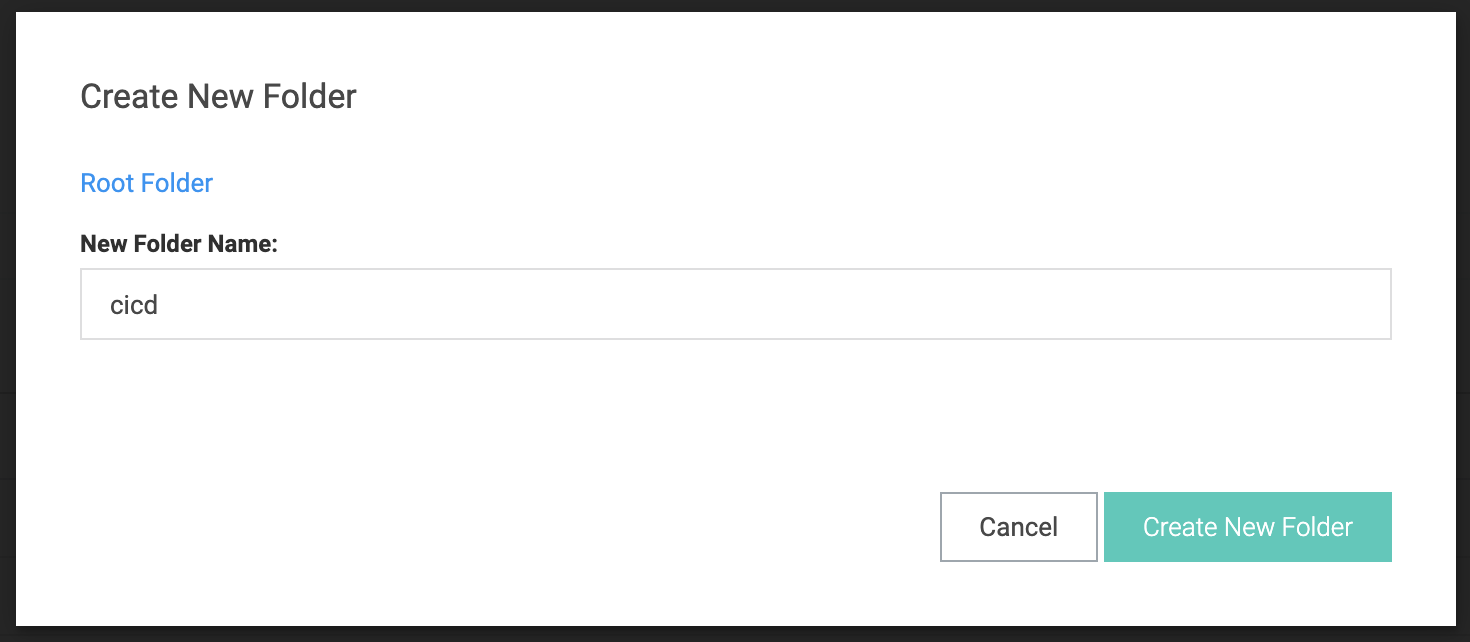
Name the folder cicd, and ensure it is located at the root of the hierarchy.
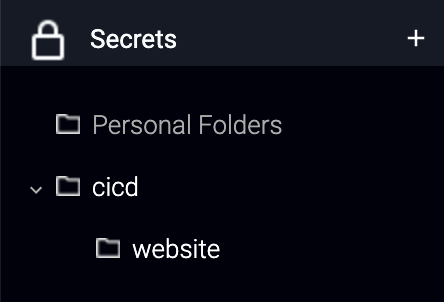
Repeat the process to create a sub-folder of the cicd folder named website. The folder hierarchy in the side menu should look as depicted below.
Set Folder Permissions
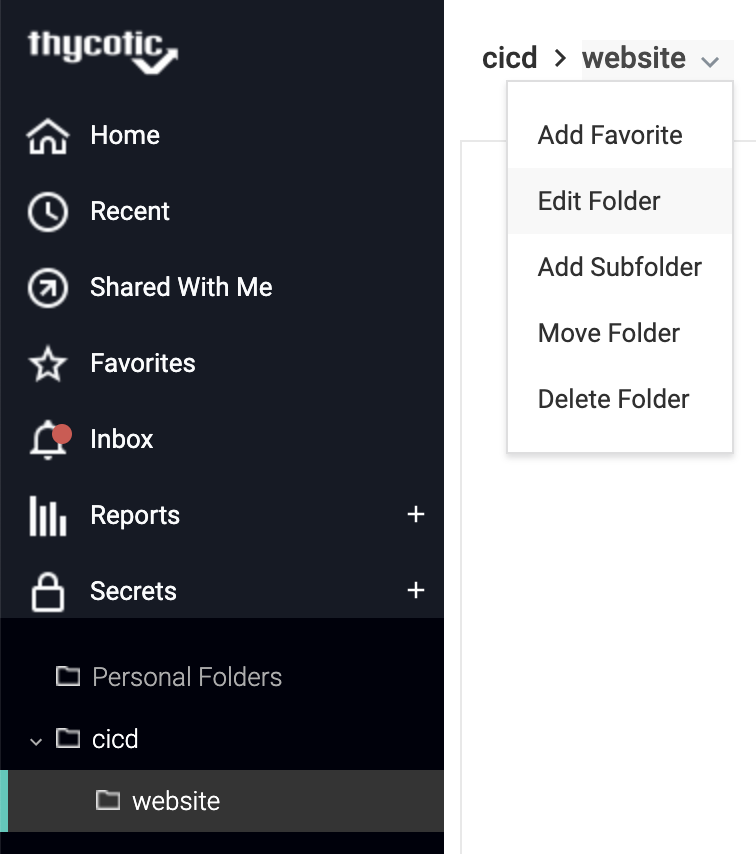
The Bamboo Application Account should receive permissions to View (i.e. read) all secrets in the website folder created above. Select the website folder, and click Edit from the dropdown menu in the breadcrumbs on top.
Next to Folder Permissions, click Edit. Deselect Inherit Permissions if needed, add the Bamboo user to the Selected Groups and assign View permissions both on the Folder as well as the Secrets.
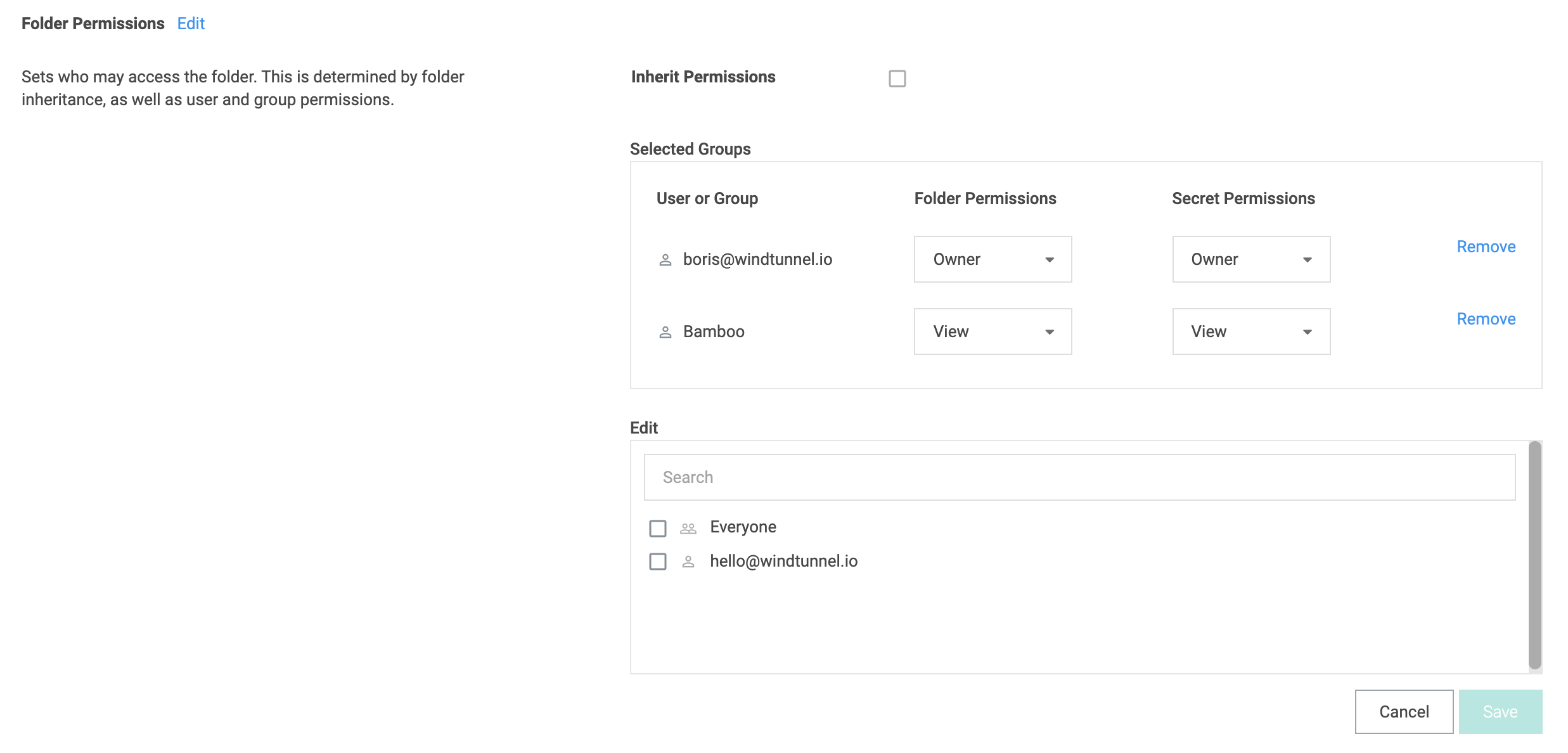
Save the changes when done.
Define a Secret
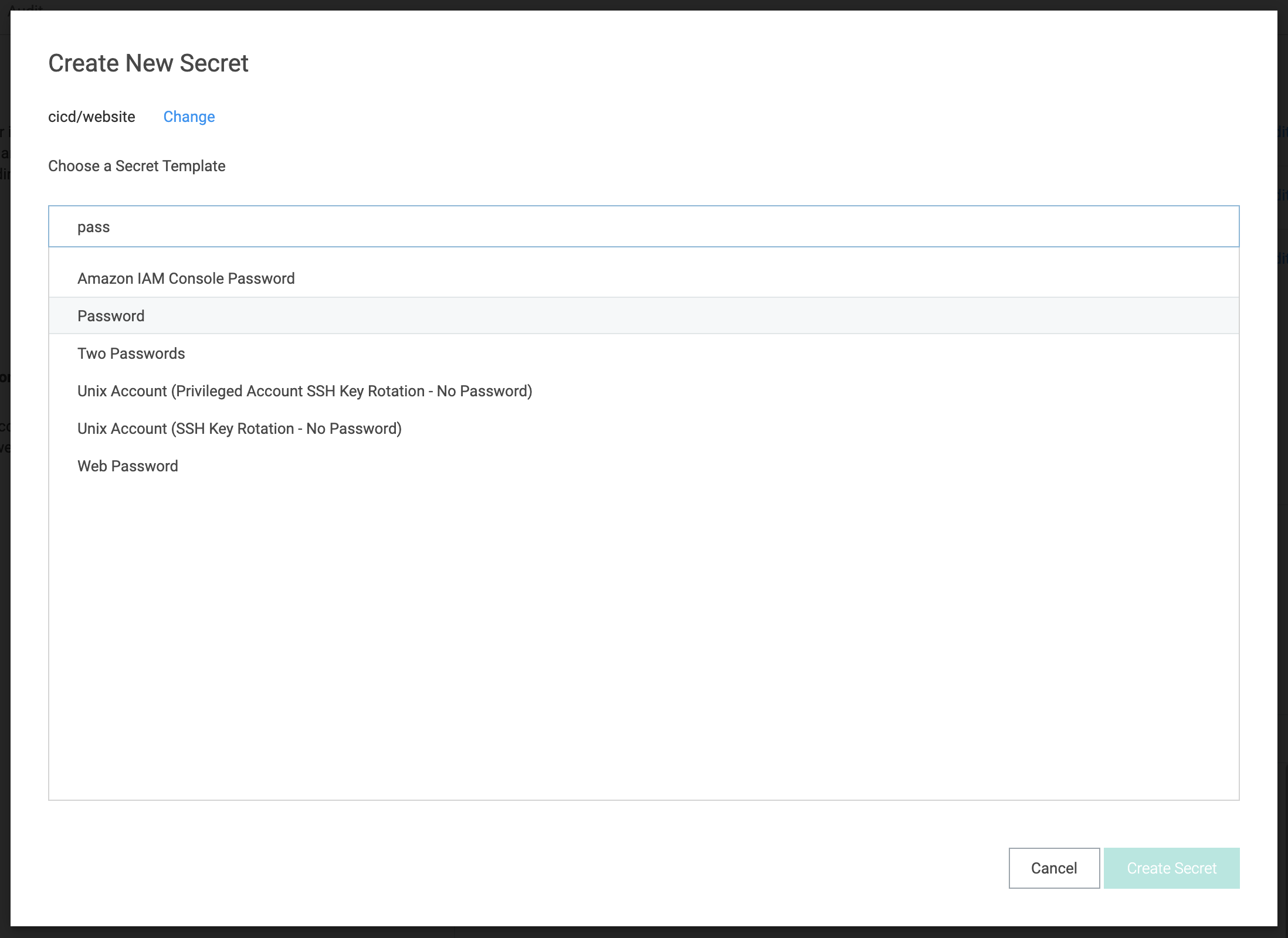
Finally, use the top-level menu on the home page to create a new secret. Ensure the cicd/website folder is selected, and choose the Password template.
Complete the secret details as shown below. Only the secret name and password are needed, all other fields can be left empty.
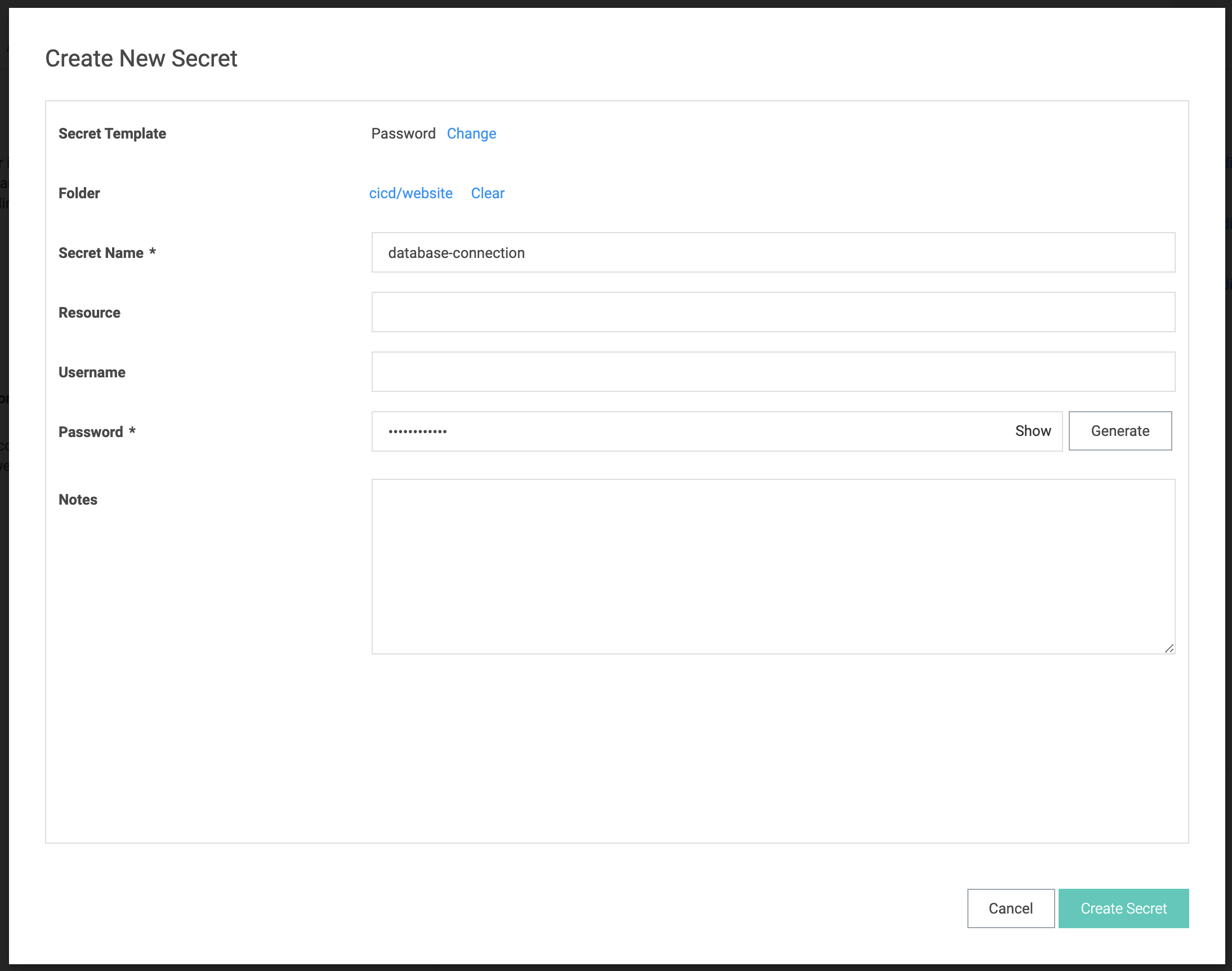
Save the secret when done. Secret Server setup is hereby complete.
Bamboo Setup
It is assumed the Secret Managers for Bamboo plugin has been successfully installed in your Bamboo server installation. The plugin will add an administrative menu item Secret managers at the bottom of the Build Resources section.
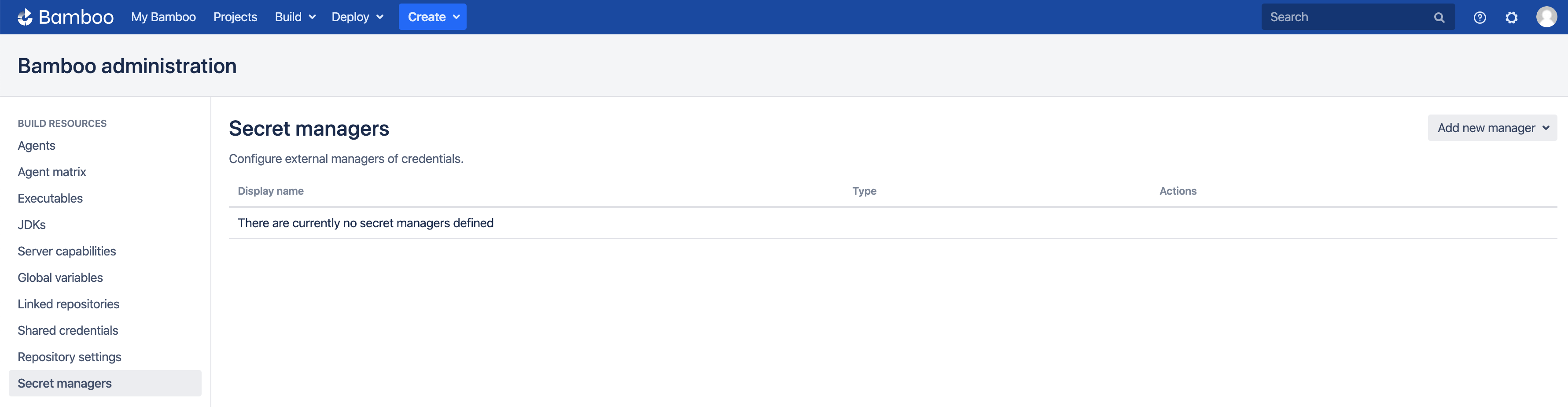
Add Thycotic Secret Server
On the Secret managers page, select Thycotic Secret Server from the Add new manager drop-down in the upper-right. The Add new Thycotic Secret Server dialog appears.
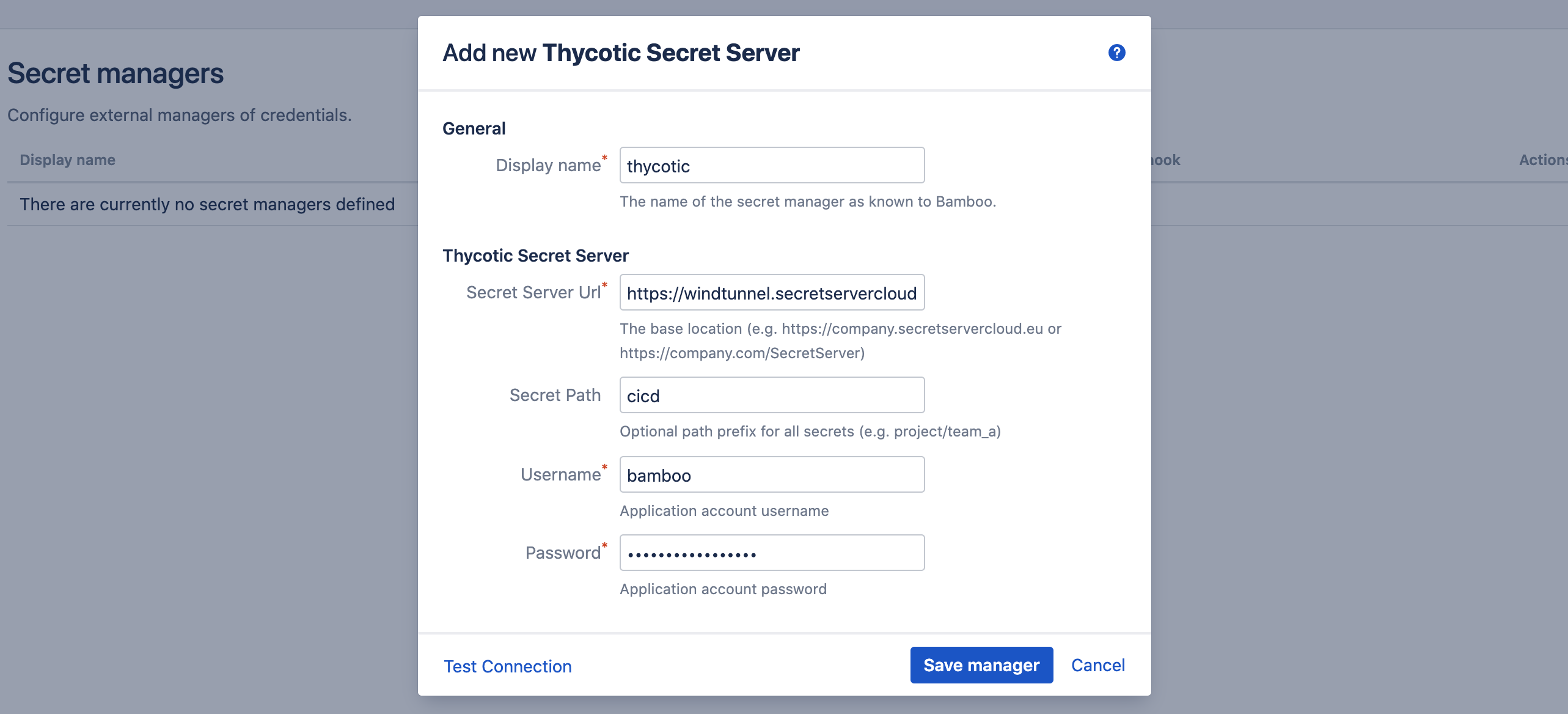
Complete the fields as indicated:
- Display name: this name is Bamboo-specific. It will appear on the Secret managers overview page, and is used to refer to the secrets held by this secret manager from Bamboo variable values. It can only contain 0-9, a-z, A-Z, and - (dash) characters.
- Secret Server URL: the base URL of your Secret Server. This can be an internal/on-premises url or the url of your cloud tenant.
- Secret Path: this field is optional and can be left blank. When defined, its value is prefixed to the path of each secret referenced by this secret manager. In our example, we defined the secret database-connection below the cicd/website folder hierarcy. If we use cicd as value for this field, we can refer to the secret as website/database-connection. If we use cicd/website, we can refer to the secret as just database-connection. If the field is left empty, we will need the full path (i.e. cicd/website/database-connection) everywhere this secret is used.
- Username: the username of the application account.
- Password: the password of the application account.
Before the manager is saved, the connection can be tested. When the connection fails, hover over the crossmark icon to reveal the cause.

It is important to understand that the 'Test Connection' functionality is not bulletproof, as none of the secret names are known to Bamboo at this point. Only some basic checks are performed on the provided data. The actual secret resolution only happens at build time, which can still fail for a number of reasons.
Once the manager is saved, it is shown in the overview from where it can be edited and deleted.
Define Secret Variable
We can now refer to the Secret Server secrets from Bamboo global, project, plan or environment variables. As an example, we define our secret as a plan variable in the screenshot below.
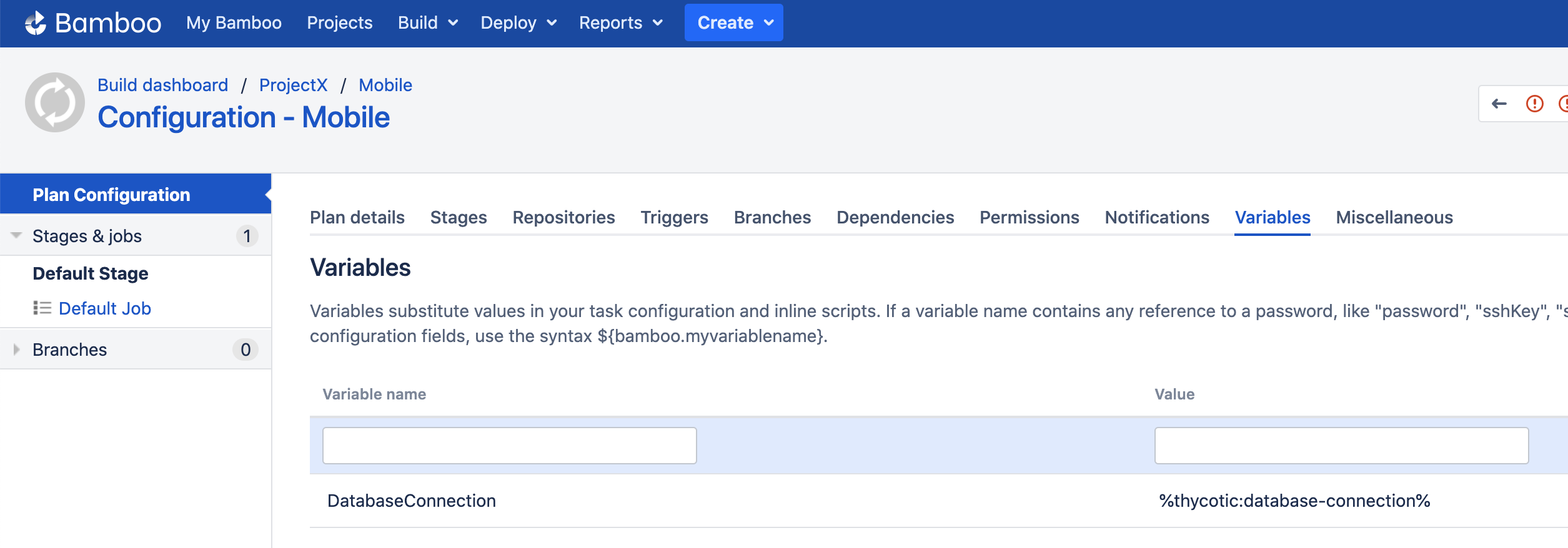
The value of the DatabaseConnection variable refers to the Secret Server secret using the special syntax:
%<secret-manager-name>:<secret-path>%
Which in our case becomes:
%thycotic:database-connection%
As explained above, if the Secret Path field would have been left empty in the Add new Thycotic Secret Server dialog, the secret must be referenced as follows:
%thycotic:cicd/website/database-connection%
See the variable syntax page for additional details.
Testing
As the secret is defined as a regular Bamboo variable, all existing use-cases regarding Bamboo variables apply. For additional information, please refer to the following Bamboo article.
To test our configuration, we define a simple script task printing our variable to the logs, as depicted in the screenshot below.
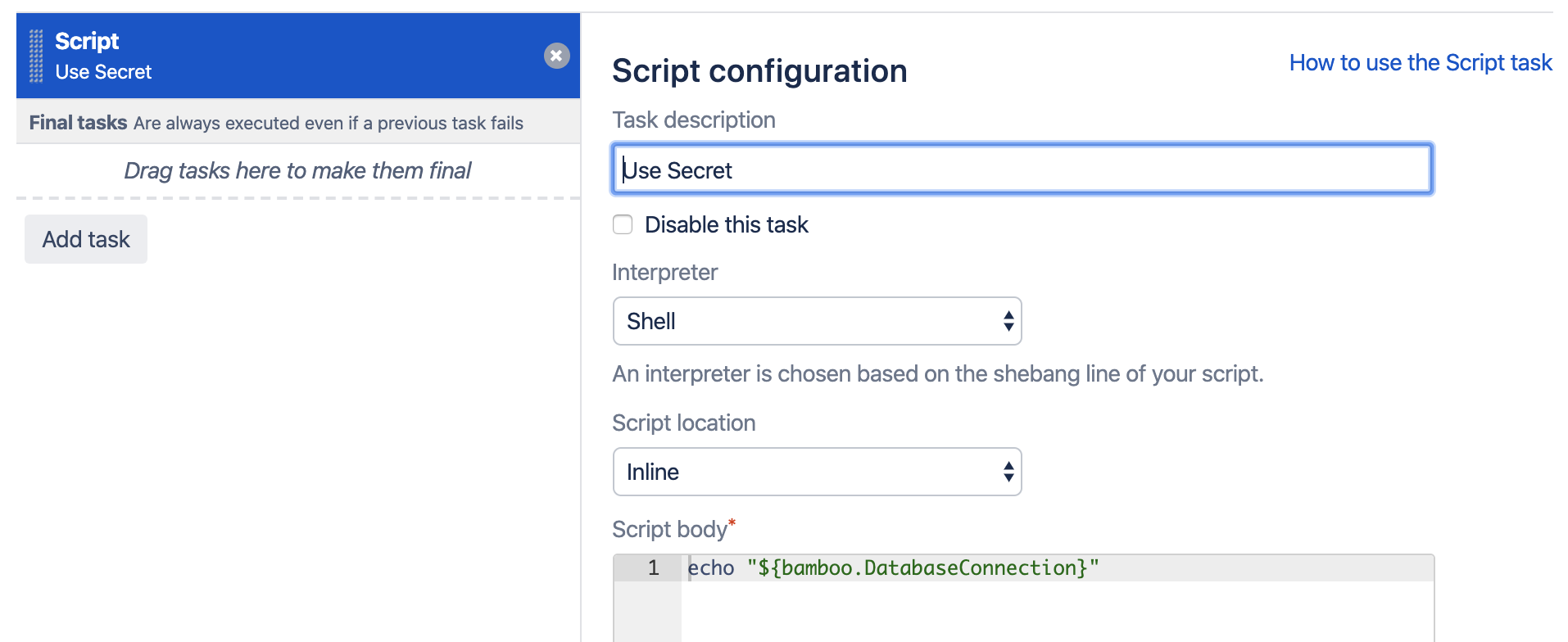
When running this plan, the logs will mention the Secrets Resolver pre-build action, which ad hoc resolves our secrets through the defined secret managers. The actual secret value only exists in memory for the duration of the build or deployment.

The plugin will also ensure that the secrets are never revealed in the logs.
Help & Support
Please create a support request here.