Worklogs Time Tracking in Jira & Timesheets
What is Worklogs in Jira:
It is a feature that allows users to log the time they spend on tasks or issues within Jira.
Worklog Time Tracking in Jira & Timesheets -
Is an app which helps teams track work progress, measure efficiency, and generate reports for billing or project management. It provides easy and powerful reports.
Features:
Group your data to build more meaningful reports
Create time reports in real time by grouping & categorizing data with aggregation
Prepare your reports based on Project/Sprint/Issue Type/Assignees and various other filters
CSV Export
Dashboard gadget
Install the Worklog Time Tracking in Jira & Timesheets by Votazz app and create easy and powerful Worklog reports
Installation
Here are the steps to install the Worklog Time Tracking in Jira & Timesheets app from the Atlassian Marketplace:
1. Access the Atlassian Marketplace
Open your browser and go to the Atlassian Marketplace.
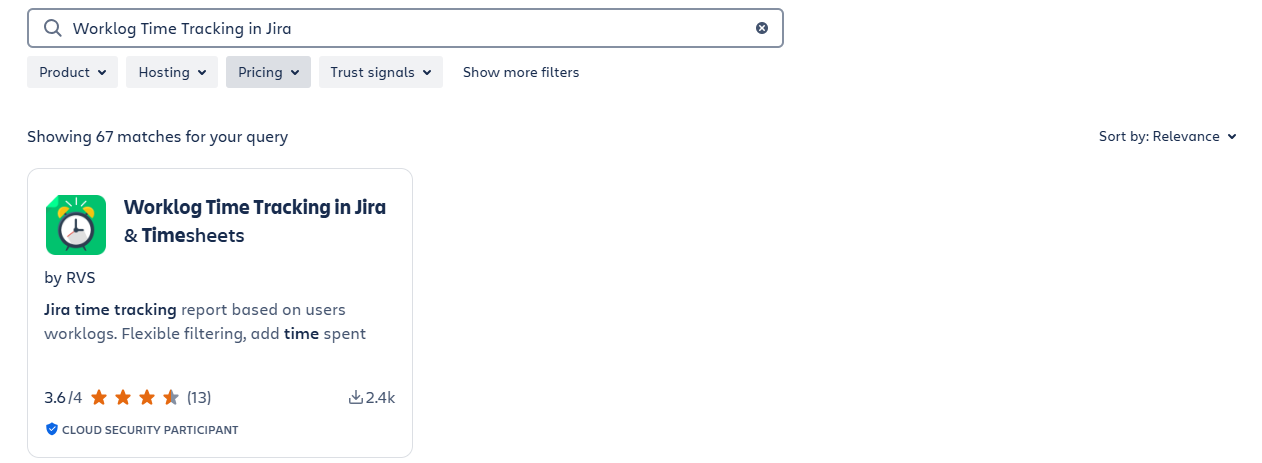
2. Find the App
Use the search bar and type “Votazz or “Worklog Time Tracking in Jira & Timesheets by Votazz”
Select the app from the search results.
3. Choose Your Jira Instance
On the app's page, click Try it free or Get it now.
Select the Jira instance you want to install the app on and click Continue.
4. Log in to Your Jira Instance
Log in to your Jira Cloud instance if you're not already logged in.
5. Access the App
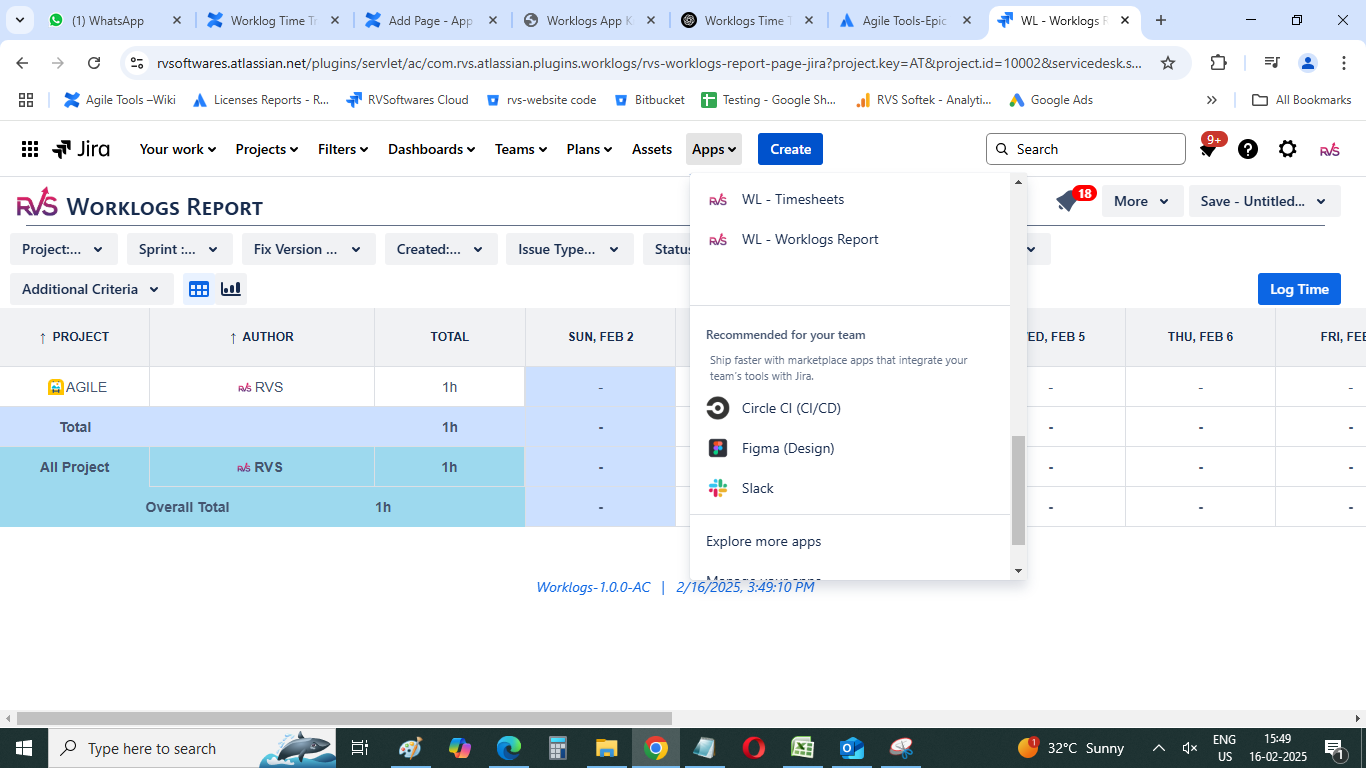
Once installed, you can find the “WL - Worklog Reports” & “WL - Timesheets” app under the Apps section in the Jira navigation bar.
Install the Worklog Time Tracking in Jira & Timesheets by Votazz app and create easy and powerful Worklog reports
Worklogs Reports
Open “Apps” from your top Navigation bar. You will find “WL - Worklogs Report”, “WL - Timesheets” submenus. Please click as per you need.
Worklogs Report :
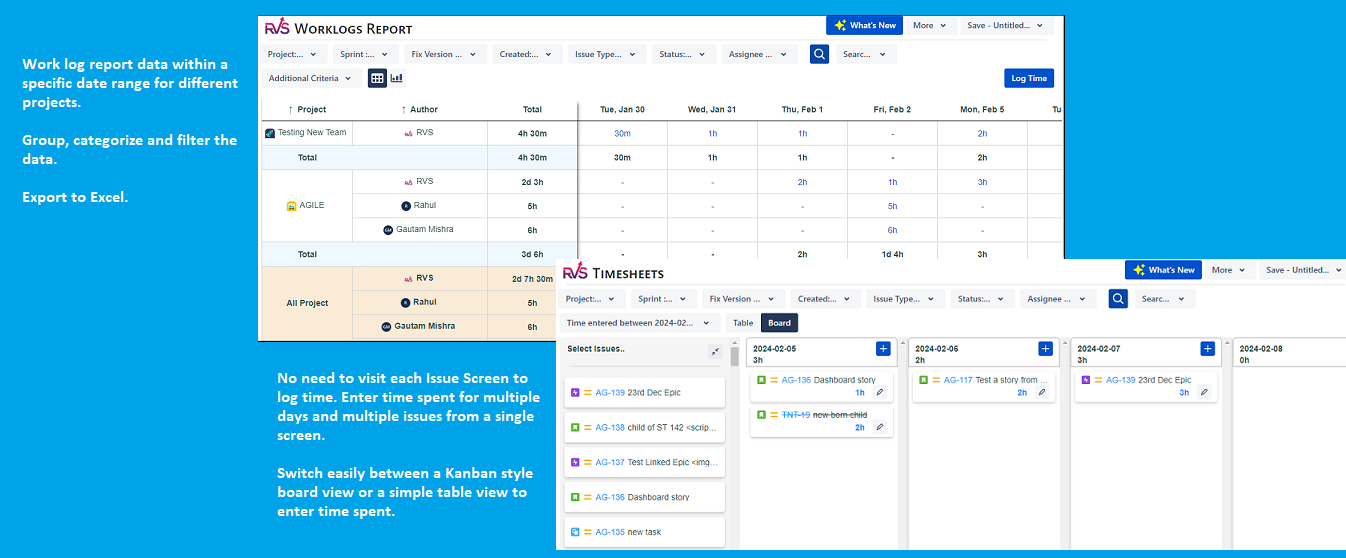
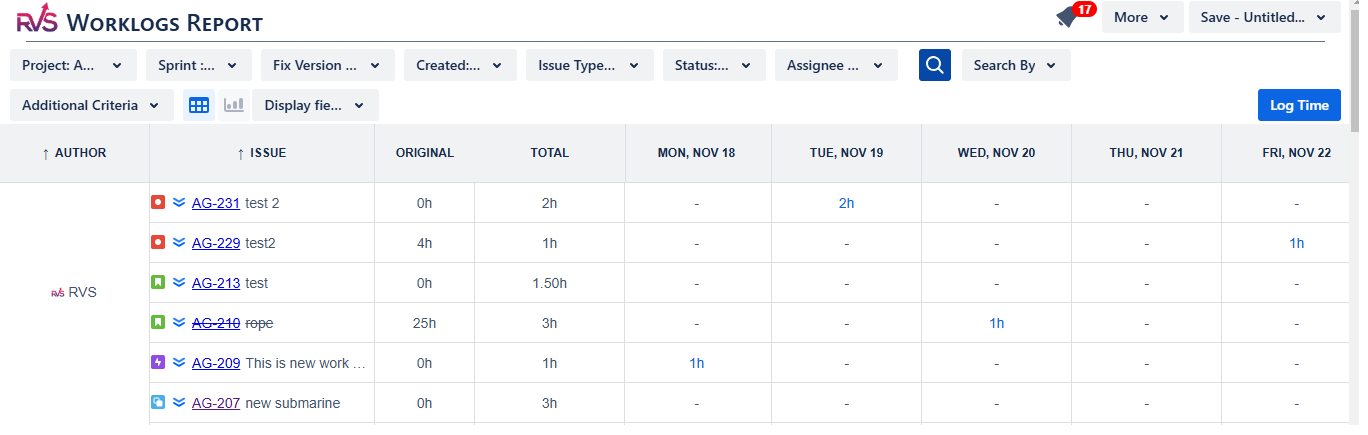
Clicking on “WL - Worklogs Reports” will navigate to the below screen. Select the Project/Issue created Dates/Issues Type/Status to view the report.
Additional Filter Criteria provides the options to select Worklogs Created Date range/Period Grouping/Category/Group By
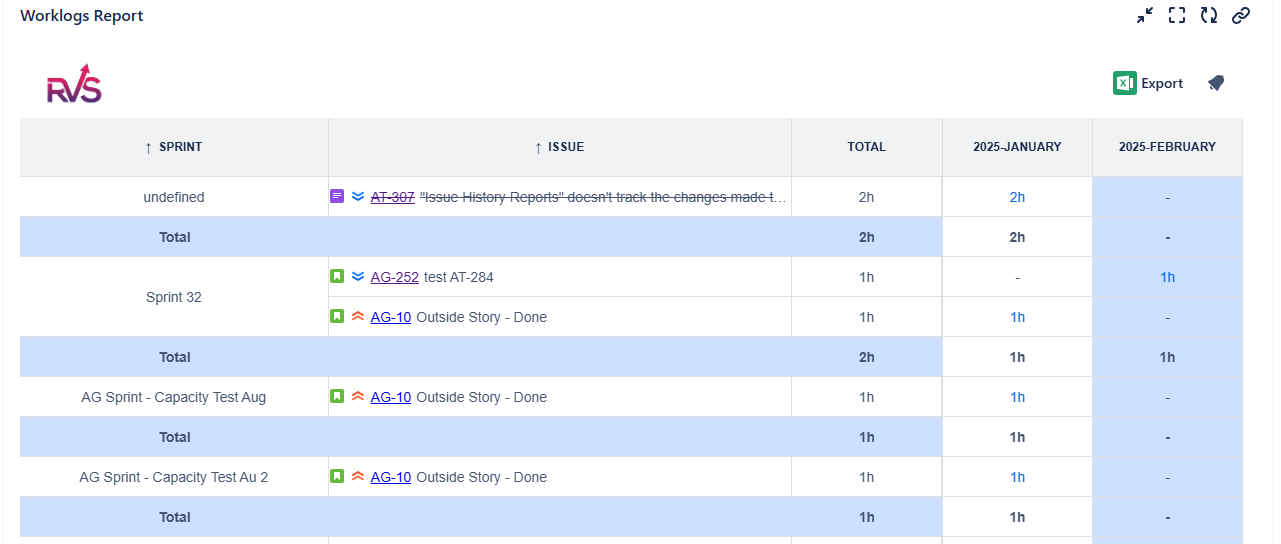
Export to Excel : The report provides the facility to Export to Excel. The Time values in report are exported by default in Hours only to Excel
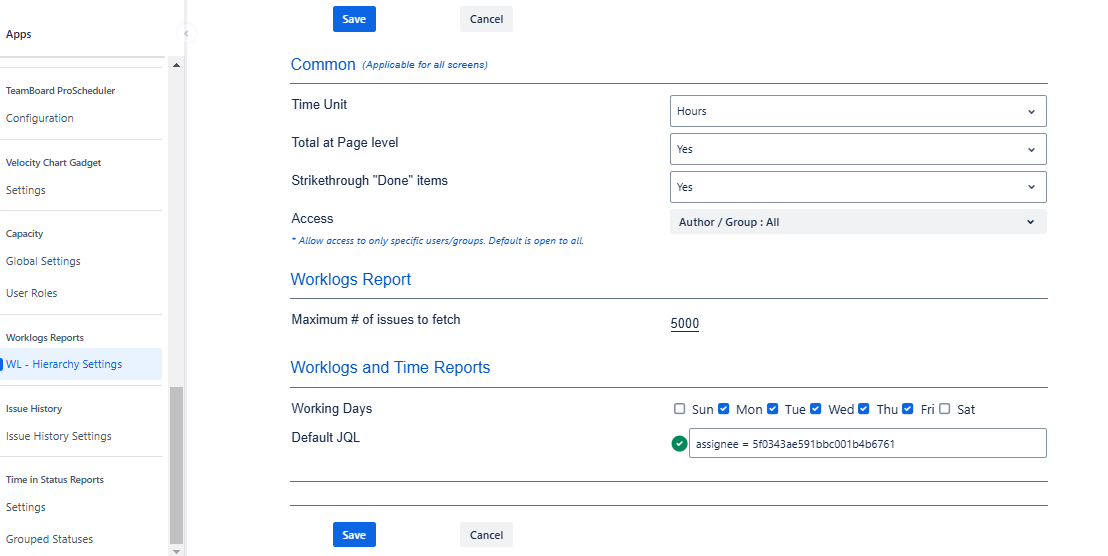
Settings : The time value in reports can be changed in Settings screen. They can be seen in Hours/Days & Jira default format
Timesheets :
By default the Timesheets reports open with list of issues where current users is the author or assignee and issue status is not done
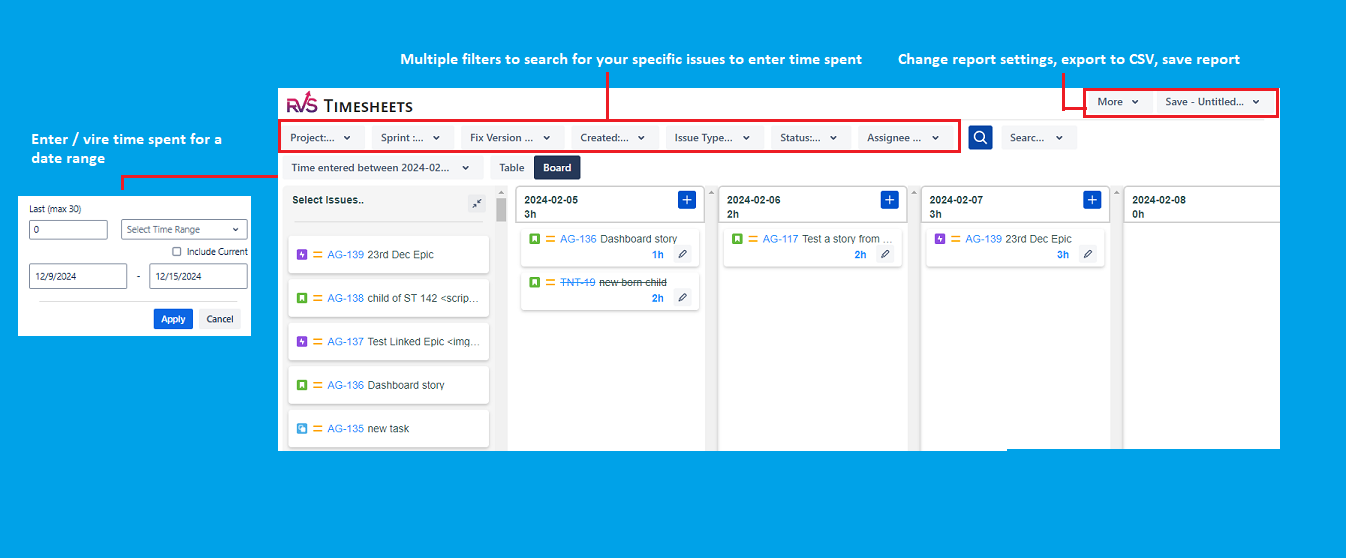
Clicking on “WL - Timesheets” will navigate to the below screen.
Additional Filter Criteria provides the options to select Worklogs Created Date range
Export to Excel : The report provides the facility to Export to Excel. The Time values in report are exported by default in Hours only to Excel
Settings : The time value in reports can be changed in Settings screen. They can be seen in Hours/Days & Jira default format
Install the Worklog Time Tracking in Jira & Timesheets by Votazz app and create easy and powerful Worklog reports
Dashboard Gadget
Worklogs Time Report gadget can be added on Dashboards by clicking on Dashboards → <Your Dashboard Name> → Add Gadget. In the “Add a Gadget PopUp”, search for Votazz and it will show all the available gadgets which can be added.

Worklogs Report Gadget Configuration
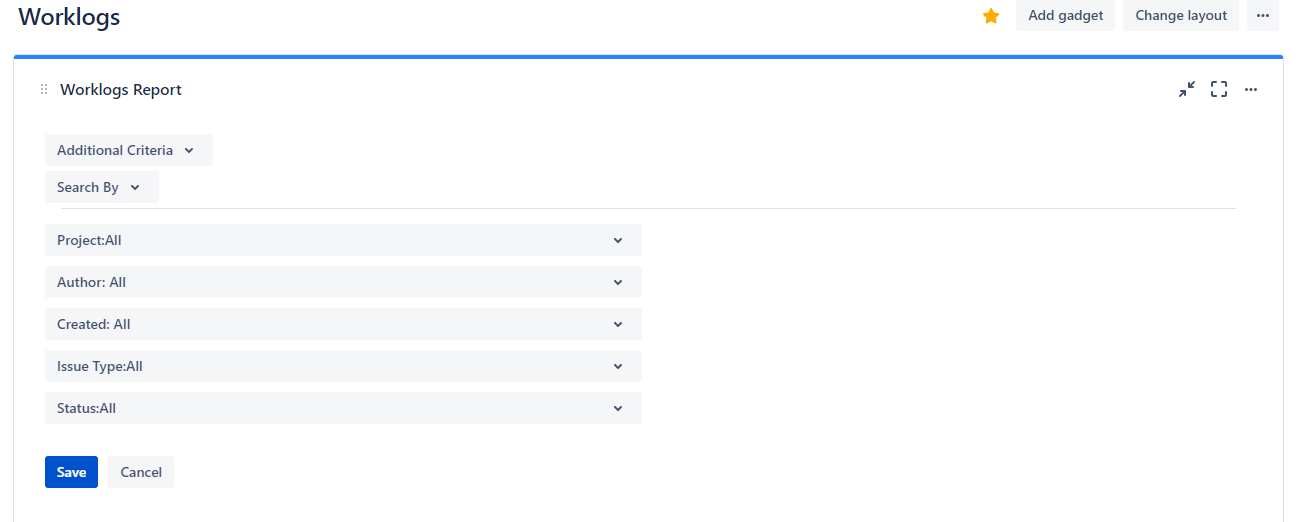
WorkLogs Report Gadget
Install the Worklog Time Tracking in Jira & Timesheets by Votazz app and create easy and powerful Worklog reports
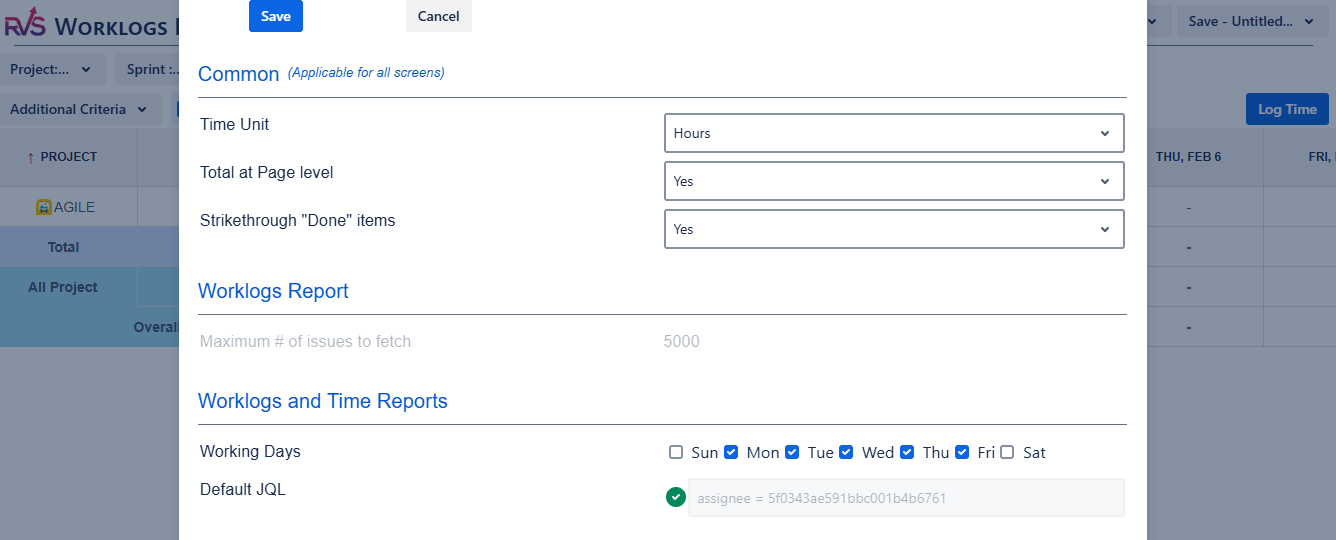
Worklogs Report Settings
Settings for the app can be configured at two places:
Global Settings : Navigate to Settings → Apps page. You will find Worklogs Reports → Settings link on the left navigation bar, as per screen shot below.
2. User Level Settings : User can override Global Settings, by changing the settings from any of the Agile Tools pages by clicking on the gear icon as below. The settings are per user and are cached locally on each user’s machine.
Install the Worklog Time Tracking in Jira & Timesheets by Votazz app and create easy and powerful Worklog reports
FAQs
1. What is the Worklogs Jira app?
The Worklogs Jira app helps teams track, manage, and analyze time logged on Jira issues. It provides insights into work hours, project efforts, and resource allocation.
2. Who can use the Worklogs app?
Any Jira user with the appropriate permissions can use Worklogs, but admins may need to configure settings for team-wide usage in the Global Settings as mentioned in the Worklogs Report Settings page.
3. Can I edit or delete logged work?
Yes, if you have the required permissions, you can edit or delete your worklogs from the app as mentioned in the link → How to edit time spent (worklogs)
4. Can I log time for other team members?
This depends on your Jira permissions. Admins can enable the ability to log time on behalf of other users.
5. How can I view my worklogs?
You can view your worklogs under WL - Timesheets menu.
6. Can I generate reports?
Yes, the app provides customizable reports based on date ranges, users, projects, and more.
7. Can I export worklogs?
Yes, worklogs can be exported in CSV format for further analysis.
8. Why can’t I log time on an issue?
Ensure the issue is not in a restricted status (e.g., Closed).
Check if your user role allows time logging.
Verify that time tracking is enabled for your Jira project.
Worklogs Attributes
Worklog Attributes are available with advanced license for the app. Below is the comparison between standard license and advanced license features.
Standard License | Advanced License |
|---|---|
|
|
|
|
| |
|
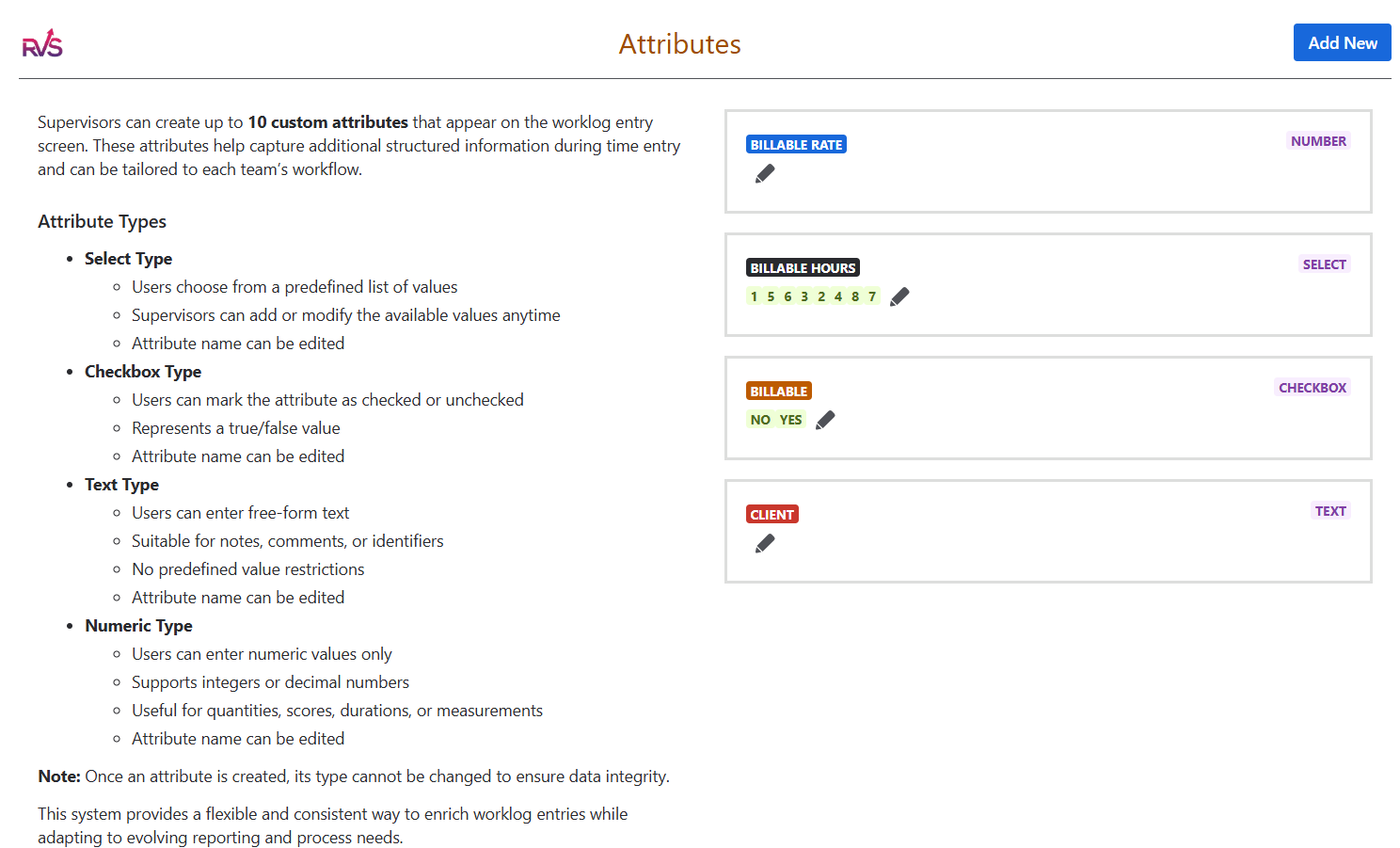
What are Worklog Attributes?
Worklog Attributes let you add extra details to your time entries in Jira.
Instead of just logging time spent, you can now capture additional context like:
Whether the work is billable
Which customer the work is for
What type of activity was performed
This helps your team track time more accurately and generate more meaningful reports.
Note: This feature is available only in the Advanced version of the app.
Why should you use it?
Without attributes, all worklogs look the same.
With attributes, you can:
Separate billable vs non-billable time
Track effort across customers or projects
Understand how time is spent on different activities
Improve reporting and decision-making
What does it look like?
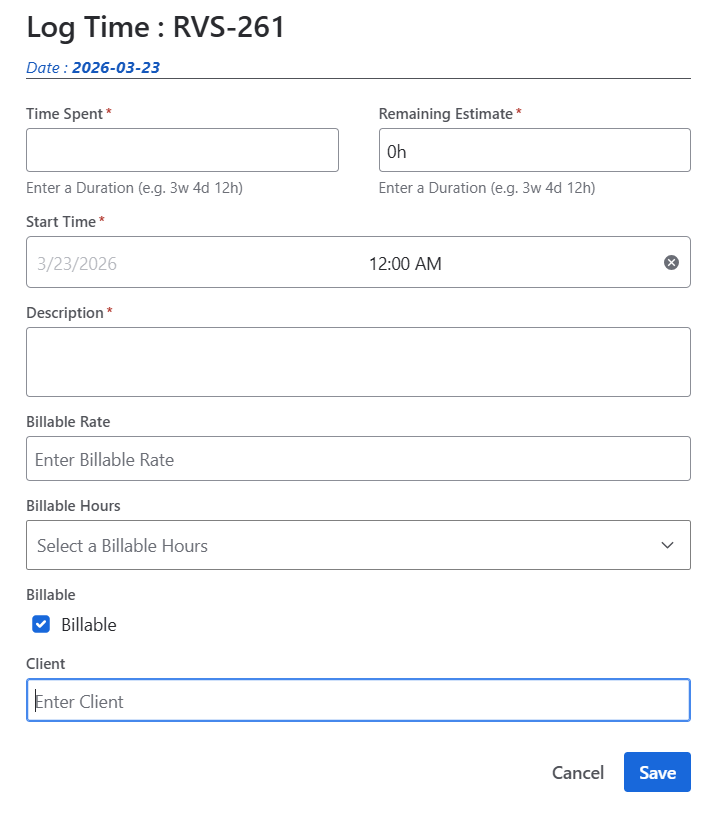
When logging time, you’ll see additional fields (attributes) alongside the usual worklog fields.
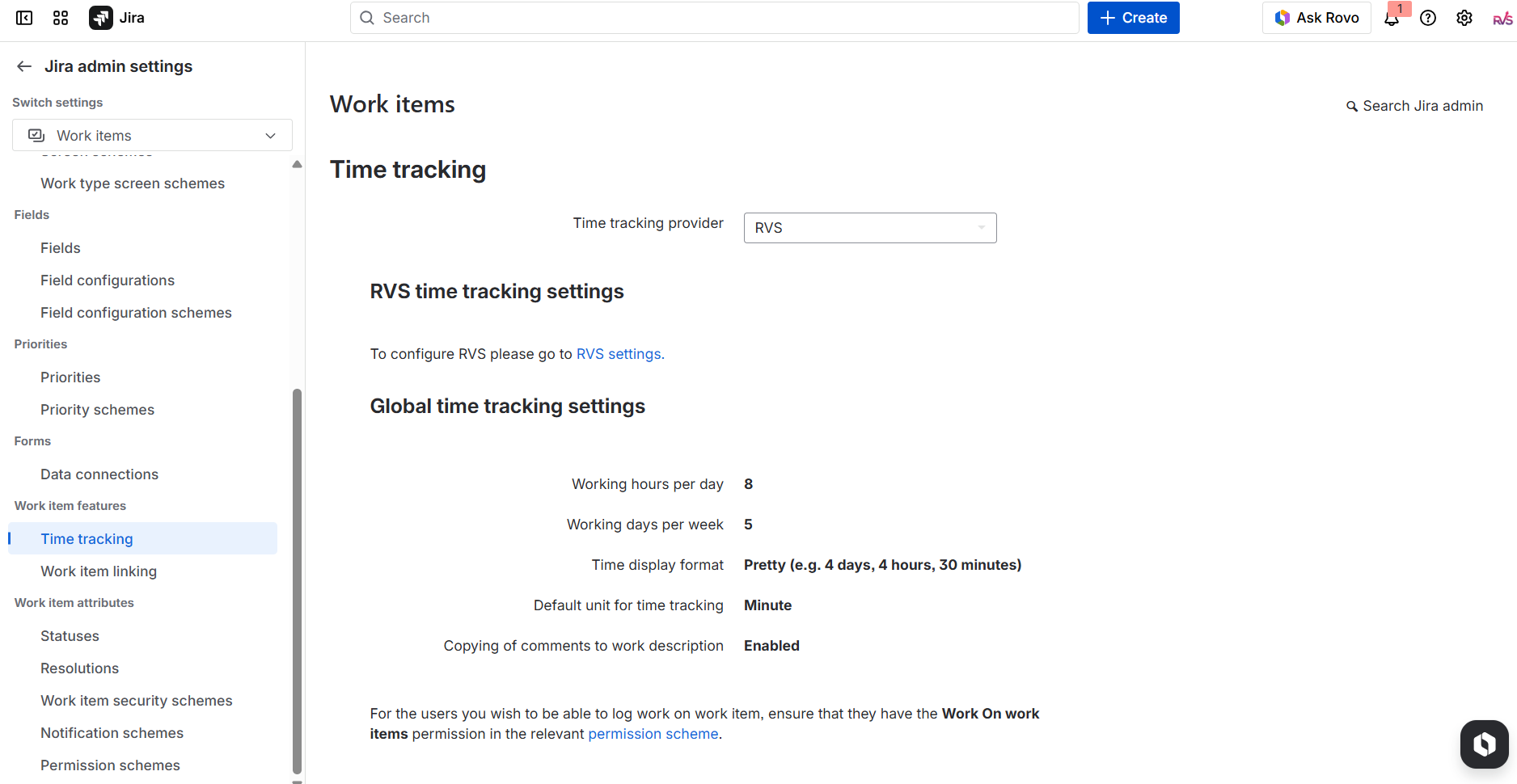
For enabling the Votazz Attributes, pls navigate to Jira Admin Time Tracking settings and change it to Votazz as shown below:
How to log time with attributes
Open an issue in Jira
Click Log Work
Enter time spent as usual
Fill in the attribute fields (if available)
Click Save
If an attribute is marked as required, you must fill it before saving.
Types of attributes you may see
Depending on how your admin configured them, attributes can appear as:
Dropdowns (e.g., Billable / Non-Billable)
Multi-select fields (choose multiple values)
Text fields (enter custom input)
Number fields (e.g., cost or units)
Common examples
Here are some typical attributes you might encounter:
Billable Status → Billable / Non-Billable
Customer Name → Client A, Client B
Activity Type → Development, Testing, Meeting
Cost Center → Marketing, Engineering
Tips for best usage
Select the correct values while logging time to ensure accurate reports
Avoid leaving fields blank if they are important for your team
Use consistent values (especially in text fields)
When unsure, follow your team’s time tracking guidelines
How this helps you
Using worklog attributes makes your work more visible and valuable:
Your effort can be properly accounted for
Reports become more accurate and useful
Managers can make better planning decisions
Help & Support
Please raise a support request here, or email us at support@votazz.co.
To help us respond quickly and accurately, include the app version, your Jira version, your browser, and the steps to reproduce the issue with examples or screenshots.