Threaded Comments Migration - Admin Guide
Threaded Comments Migration - Admin Guide
Migration of threaded comment structure from Jira Data Center to Jira Cloud.
This version is marker-free — do NOT add markers to your comments. The "Add Markers" option has been removed from the current migration script; if an older copy still shows it, skip that step. Markers are no longer used: the migration matches Data Center comments to Cloud comments via the JCMA id-mappings report, so comment bodies and dates are never modified.
Part 1: Data Center (Prepare Export)
Prerequisites
- Threaded Comments plugin (recent version) installed on Data Center
- Jira admin access on DC instance
Step 1: Export the comment hierarchy
Export the thread hierarchy in one of two ways.
Method A — REST endpoint (recommended, nothing to download). Call this on your DC instance (with Jira admin auth):
GET https://<your-dc>/rest/threaded-comments/1.0/migration/export-data?offset=0&limit=10000
The response is chunked: { offset, data, hasMore, totalCount }. Fetch successive pages (increase offset) until hasMore is false, and concatenate their data arrays into one file (comments_hierarchy_export.json). You can raise limit to reduce the number of pages. The Cloud tool accepts either a plain array or the raw { data: [...] } response.
Method B — migration script. Download and run the helper script, then choose 1) Export JSONs. (If you have an older copy of the script that still shows an "Add Markers" option, do not use it — it has been removed from the current version.) Use only the comment-hierarchy file it produces — ignore the script's issue-mapping JSON, because the marker-free flow gets its ID mappings from JCMA in Step 3.
unzip threaded-comments-migration.sh.zip
chmod +x threaded-comments-migration.sh
./threaded-comments-migration.sh
The comment hierarchy looks like this:
[
  {"issueId": 11688, "commentId": 326454, "parentCommentId": 326446},
  {"issueId": 11688, "commentId": 326456, "parentCommentId": 326447}
]
Step 2: Run JCMA Migration
Run the standard Jira Cloud Migration Assistant (JCMA) to migrate your Jira instance from DC to Cloud. No markers, no preparation — migrate normally.
Step 3: Get the JCMA id-mappings report (CSV)
After JCMA completes, download the JCMA id-mappings report from your DC instance (with Jira admin auth). It maps every Data Center entity ID to its new Cloud ID:
GET https://<your-dc>/rest/migration/latest/report/id-mappings?cloudSiteUrl=https://<your-site>.atlassian.net
Retry while it returns 202 (the report is still generating); a 200 returns the CSV. Save it as id-mappings.csv. These two files — the comment-hierarchy JSON and the id-mappings CSV — are uploaded to the Cloud tool in Part 2.
Part 2: Jira Cloud (Run Migration)
Prerequisites
- JCMA migration completed (all issues and comments are in Cloud)
- Threaded Comments Cloud app v6.1.0+ installed
- The two files from Part 1: the export JSON and
id-mappings.csv - Jira admin access on Cloud instance
How to Access the Migration Admin Page
- Open your Jira Cloud site (e.g.,
https://your-site.atlassian.net) - Click Settings (gear icon in the top right corner)
- Go to the Apps section in the left sidebar
- Click "Threaded Comments Admin"
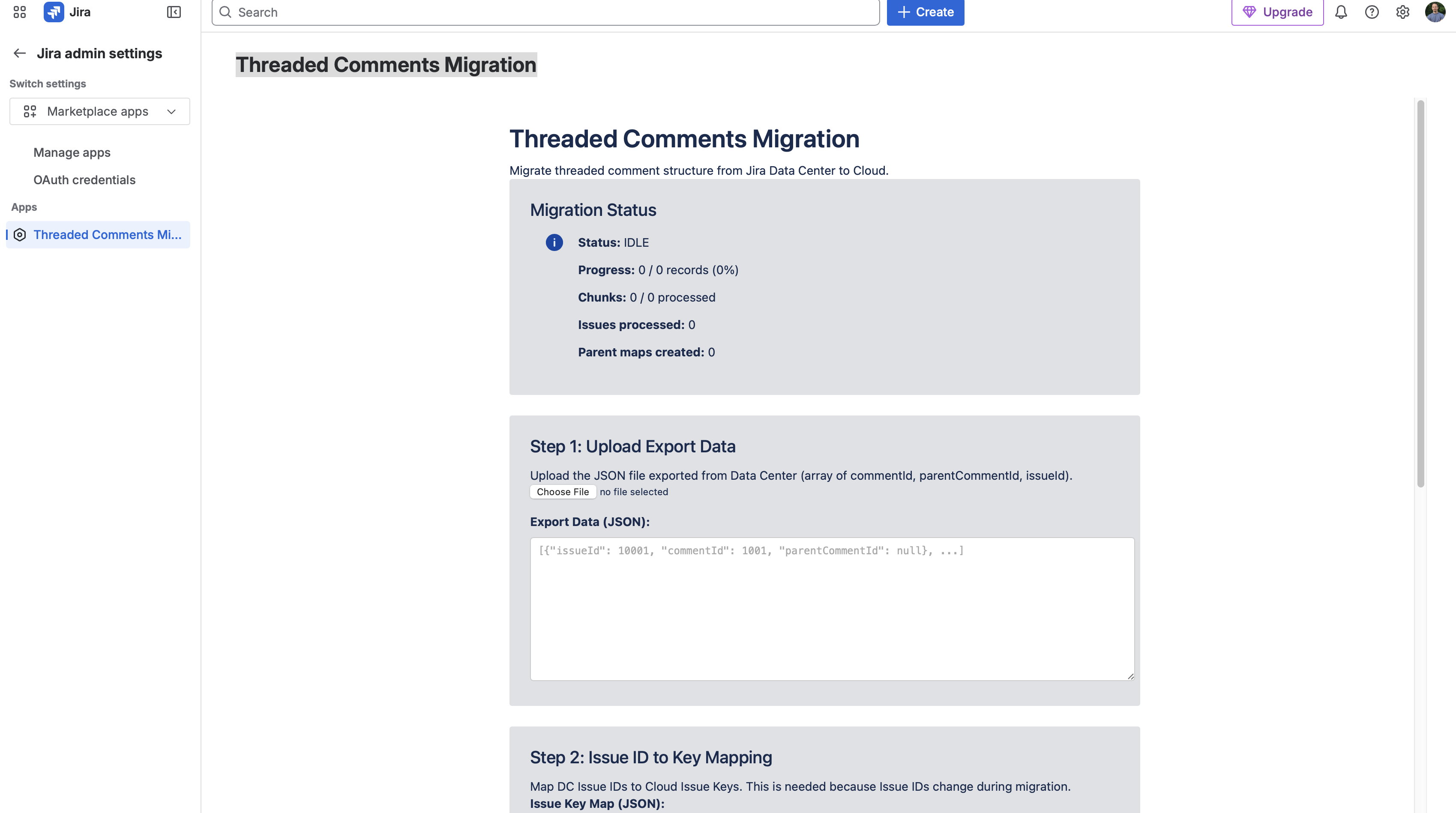
The admin page has two tabs:
- Backup & Restore -- backup and restore threaded comment data
- DC -> Cloud Migration -- migrate thread structure from Data Center
Select the "DC -> Cloud Migration" tab to proceed.
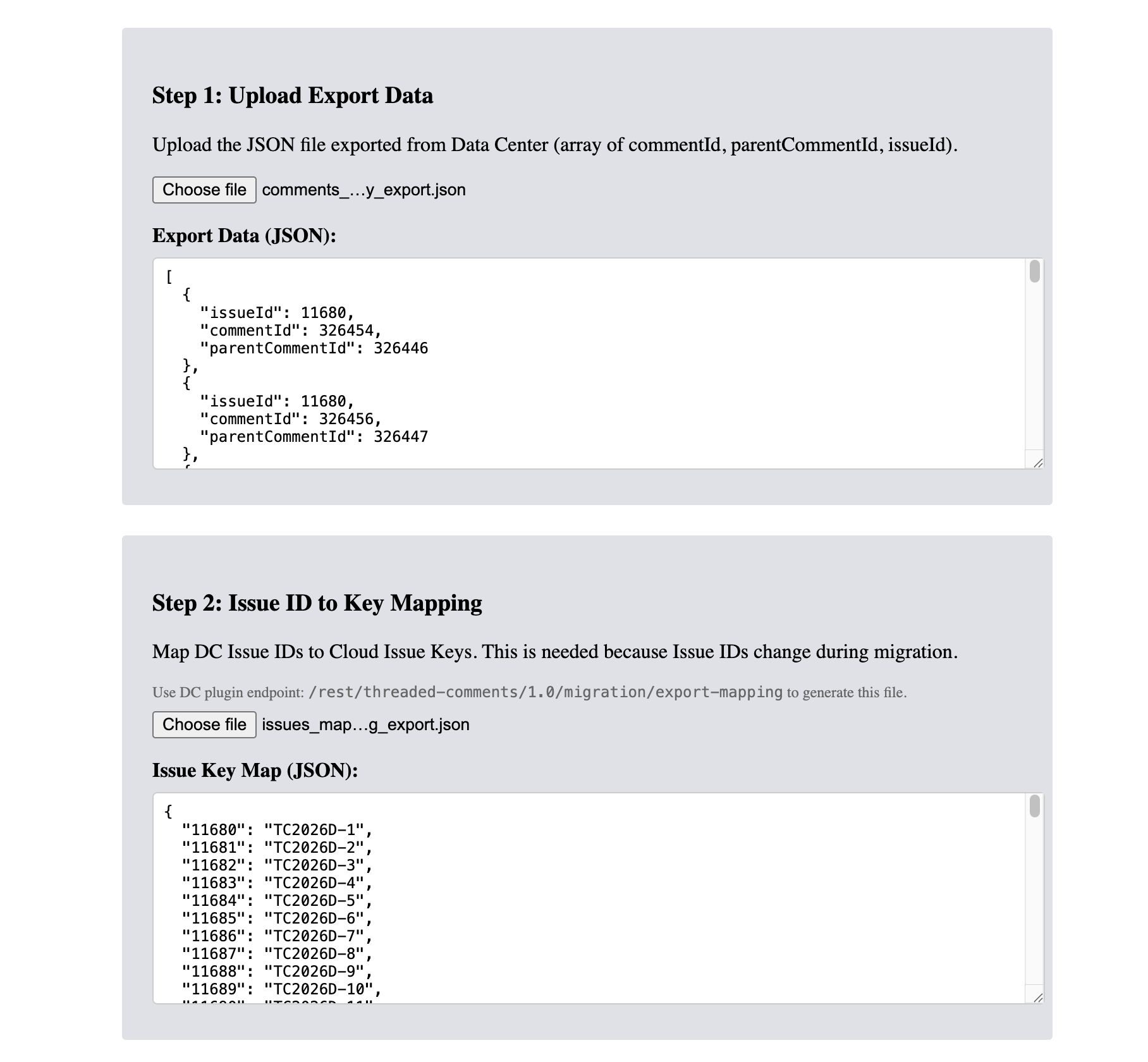
Step 1: Upload Export Data
Upload the comment-hierarchy JSON file (comments_hierarchy_export.json) from Part 1.
Click "Choose file" and select the file, or paste the JSON content into the text area.
Step 2: Upload the id-mappings CSV
Upload the id-mappings.csv file from Part 1 (Step 3).
The preview shows how many comment and issue mappings were found, and whether any referenced comments are missing a mapping (which would be reported as errors during processing).
Step 3: Run Migration
Phase 1: Upload Data
Click "Upload Data" to save both files to Forge Storage. For large datasets, the data is uploaded in chunks with progress indication.

Phase 2: Start Processing
After upload completes, click "Start Processing". The tool rebuilds the thread parent/child relationships by matching Data Center comment and issue IDs to their Cloud IDs using the id-mappings CSV, and stores them per issue. No Jira comments are read or modified — comment bodies and dates stay exactly as JCMA migrated them.
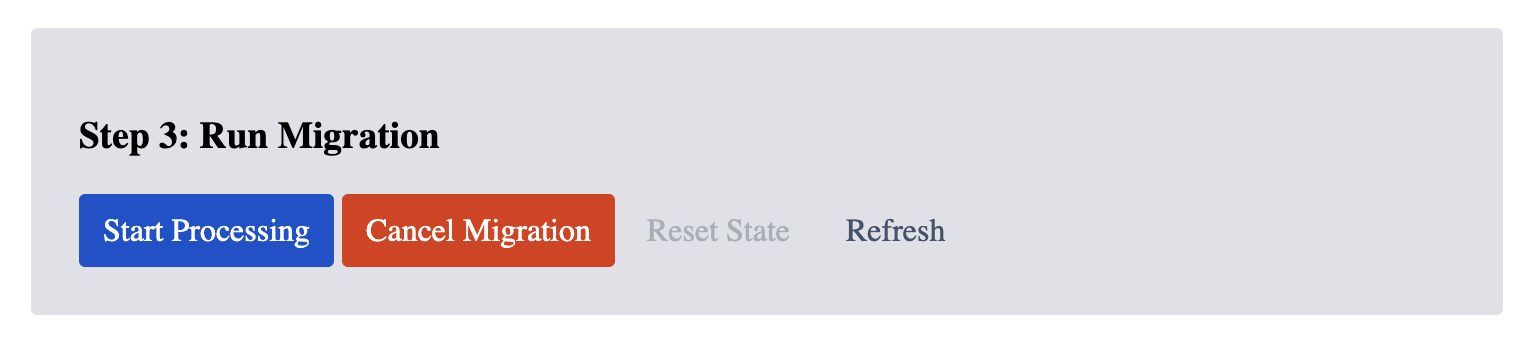
Important: Keep the browser tab open during processing. Progress updates in real time. For very large instances (hundreds of thousands of comments) processing can run for a while — up to a few hours — which is expected. If the tab is closed or the browser goes to sleep, return to this page and click "Continue Processing" to resume from where it left off.
No cleanup step. This mode never modifies comments, so there is nothing to clean up afterwards on Cloud or on Data Center.
Migration Status Fields
| Field | Description |
|---|---|
| Status | IDLE / IN_PROGRESS / COMPLETED / FAILED / CANCELLED |
| Progress | X / Y records (Z%) |
| Chunks | X / Y processed |
| Issues processed | Number of unique issues processed |
| Parent maps created | Number of thread relationships restored |
Button Reference
| Button | Description |
|---|---|
| Upload Data | Uploads the export JSON and id-mappings CSV to Cloud storage |
| Start Processing | Begins processing uploaded data, creating thread relationships |
| Continue Processing | Resumes paused or interrupted migration |
| Stop Processing | Pauses migration (can resume later) |
| Cancel Migration | Cancels migration (must Reset before starting a new one) |
| Reset State | Clears all migration data, allows starting fresh |
Preventing Interruptions
For large migrations, keep the browser tab active to prevent interruptions:
- Keep tab visible -- don't minimize or switch to other tabs for long periods
- Disable sleep mode -- prevent laptop/computer from going to sleep
- Disable screen lock -- turn off auto-lock during migration
- Use power adapter -- ensure laptop is plugged in (battery saver may throttle browser)
Browser-specific tips:
- Chrome/Edge:
chrome://flags/#calculate-native-win-occlusion-> Disabled - Firefox:
about:config->dom.min_background_timeout_value-> 1000 - Safari: No workaround, keep tab in foreground
If migration is interrupted, your progress is saved. Return to this page and click "Continue Processing" to resume.
Troubleshooting
App not visible in Apps menu
- Ensure you have Jira Admin permissions
- Try refreshing the page
- Check that the app is installed: Manage apps > find "Threaded Comments"
Processing stuck
- If stuck for more than 5 minutes, the system will auto-recover
- You can click "Stop Processing" and then "Continue Processing" to resume
- If that doesn't help, click "Cancel Migration" then "Reset State" to start fresh
Errors during processing
- Check the Errors section below the Migration Status
- Permanent errors (data issues): a comment or issue that has no entry in the id-mappings CSV -- these won't be fixed by retrying; check that the CSV is the complete JCMA report
- Retryable errors (transient): storage rate limits or timeouts -- these are retried automatically
Rate limiting
- The migration tool automatically handles storage rate limits during upload and processing
- If you see "rate limit" messages, the tool waits and retries automatically
- After 10 consecutive rate limit errors, processing stops -- wait a few minutes and click "Continue Processing"
Migration interrupted
- If you close the browser tab or your laptop goes to sleep, the migration pauses
- Return to the admin page and click "Continue Processing" to resume from where it left off
- Already migrated data is preserved
Need help? Contact the Votazz Support Team.